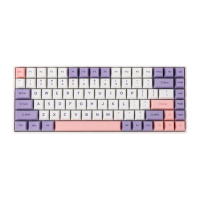
Epomaker SK61/GK61 Extended Manual Version 1.3
Layer 3: Onboard memory layer, The “R” key will light up when this mode is selected.
This layer will work without having to be connected wired, but you’re limited to what lighting you
saved onboard (similar to the “standard layer”).
Setting Up Keyboard/Bluetooth
Windows 10 Bluetooth
1. First, charge the keyboard via a USB port on your computer until it has decent charge.
2. Power on the keyboard using FN + Space. This will put your Epomaker SK61/GK61 in
Bluetooth mode.
3. Long Press Either FN + Z, FN + X, or FN + C for about three seconds. The key will start
to flash red and green. This means that the keyboard is in pairing mode.
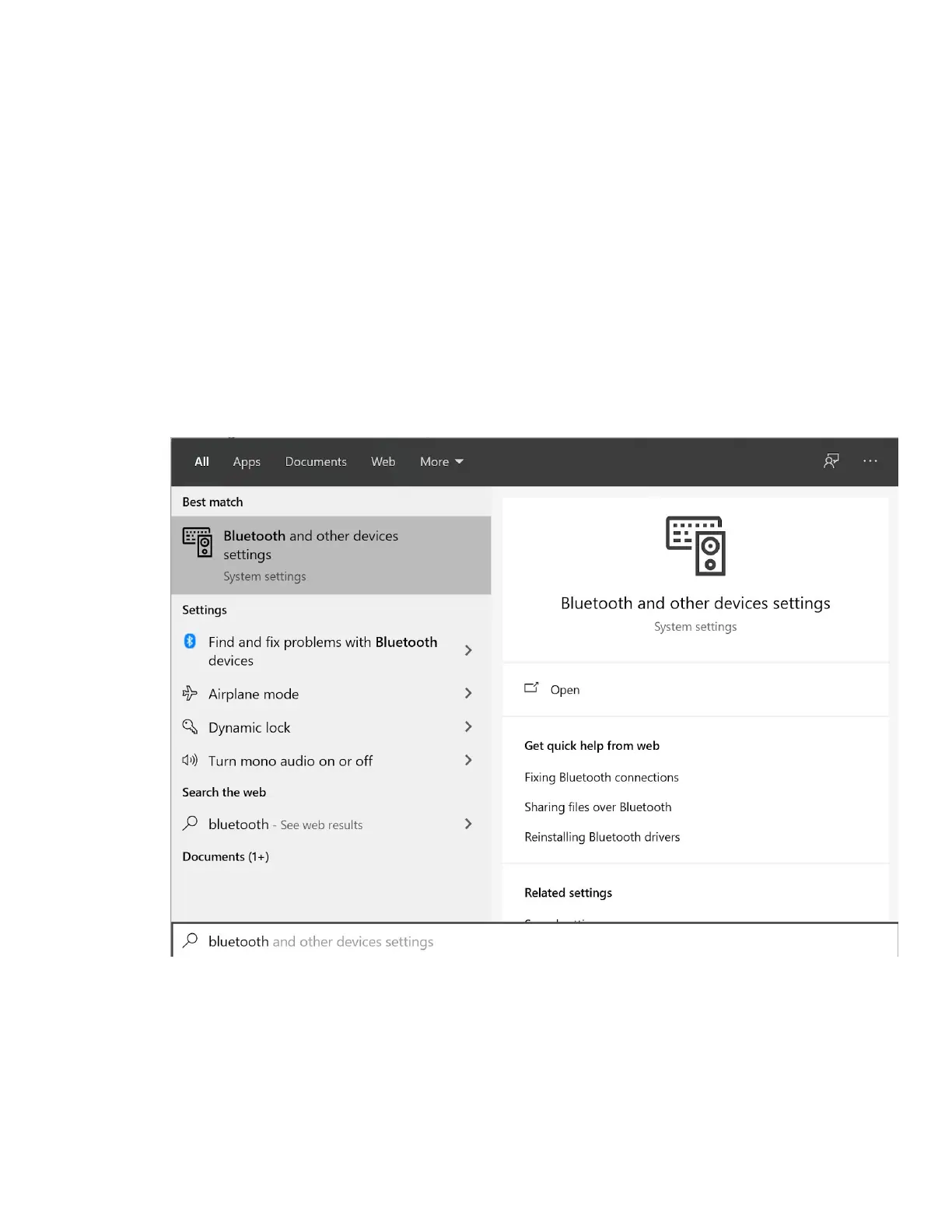
4. Press the windows key, and type “Bluetooth” into the search.
5. Select “Bluetooth and other device settings”
10



 To Next Page