31
Solomon
short.bk Rev. C
A5 size KAUD.FM
10/30/98 Pass 3
R
Proof Sign-off:
Y.Yano _______
N.Nomoto _______
K.Norum _______
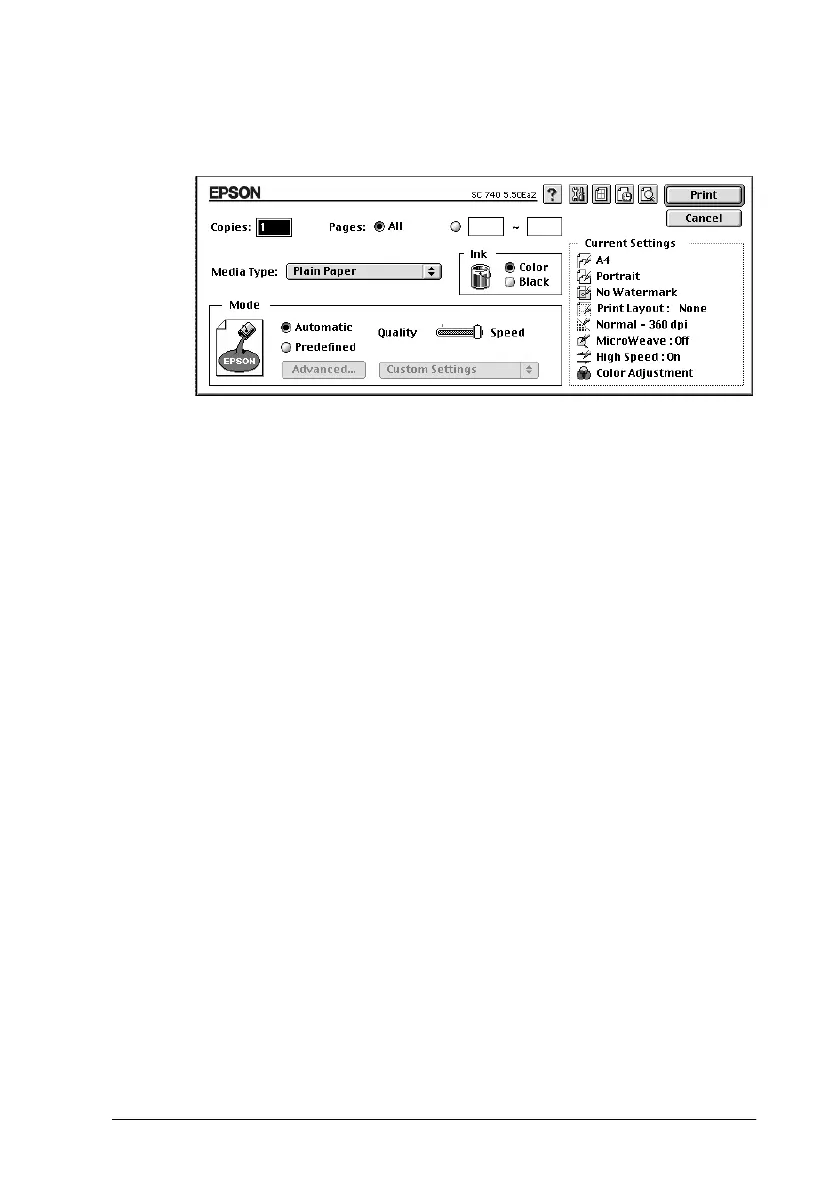
7. Choose
Print
from the File menu. This brings up the dialog
box shown below.
8. Select the media you loaded in the printer from the Media
Type list.
9. Select
Color
as the Ink option.
10. Make sure the Mode option is set to
Automatic
.
When
Automatic
is selected, the printer software optimizes
other settings according to the Media Type and Ink settings
you make.
11. Click
Print
to start printing.
Congratulations! Your EPSON printer is now fully setup and
ready to help you create wonderful printouts. For further
information about your printer, see the online Reference Guide.
For details about the printer software, see online help. To learn
more about color printing, see the online Color Guide.



 To Next Page