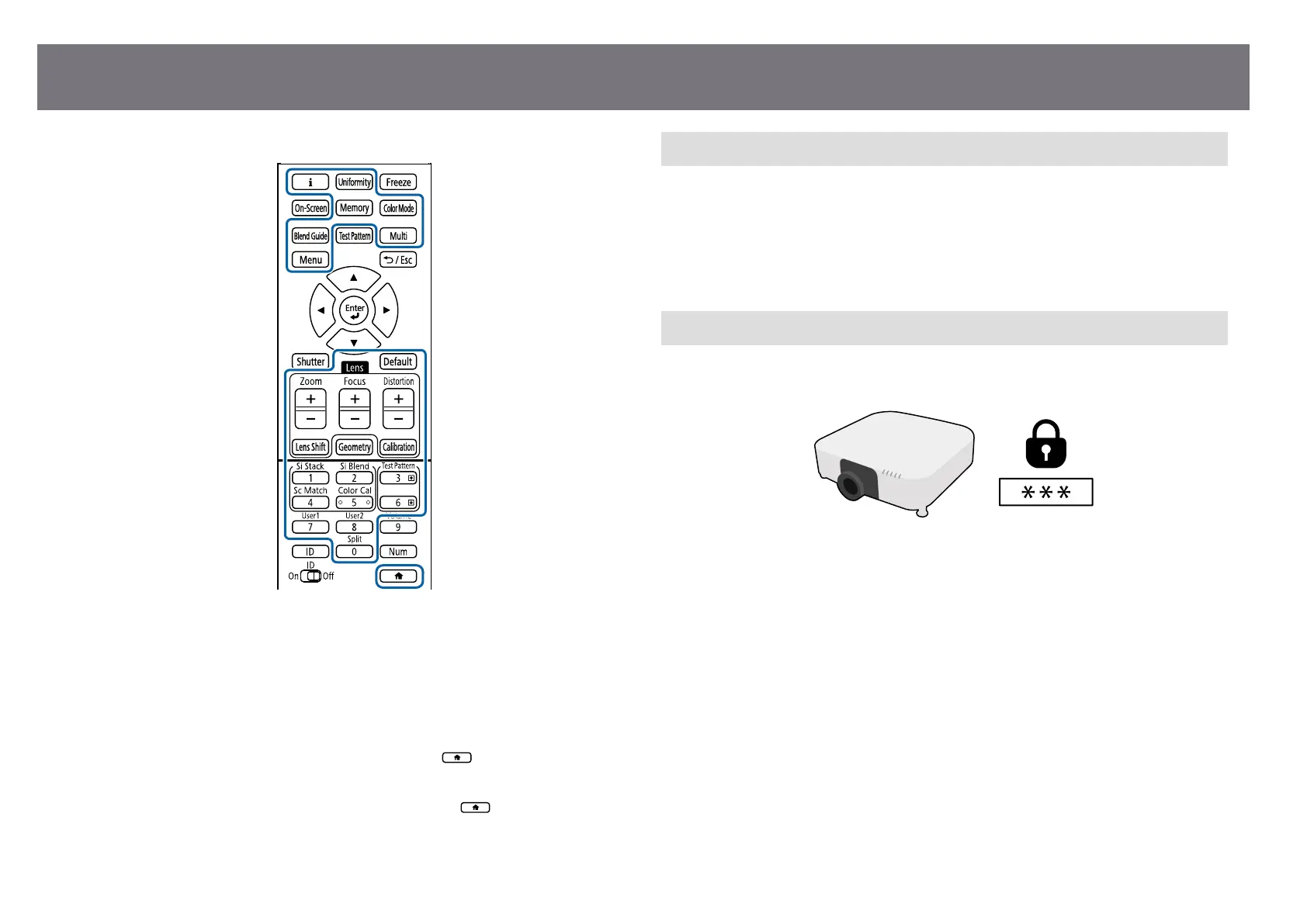
e remote control buttons lock feature locks the following buttons.
Execution Method
•
To lo
ck the control panel buttons, hold down the control panel lock button on
the control panel.
To unlock the control panel buttons, hold down the [Enter] button on the
control panel for approximately 7 seconds.
•
To lock the remote control buttons, hold down the
button on the remote
con
trol for approximately 5 seconds.
To unlock the remote control buttons, hold down the
button again for
app
roximately 5 seconds.
Lens Lock
Yo
u can disable [Lens Shi], [Zoom], [Focus], [Distortion], and [Calibration]
button operations on the remote control.
Execution Method
s Settings > Lock Setting > Lens Lock
Password Protection
Pas
sword security to prevent people who do not know the password from using
the projector, and prevent changes to the startup screen and other settings.
You can set up the following types of password security using one shared
pas
sword:
•
Power On Protection prevents anyone from using the projector without rst
entering a password. When plugging the power cord and turning on the
projector at rst time, you must enter the correct password. is also applies
to Direct Power On and Auto Power On.
•
User's Logo Protection prevents anyone from changing the custom screen
displayed when the projector turns on, when no signal is being input. e
custom screen discourages the by identifying the projector's owner.
•
Network Protection prevents anyone from changing the projector's Network
settings.
•
Schedule Protection prevents anyone from changing the projector's schedule
settings.
Using Basic Projector Features
71




 To Next Page