EasyManua.ls Logo

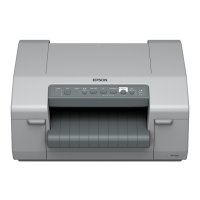
Epson GP-C830 - User Manual

Epson GP-C830
114 pages
Print Icon
To Next Page IconTo Next Page
Loading...
User’s Guide
BPS0139-02 EN

Table of Contents

Other manuals for Epson GP-C830

Questions and Answers

  • C
    courtneytaylorAug 19, 2025
    What to do if my Epson GP-C830 Printer paper is jammed?
    • A
      adam69Aug 19, 2025
      If your Epson printer's paper is jammed, turn off the printer and check for the jammed paper. Remove the jammed paper, and then turn the printer back on. If the problem continues, turn off the printer, wait several minutes, and then turn it on again.
  • M
    maxphillipsAug 21, 2025
    What to do if a fatal error has occurred in Epson GP-C830 Printer?
    • M
      Mark MillerAug 21, 2025
      Turn off the Epson printer and check for a paper jam. If there is a paper jam, remove the jammed paper, and then turn on the printer. If the scale is dirty, clean it with a soft cloth. See “Cleaning the Printer” on page 103. If the problem persists, turn off the printer, wait several minutes, and then turn it on again.
  • C
    Cassandra VillarrealAug 23, 2025
    How to set up printer port for Epson GP-C830 Printer?
    • T
      Tina AlexanderAug 25, 2025
      For Windows 8 or Server 2012: Click Desktop on the Start screen, move the cursor to the top-right corner of the screen, click Settings, and then click Control Panel. Next, click View devices and printers from the Hardware and Sound category. For Windows 7 or Server 2008 R2: Click Start, and then click Devices and Printers. For Windows Vista, XP, Server 2008, or Server 2003: Click Start, click Control Panel, and then click Printers and Faxes. When the icon of the printer you are using appears, right-click it and select Printer properties (Windows 8, 7, Server 2012, or Server 2008 R2) or Properties (Windows Vista, XP, Server 2008, or Server 2003). Then, click the Ports or Details tab and select the appropriate port.
  • C
    Carly BellAug 26, 2025
    What to do if Epson GP-C830 outlet is not operating?
    • M
      Michael KimAug 26, 2025
      If the electrical outlet is controlled by an outside switch or automatic timer, use a different outlet. Plug another electrical device, such as a lamp, into the outlet to determine whether the outlet is operating properly.
  • H
    Holly SmithAug 28, 2025
    What to do if no paper is attached to the tractor unit of Epson Printer?
    • V
      vanessa82Aug 28, 2025
      Attach the paper to the tractor, and then press the Load/Eject button.
  • R
    Robert TorresAug 30, 2025
    What to do if paper is not ejected completely from Epson GP-C830?
    • T
      todd84Aug 30, 2025
      If the paper is advanced too far and ejection failed, press the Load/ Eject button again to feed the paper backward. However, to prevent a paper jam, do not feed the paper backward 558.8 mm (22 inches) or more. If the length of the paper that you want to eject is longer than about 550 mm (22 inches), tear off the paper, and then press the Load/ Eject button.
  • T
    Tyler DavisSep 1, 2025
    What to do if a product maintenance error has occurred in Epson Printer?
    • M
      Maria HayesSep 2, 2025
      Contact a qualified service person.
  • A
    Amy MccarthySep 4, 2025
    How to adjust top margin in Epson GP-C830 Printer?
    • J
      Judy LeeSep 4, 2025
      Check and adjust the margin or top-of-form position settings in your application. For more information, see “Printable area” on page 92. You can also adjust the top-of-form position using the Micro Adjust function. However, settings made in Windows applications override settings made in Micro Adjust mode. For more information, see “Adjusting the top-of-form position” on page 24.
  • A
    Allen KrauseSep 6, 2025
    How to adjust left or right margin settings in Epson GP-C830?
    • J
      Jeremy RosarioSep 6, 2025
      Check and adjust the margin settings in your application. For more information, see “Printable area” on page 92. If the settings cannot be changed in your application, adjust the print position horizontally in the printer driver. For more information, see “Adjusting the Print Position” on page 36.
  • A
    anthonywilliamSep 9, 2025
    Why paper supply is obstructed in Epson GP-C830?
    • G
      garrisonwilliamSep 9, 2025
      Make sure the paper supply is not obstructed by a cable or some other object.

Summary

Getting to Know Your Printer

Printer Features Overview

Details on the printer's capabilities including paper handling and ink.

Safety Instructions

General Safety Warnings and Precautions

Important safety guidelines, warnings, and cautionary statements for printer operation.

Setting Up the Printer Safely

Guidelines for safe placement, ventilation, and connection of the printer.

Paper Handling

Paper Types and Conditions

Specifications and conditions for acceptable paper types for printing.

Loading and Printing Continuous Paper

Instructions for loading and printing with continuous paper using the tractor feeder.

Loading Special Paper and Labels

Procedures for loading specialized paper types, including continuous labels.

Adjusting Paper Feed Positions

Using Micro Adjust for tear-off and top-of-form position adjustments.

Printer Software

About Printer Software

Introduction to the printer driver and EPSON Status Monitor 3 utility.

Using the Printer Driver

How to access and utilize the printer driver for controlling the printer.

Accessing Printer Driver Settings

Methods to access printer driver settings via applications or the Start menu.

Changing Printer Driver Settings

Guide to modifying various printer driver configurations for optimal output.

EPSON Status Monitor 3 Usage

Monitoring printer status, errors, and receiving troubleshooting tips.

Configuring Printer Features

Settings for Auto Tear-Off function and printer buzzer notifications.

Printer Software Utilities

Information on USB Replacement Service, BI Parallel Port Driver, and EpsonNet Config.

Setting Up Your Printer on a Network

EPSON Printer Setting Tool

Tool to change default printer settings via the software CD-ROM.

Sharing the Printer

Instructions on how to share the printer on a standard Windows network.

Setting Up the Printer Server

Configuration steps for the computer acting as the printer server.

Configuring Client Computers

Installing printer drivers on client computers for network access.

Control Panel

Using the Control Panel

Overview of controlling printer operations using the control panel buttons.

Control Panel Buttons and Lights

Description of control panel buttons, lights, and their functions.

Troubleshooting

Using Error Indicators

Diagnosing printer problems based on control panel lights and beep patterns.

Common Problems and Solutions

General guide to resolving common printer issues like power, printing, and quality.

Paper Handling and Feeding Problems

Resolving issues with paper loading, feeding, jams, and tear-off alignment.

Network and USB Connection Issues

Troubleshooting communication errors on a network and USB connection problems.

Clearing Paper Jams

Step-by-step guide to safely remove jammed paper from the printer.

Where To Get Help

Technical Support and Contacting Epson

Information on accessing Epson's online support and contacting customer service.

Regional Support Information

Contact details and support resources for various geographic regions.

Consumables

Replacing Ink Cartridges

Procedures and guidelines for replacing ink cartridges.

Checking Ink Cartridge Status

How to monitor the remaining ink levels using software utilities.

Precautions for Ink Cartridge Replacement

Important safety and handling precautions before replacing ink cartridges.

Product Information

Printer Parts and Specifications Overview

Identification of printer parts and general overview of technical specifications.

Mechanical, Electrical, and Environmental Specs

Detailed specifications for mechanical, electrical, and environmental conditions.

Paper and Label Specifications

Details on paper types, sizes, thickness, and label specifications.

Print Head Maintenance Procedures

Steps for checking, cleaning, and aligning the print head.

Printer Cleaning and Transport

Procedures for cleaning the printer and safely transporting it.

Copyright and Trademarks

Open Source Software License Information

Details regarding the open source software licenses used in the printer.

Operating System Versions

Supported Windows Versions

List and explanation of supported Windows operating system versions.

Epson GP-C830 Specifications

General IconGeneral
BrandEpson
ModelGP-C830
CategoryPrinter
LanguageEnglish

Related product manuals