EasyManua.ls Logo

Epson SC-S80650R - User Manual

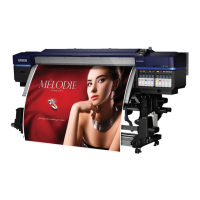
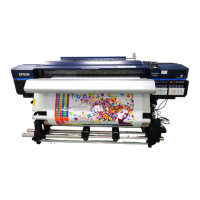
Epson SC-S80650R
40 pages
Print Icon
To Next Page IconTo Next Page
Loading...
大判インクジェットプリンター
セットアップガイド
JA
Setup Guide
EN
安裝說明
TC
JA
組み立て
14
EN
Assembly
TC
組裝
JA
初回設定
27
EN
Initial Setup
TC
初始化設定
JA
接続とインストール
31
EN
Installing the Software
TC
安裝軟體
JA
本機の使い方
35
EN
Using the Printer
TC
使用印表機

Questions and Answers

  • M
    Maria ClarkAug 19, 2025
    How to fix Epson printer that does not turn on?
    • T
      Tara WrightAug 19, 2025
      If your Epson printer does not turn on, ensure the power cable is securely plugged into the printer. Also, check if your outlet works by connecting another electric product's power cable to it.
  • R
    Roy ShafferAug 21, 2025
    What to do if I cannot print under the network environment on Epson SC-S80650R?
    • Q
      qgonzalezAug 21, 2025
      If you can't print under the network environment, connect the Epson printer directly to the computer using a USB cable, and then try to print. If you can print via USB, there are some problems on the network environment.
  • M
    Mark BowenAug 26, 2025
    What to do if my Epson printer sounds like it is printing, but nothing prints?
    • L
      Lisa CampbellAug 26, 2025
      If your Epson printer sounds like it's printing but nothing comes out, first ensure the interface cable is securely plugged into both the computer and the printer. Also, verify that the cable specifications match those required by both devices. Try printing a test pattern. Plug the USB cable directly into your computer's USB port, and make sure the USB hub is correctly recognized by the computer.
  • P
    Patricia GomezAug 28, 2025
    Why is the print quality of my Epson printer poor?
    • D
      Dominique JamesAug 28, 2025
      If the print quality from your Epson printer is poor, uneven, too light or dark, grainy, or the tone differs, try replacing the old ink cartridge with a new one. You can also try printing a test pattern. If the print results are blurred or smudged or the ink clots, raise the temperature. Finally, confirm that the media settings in the software RIP or on the printer match the media you are using.
  • M
    marklloydAug 30, 2025
    How to fix Epson SC-S80650R when test pattern does not print correctly?
    • N
      Nathan MahoneyAug 30, 2025
      If the test pattern on your Epson printer does not print correctly, select Media Adjust - Head Alignment in the media settings to adjust a print head misalignment that occurs during printing. You can also print a test pattern again after performing head cleaning. Select Media Adjust - Feed Adjustment in the media settings to make adjustment based on the target media. Also, perform steps to take when the printer has not been used for a long time.
  • J
    jacobmillerSep 1, 2025
    How to fix Epson SC-S80650R with misaligned print head?
    • C
      Clayton PetersSep 1, 2025
      If the print head on your Epson printer is misaligned, select Media Adjust - Head Alignment in the media settings to adjust a print head misalignment that occurs during printing.
  • T
    Todd WintersSep 3, 2025
    What to do if my Epson SC-S80650R Printer is not communicating with the computer?
    • T
      tiffany76Sep 3, 2025
      If your Epson printer isn't communicating with your computer, consider the following: * Consult your network administrator for the correct network settings. * Connect the printer directly to the computer using a USB cable and attempt to print. If printing works via USB, the issue likely lies within the network environment. In that case, consult your system administrator or refer to the network system manual.
  • D
    dillonvalerieSep 5, 2025
    Why I cannot print under the network environment with my Epson SC-S80650R Printer?
    • M
      Mrs. Lauren ReyesSep 5, 2025
      If you're unable to print within a network environment, here are some steps to consider: * Consult your network administrator to verify the network settings. * Try connecting the printer directly to the computer using a USB cable and attempt to print. If printing is successful via USB, it indicates a problem within the network environment. Consult your system administrator or refer to the manual for your network system.
  • R
    Roberto RussellSep 7, 2025
    What to do if the scheduled print end time does not match on Epson Printer (Windows)?
    • S
      Shirley DavisSep 7, 2025
      If the scheduled print end time doesn't match in Windows, set the spool method to [Print directly to the printer]. To do this, open the Start menu, go to [Devices and Printers], right-click the corresponding Epson printer, select [Printer properties], and in the [Advanced] tab, choose [Print directly to the printer].
  • S
    Shannon PayneSep 9, 2025
    How to fix prominent seams in tiled printing on Epson SC-S80650R Printer?
    • L
      Linda JohnsonSep 9, 2025
      If you observe prominent seams between pages during tiled printing, split the image data into multiple pages. Create data that is vertically flipped, alternating by page, and then proceed with printing.

Epson SC-S80650R Specifications

General IconGeneral
TypeLarge Format Printer
Maximum Print Width64 inches
Print ResolutionUp to 1440 x 1440 dpi
Operating SystemsWindows, macOS
Print TechnologyInkjet
Ink ColorsCyan, Magenta, Yellow, Black, Light Cyan, Light Magenta, White
Media HandlingRoll media
ConnectivityUSB, Ethernet
Media ThicknessUp to 1.5 mm

Related product manuals