G
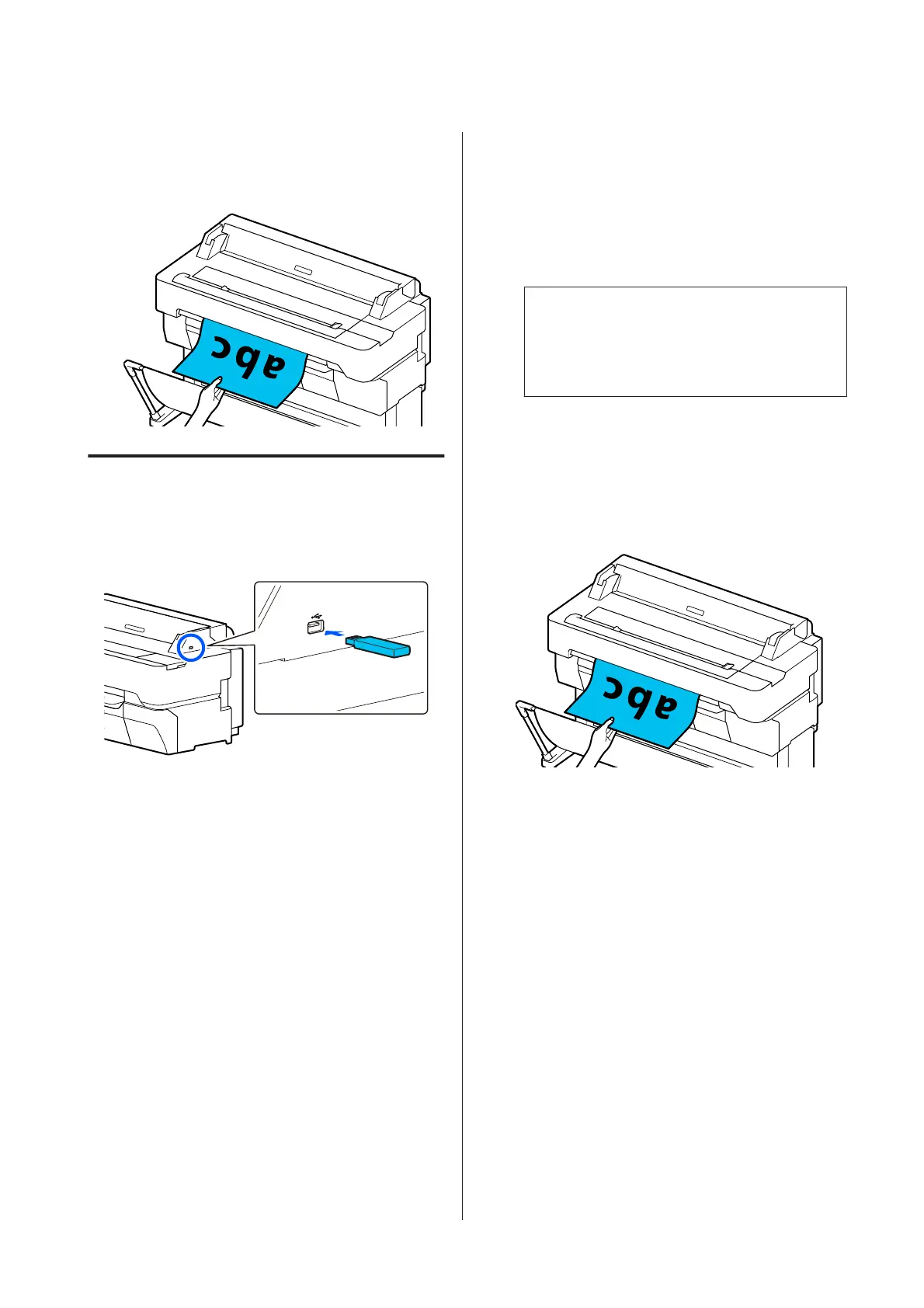
Remove the original when scanning is complete.
While holding the original, press the OK button
on the screen, and then remove the original.
Scanning and Saving an Image to
a Memory Device
A
Connect a USB flash memory to the printer.
B
Load the original.
U “Placing Documents in the Scanner” on
page 103
U “How to Load Documents” on page 105
C
Touch Scan on the Home screen.
D
Touch Memory Device.
E
In Basic Settings, select settings, such as Color
Mode or File Format.
U “Scan menu (SC-T5400M Series Only)” on
page 174
If you are setting the scanning density, do the
setting from Advanced.
U “Copy menu (SC-T5400M Series Only) ” on
page 170
If you are using the optional carrier sheet, you
must do the following settings.
❏ Specify the Scan Size from a standard size.
❏ Set Top Offset to 19 mm.
Note:
You can register and save frequently used settings
as presets. See the following for more details.
U “Using your Presets” on page 17
F
Press the Save button to start scanning.
G
Remove the original when scanning is complete.
While holding the original, press the OK button
on the screen, and then remove the original.
SC-T5400 Series/SC-T5400M Series/SC-T3400 Series/SC-T3400N Series User's Guide
Scanning (SC-T5400M Series Only)
110


 To Next Page
 Loading...