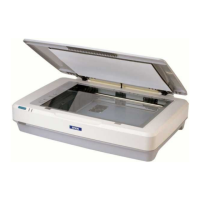
The provided manual describes the usage and troubleshooting of an Epson A3 scanner.
Function Description:
The Epson A3 scanner is designed for scanning both images and documents. It offers two primary scanning modes: scanning images and documents to various image formats (like JPEG) and scanning directly to PDF format. The scanner is capable of handling A3-sized documents, which is a key feature for users requiring larger scan areas. The software interface, "Epson Scan," provides a "Professional Mode" that allows for detailed control over scanning settings, making it suitable for users who need to adjust parameters like document type, source, exposure, image type, resolution, and color adjustments.
Important Technical Specifications (inferred from the manual):
- Scanner Type: Flatbed scanner (implied by the image and "Document Table" as a source option).
- Document Size: A3 (297 x 420 mm) is explicitly mentioned as a paper size option when scanning to PDF, indicating its capability to handle large documents.
- Resolution: The "Professional Mode" interface shows a resolution setting, with "300 dpi" as a visible option, suggesting adjustable scanning resolution.
- Image Type: Supports 24-bit Color, as seen in the "Professional Mode" settings.
- Document Source: "Document Table" is an option, confirming its flatbed design.
- Output Formats:
- Image: JPEG (.jpg) is recommended and shown as a default option, with compression level and encoding settings available.
- Document: PDF (*.pdf) is a direct scanning option, with settings for paper size (A4, A3), orientation (Portrait, Landscape), margins, and compression level (Standard Quality).
- Connectivity: Implied to connect to a computer, with the ability to save scanned files to local drives or USB devices.
Usage Features:
- Epson Scan Software: The primary interface for operating the scanner, accessible via a desktop icon.
- Professional Mode: Offers comprehensive control over scanning parameters:
- Document Type: Reflective (for opaque documents).
- Document Source: Document Table.
- Auto Exposure Type: Photo.
- Image Adjustments: Includes Unsharp Mask, Descreening, Color Restoration, and Backlight Correction, allowing for image quality enhancement.
- File Save Settings:
- Location Selection: Users can choose to save files to "My Documents," "My Pictures," or other specified "Scans" folders, with an option to browse for other locations, including USB devices.
- File Naming: Allows for a prefix and automatic 3-digit numbering for scanned files.
- Overwrite Protection: An option to prevent overwriting existing files with the same name.
- Post-Scan Actions: Options to show the dialog box before the next scan and open the image folder after scanning.
- Direct PDF Scanning: A dedicated feature for creating PDF documents, with options to set paper size (A4, A3), orientation (Portrait, Landscape), and margins.
- Multi-Page Scanning: When scanning to PDF, users have the option to "Add page" to create multi-page documents, "Edit page" for post-scan adjustments, or "Save File" to finalize.
- Editing Scanned Pages: In the edit mode, users can:
- Rotate Pages: Highlight a page and use green arrow icons to rotate it 90 degrees clockwise.
- Delete Pages: Highlight a page and use the rubbish bin icon to delete it.
- Progress Window: A visual indicator showing the scanning progress and estimated time remaining.
- User-Friendly Interface: The manual highlights a step-by-step approach with clear instructions and screenshots, making it accessible for various users.
Maintenance Features (inferred from troubleshooting):
- Power Management: The troubleshooting section emphasizes ensuring the scanner is switched on, with a specific focus on the power button at the front of the scanner.
- Status Indicator: The scanner has a power (green) light that changes from flashing to steady, indicating its readiness for operation. This serves as a basic diagnostic tool for power status.
- Troubleshooting Assistant: The "Epson Scan cannot be started" error message prompts the user to open a "Troubleshooting Assistant," suggesting built-in software support for common issues. The manual directs users to check the scanner's power status as a primary troubleshooting step.
The Epson A3 scanner appears to be a robust device designed for both general and more demanding scanning tasks, particularly those involving larger document sizes and the need for detailed image control or direct PDF creation. Its software provides a guided experience, from initial scanning to post-scan editing and saving.

 Need help?




 To Next Page
 General