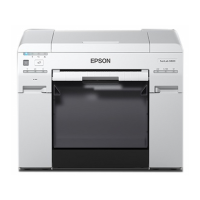
This document is an operation guide for the Epson SL-D800 Series printer, providing comprehensive information on its functions, specifications, usage, and maintenance.
Function Description
The Epson SL-D800 Series is an on-demand inkjet printer designed for high-quality photo printing. It utilizes a six-color water-based dye ink system and features a bidirectional printing method. The printer is capable of handling roll paper, making it suitable for various print sizes and applications. It includes a roll paper feeder, a print head unit, and a maintenance cartridge system. Optional print trays, including a rigid print tray, are available for collecting ejected prints.
Important Technical Specifications
- Printing Method: On-demand inkjet
- Nozzle Configuration: 180 nozzles for each color
- Print Direction: Bidirectional printing
- Highest Resolution: 1440 x 720 dpi
- Paper Feed Method: Friction feed
- Interface: Universal Serial Bus Specifications Revision 2.0
- Rated Voltage: AC 100 to 120 V or AC 220 to 240 V
- Rated Frequency Range: 50/60 Hz
- Rated Current: 3.0 A (AC 100-120V) / 1.5 A (AC 220-240V)
- Power Consumption:
- Operating: Approximately 140 W
- When standing by: Approximately 60 W
- Sleep mode: Approximately 6 W
- Power off: Less than 0.5 W
- Paper Core Size: 3-inch core diameter; outer diameter less than 170 mm. One roll can be loaded.
- Paper Length: 50 to 1000 mm
- Paper Width: 89 mm (3.5 inches), 102 mm (4 inches), 127 mm (5 inches), 152 mm (6 inches), 203 mm (8 inches), 210 mm (A4)
- Ink Type: Six color water-based dye
- Ink Cartridge Capacity: 200 ml
- Ink Cartridge Dimensions: 25 (W) x 200 (D) x 100 (H) mm
- Maintenance Cartridge Type: For waste ink
- Maintenance Cartridge Dimensions: 78.8 (W) x 254.5 (D) x 38.5 (H) mm
- Weight: Approx. 23 kg (printer only)
- Dimensions: 460 (W) x 430 (D) x 354 (H) mm
- Operating Temperature: 10 to 35 ˚C
- Operating Humidity: 20 to 80% (without condensation)
- Storage Temperature (in packaging): -20 to 40 ˚C (within one month at 40 ˚C)
- Storage Temperature (installed in printer): -20 to 40 ˚C (within one month at 40 ˚C)
- Transporting Temperature: -20 to 60 ˚C (within one month at 40 ˚C, 72 hours at 60 ˚C)
- Use by Date (Ink): Three years after manufacture
- Altitude: Use this printer at an altitude of up to 2000 m.
Usage Features
The printer is operated via a connected computer using the printer driver and Maintenance Tool software.
Loading Paper:
- Paper is loaded into the roll paper feeder.
- The spindle unit, which holds the roll paper, is inserted into the feeder.
- The inner and front edge guides must be adjusted to match the paper width (102 to 210 mm).
- The leading edge of the paper is inserted into the paper slot until the paper light turns on.
- Slack in the paper must be taken up after loading to ensure print quality and prevent jams.
- The Paper Type and Paper Level settings in the Maintenance Tool must be updated after replacing paper.
Ejecting Paper:
- Printed paper is ejected from the front of the printer.
- Optional print trays (print tray or rigid print tray) can be attached to collect multiple prints.
- Print tray capacity varies by print size:
- 89 to 102 mm length, 50 to 203 mm width: 20 copies (Glossy/Luster), 20 copies (Matte)
- 102 to 203 mm length: 20 copies (Glossy/Luster), 10 copies (Matte)
- 203 to 305 mm length: 5 copies (Glossy/Luster), 1 copy (Matte)
- For prints longer than 305 mm, the print tray should be removed, and prints ejected one at a time.
Ink Cartridge Replacement:
- The printer uses six color ink cartridges.
- Ink levels can be checked from the printer's ink light (orange) or the computer's Maintenance Tool.
- Replacement involves opening the cartridge cover, gently pressing to eject the empty cartridge, and inserting a new one.
- It is crucial not to touch the IC chip or ink supply port of the cartridges.
- Ink cartridges should always be installed in all slots to prevent malfunction.
Maintenance Cartridge Replacement:
- The maintenance cartridge absorbs waste ink from head cleaning.
- Free space can be checked via the printer's light (orange) or the Maintenance Tool.
- Replacement involves opening the right cartridge cover, carefully removing the used cartridge, and inserting a new one.
- The chip on the maintenance cartridge should not be touched.
Troubleshooting:
- The printer uses warning buzzers and light indicators (blue for status, orange for errors) to signal issues.
- Error messages are displayed on the computer screen (Windows/Mac) with codes, details, and solutions.
- Common errors include paper jams, ink low/empty, maintenance cartridge full, and printer disconnection.
- Paper jams require specific procedures depending on whether they occur in the roll paper feeder or internal paper feeder.
- Print quality problems (stripes, unevenness, light/dark prints) can be resolved by checking nozzle status, performing head cleaning, using genuine ink, and verifying paper settings.
- A fatal error requires restarting the printer and contacting service support if it persists.
- The Maintenance Tool provides diagnostic cleaning, nozzle checks, print head alignment, and other adjustment functions.
Moving the Printer:
- Before moving, the printer should be turned off, all cables removed, and any trays and paper removed.
- The printer must be lifted by specific points indicated in the manual, holding only the required area.
- Ink cartridges must remain installed to prevent clogging or ink leakage.
- The printer should not be tilted during movement to prevent ink leakage.
- After moving, a print head check is recommended to ensure proper function.
Maintenance Features
The Maintenance Tool software is central to printer maintenance and adjustment.
Maintenance Tool (Windows/Mac):
- Printer maintenance: Diagnostic Cleaning, Forced Cleaning, Nozzle Check.
- Paper Settings: Set Paper Type and Paper Level, Print Head Alignment, Paper Feed Adjustment, Gray Adjustment.
- Printer settings: Buzzer, Sleep Mode Threshold, Periodic Nozzle Check, Quick Print Mode.
- Printer history: Check Operation History, save log files.
- Printer Management: Register, Cancel Registration, Replace Printer.
- Printer Window (Mac): Check ink levels and maintenance cartridge free space.
- Operation Condition Settings (Mac): Adjust various printer settings including paper settings.
Physical Maintenance:
- Emptying the Scrap Paper Box: Waste paper cut during printing accumulates here. It should be emptied when replacing paper or when visually full.
- Cleaning the Platen: If print outs are dirty on the back, paper powder has accumulated on the platen. This involves opening the top cover and wiping blue sections of the platen and borderless absorbent areas with a commercially available cotton swab. The print head unit can be moved left or right to access different sections.
- Airflow Vent Cleaning: The airflow vent filter should be cleaned with a vacuum cleaner every three months to prevent internal temperature rise and potential fire.
Consumables:
- Genuine Epson ink cartridges (T43U1-T43U6 for SL-D800, T43Y1-T43Y6 for SL-D830, T43X1-T43X6 for SL-D860, T43W1-T43W6 for SL-D880) are recommended for optimal quality and reliability.
- Maintenance cartridges (T5820) are essential for waste ink absorption.
- Optional items include spindle units (C12C934881), paper cases (C12C890861), print trays (C12C891171), and rigid print trays (C12C934781).
Safety Instructions:
- The manual emphasizes strict adherence to safety symbols (Warning, Caution, Important) to prevent injury or damage.
- Prohibitions include disassembling the printer, using it near flammable substances, touching internal parts (except as instructed), or inserting foreign objects.
- Cautions include using correct posture when lifting, ensuring proper cable connections, avoiding contact with paper rollers during operation, and storing/transporting the printer upright to prevent ink leakage.
- Power supply notes highlight using the correct voltage, ensuring the power plug is fully inserted, not using damaged cables, and proper earthing.
- Ink cartridge handling notes advise against disassembling, shaking, or touching the ink supply port or IC chip.
- General usage notes recommend stable environments, avoiding blocked airflow vents, and ensuring ink cartridges and maintenance cartridges are always installed.

 Need help?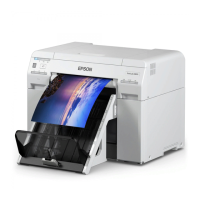

 To Next Page
 General