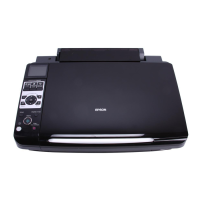
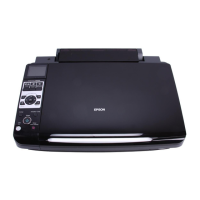
6 Control Panel Functions
* For details on the items in each mode, see
“Summary of Panel Settings” on page 37.
LCD screen
Note:
The LCD screen may contain a few small bright
or dark spots, and because of its features it may
have an uneven brightness. These are normal
and do not indicate that it is damaged in any
way.
Using the LCD screen
Follow the instructions below to select and
change the setting menus and the photos on
the LCD screen.
j [Auto Answer/
Space]
Turns Auto Answer
On or Off. You can
use this button as a
space button when
entering or editing
numbers or
characters.
k [Speed Dial/
Back Space]
Displays the speed
dial list when in Fax
mode. You can use
this button as a back
space button when
entering or editing
numbers or
characters.
l [Redial/Pause] Displays the last
phone number you
dialed. You can use
this button as a
pause button (to
enter "-") when
entering or editing
numbers. When
entering characters,
you can also enter a
"-".
m x Start Starts faxing,
copying, and
printing.
n y Stop/Clear Stops faxing,
copying, and
printing, or resets the
settings you have
made.
Buttons Function
aPress l or r to select the setting item.
bPress u or d to select the menu item.
The highlighted part moves up or down.
cPress r to open the setting item list.
Press u or d to select the setting item
and then press OK.
dPress l or r to change the displayed
photo on the LCD screen.
eUse Copies (+, -) or a number key to set
the number of copies for the selected
photo.
a
e
b,c
e
a,c,d
b
c
b
e
d



 To Next Page
 Loading...