
 Need help?
Do you have a question about the Epson Stylus DX4850 and is the answer not in the manual?
Identifies the external and internal parts of the EPSON STYLUS DX printer.
Provides guidelines on how to read instructions and understand warning/caution notes.
Details the function of each button on the EPSON STYLUS DX control panel.
Explains the meaning and status of various indicator lights on the control panel.
Guides on choosing the correct paper type and size for printouts.
Provides step-by-step instructions for loading paper into the printer.
Instructions on how to place documents or photos correctly on the scanner bed.
Step-by-step guide for making copies of A4-size documents.
Detailed steps for copying photographs.
Tips for making faster copies with reduced quality.
Lists supported memory card types and how to insert them.
Specifies the required file formats and image size for memory card printing.
Explains how to insert a memory card into the printer.
Guides on printing an index sheet to select photos for printing.
Detailed steps to print an index sheet from a memory card.
How to scan a marked index sheet to print selected photos.
Instructions for printing all photos or DPOF-selected photos from a memory card.
Steps to connect a digital camera and print photos directly.
Specifies requirements for photos printed from a digital camera.
Step-by-step guide for replacing ink cartridges.
Lists genuine Epson ink cartridge part numbers for replacement.
How to perform a nozzle check and check ink levels.
Procedure to clean the print head to resolve print quality issues.
Steps to align the print head for optimal print quality.
Instructions on how to prepare the printer for safe transportation.
Explains error codes and light patterns to diagnose problems.
Provides solutions for common copying, paper feeding, and print quality issues.
Addresses issues with the print head not closing or moving correctly.
Information on how to contact customer support and what details to provide.
Directs users to Epson's website for additional support resources.
Critical safety precautions for using the EPSON STYLUS DX.
Safety guidelines specifically for handling ink cartridges.
Information about the product's energy efficiency compliance.
Legal information regarding the publication and copyright of the manual.
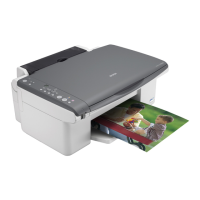
The EPSON STYLUS DX4800 Series / DX4200 Series is a versatile multifunction device designed for home and small office use, offering printing, copying, and scanning capabilities. This guide focuses on its basic operation, allowing users to perform many tasks without needing to connect to a computer.
The device primarily functions as a printer, copier, and scanner. It supports direct printing from memory cards (DX4800 Series only) and digital cameras, making it convenient for photo enthusiasts. The core functionality revolves around producing high-quality prints and copies of documents and photos, as well as scanning originals for digital archiving or further processing on a computer.
Loading Paper: The device supports various paper types and sizes, including A4, 10 × 15 cm (4 × 6 in.), and 13 × 18 cm (5 × 7 in.). Users should select the appropriate paper type and size on the control panel to ensure optimal print quality. Paper is loaded into the sheet feeder, printable side up, against the right side, with the left edge guide adjusted to fit the paper stack without being too tight. The feeder guard should be flipped forward before loading and back after.
Copying Photos or Documents: Simple copies can be made directly from the device without a computer. Originals are placed face-down on the document table, aligned with the upper left corner. For thick documents, the document cover can be removed. Users can select the number of copies, paper type (Plain Paper or Photo Paper), and paper size (A4, 10 × 15 cm, or 13 × 18 cm) using the control panel buttons. The "Fit to Page" option allows automatic resizing of the copied image to fit the selected paper size. Copies can be made in black and white or color. For faster, lower-quality copies (draft mode), users can hold down the Stop button and then either the Start Color or Start B&W button.
Printing From a Memory Card (DX4800 Series only): The DX4800 Series allows direct printing of photos from compatible memory cards. It supports Compact Flash, Smart Media, Memory Stick, Memory Stick PRO, Microdrive, SD Card, MultiMedia Card, miniSD™ Card, xD-Picture Card, and xD-Picture Card Type M (some requiring adapters). Before inserting a card, ensure the device is on and not connected to a computer. The memory card light will flash and then stay on once the card is inserted correctly.
There are several printing options from a memory card:
Printing From a Digital Camera: The device supports PictBridge and USB Direct Print, enabling direct printing from compatible digital cameras via a USB cable. Users connect their camera to the external device USB connector, select photos and settings on the camera, and initiate printing. The device supports JPEG files within a specific pixel range.
Control Panel and Lights: The control panel features buttons for power (On), ink cartridge replacement/print head cleaning (ink button), memory card operations (Memory Card button - DX4800 Series only), copy settings (Copy, Plain Paper/Photo Paper, A4/10x15/13x18, Fit to Page), and start/stop functions (Start B&W, Start Color, Stop). Various lights indicate the device's status, such as power on/off, active printing, errors, low/empty ink, memory card access, and selected settings. A flashing dot in the copy window indicates "sleep" mode.
Replacing Ink Cartridges: The device uses individual ink cartridges (Black T0611, Cyan T0612, Magenta T0613, Yellow T0614). When the ink light flashes, cartridges are low; when it stays on, they are empty and need replacement. To replace, ensure the device is on, close the document cover, open the scanner unit, and press the ink button. The print head moves to the check position, and the On and ink lights flash. If a cartridge is low or empty, the print head moves it to the ink out mark. Pressing the ink button again cycles through other low/empty cartridges. Once the print head is in position, open the cartridge cover, squeeze the tab at the back of the empty cartridge, lift it out, and insert a new one until it clicks into place. Close the cartridge cover and press it down until it clicks. After replacement, the device charges ink, and the On light flashes for about a minute.
Checking the Print Head Nozzles and Ink: If printouts are faint or have gaps, users can check the print head nozzles and ink levels. With the device off, load A4 plain paper, then hold down the ink button while pressing and holding the On button for about 3 seconds. The device will print a test pattern and show the percentage of ink remaining in each cartridge. This helps determine if cleaning is needed or if ink is low.
Cleaning the Print Head: If the nozzle check pattern shows gaps or faintness, the print head may be clogged. To clean, ensure the device is on and the ink light is off. Hold down the ink button for 3 seconds until the On light starts flashing. The device will run a head cleaning cycle. After the On light stops flashing, run another nozzle check to verify cleanliness. If quality doesn't improve after several cleaning cycles, turning off the device and waiting overnight may help soften dried ink. If problems persist, the cartridge may be old or damaged and need replacement.
Aligning the Print Head: Jagged vertical lines in printouts indicate a need for print head alignment. This can be done using the control panel buttons. With the device off, load A4 plain paper. Hold down the Copy button while pressing and holding the On button for about 3 seconds. The device prints alignment patterns. Users then identify the most evenly printed patch for pattern #1 and press the Copy button until its number appears in the Copy window, then press Start B&W. This process is repeated for the remaining three alignment patterns.
Transporting Your EPSON STYLUS DX: For transportation, the device needs to be prepared to prevent damage. Remove all paper and ensure the device is off. Open the scanner unit, confirm the print head is in the home position on the right, and secure the ink cartridge holder to the case with tape. Close the scanner unit. Unplug the power cord and disconnect the USB cable. Close the paper support, feeder guard, and output tray. Repack the device in its original box with protective materials, keeping it level. After transport, remove the tape securing the print head. If print quality declines, run a cleaning cycle or align the print head.
 General
| Technology | Inkjet |
|---|---|
| Functions | Print, Copy, Scan |
| Print Technology | Micro Piezo |
| Print Resolution | 5760 x 1440 dpi |
| Copy Resolution | 600 x 600 dpi |
| Scanner Type | Flatbed |
| Paper Capacity | 100 sheets |
| Connectivity | USB 2.0 |
| Supported Media Sizes | A4, A5, B5 |
| Paper Sizes | A4, A5, A6, B5, Letter, Legal |
| Display | LCD |
| Dimensions (W x D x H) | 435 x 327 x 185 mm |





 To Next Page
