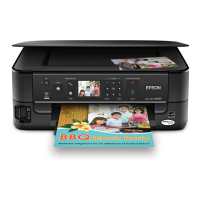
10 Copying a Document or Photo
Copying a Document
You can copy documents onto letter- or A4-size plain paper or Epson special paper
just like you would on a copy machine.
1. Press the P
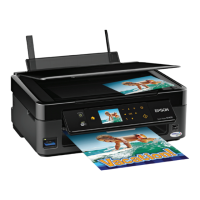
On button to turn on the NX400 Series.
2. Load letter- or A4-size plain paper or Epson special paper
in the sheet feeder (see page 5).
3. Place your original document on the document table (see
page 9).
4. Press the
Copy button to enter copy mode.
5. Flip up the LCD display screen.
6. To print more than 1 copy, press
+ or – to select the
number (up to 99).
7. Press l or r to select
Color or B&W copies.
8. Press d, then press r to change the layout.
Select
With Border to leave a small margin around
the image or select
Borderless to expand the
image all the way to the edge of the paper (slight cropping may occur).
Note:
You cannot print borderless on plain paper.
9. To change any other print settings, press Menu
and select your settings (see page 13 for details).
When you’re done, press
OK.
10. Press
x Start to begin copying.
If you need to cancel copying, press
y Stop/Clear
Settings
.



 To Next Page
 Loading...