TM-U295/U295P User’s Manual 7
English
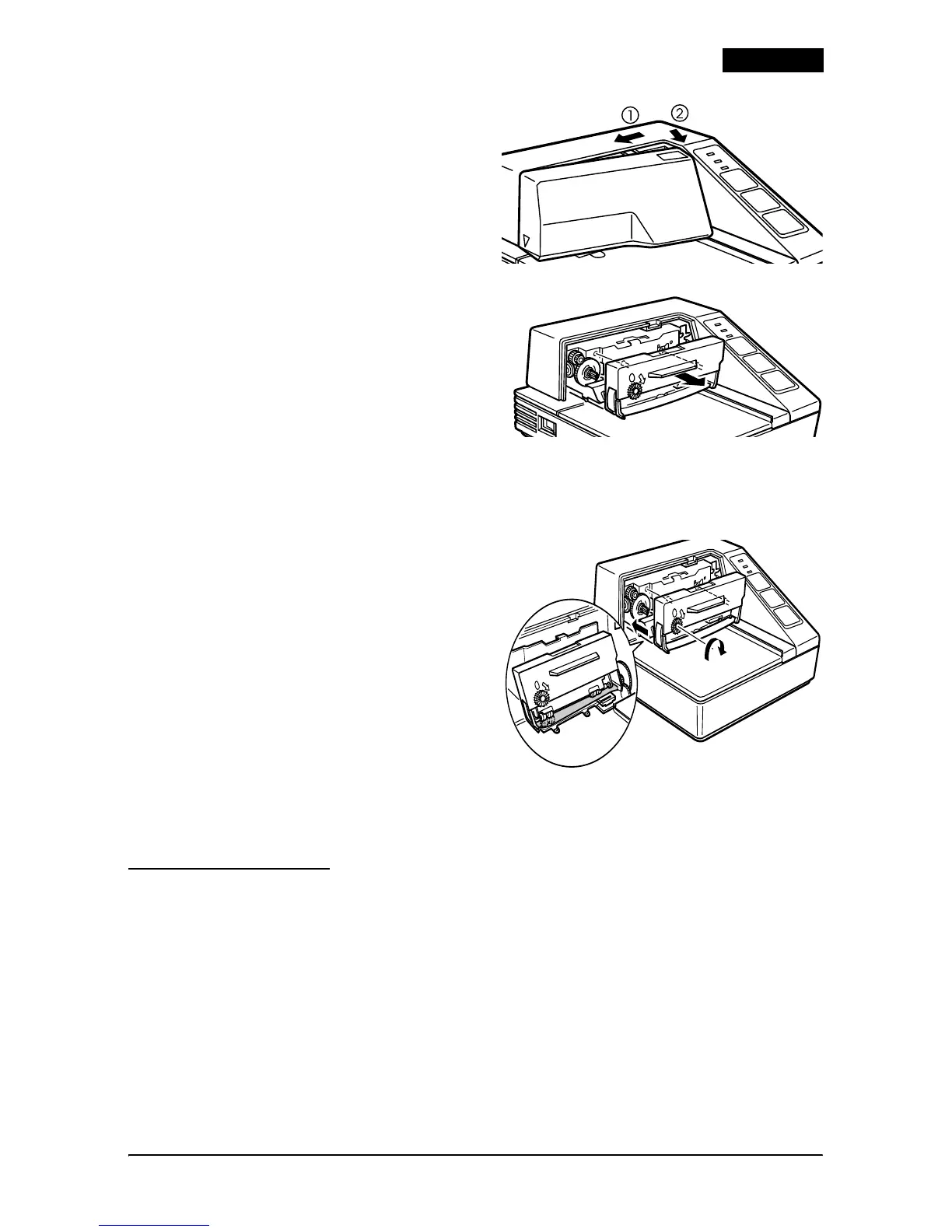
4. Open the printer cover by
first pressing the ridges on
the top to the left slightly
and then pulling the cover
forward, as shown in
illustration
2.
5. If there is a used ribbon,
remove it by grasping the
handle and pull it straight
out, as shown by the arrow
in illustration
3.
6. Before installing the new
ribbon, check that it is not creased or twisted. Then turn the
feed knob in the direction of the arrow on the ribbon cassette to
take up any slack in the ribbon.
7. Carefully insert the ribbon
cassette in the printer as
shown in illustration
4.
Notice exactly where the
ribbon must go.
8. Push firmly on the right
side and then the left side of
the ribbon cartridge until
each side clicks into place.
9. To put the cover back on the
printer, first align the left side of the cover; then insert the tab
on the top; then press the bottom until it clicks into place (see
illustration
2).
Inserting Paper
Note:
Do not use wrinkled or curled paper. Be sure to use roll paper that meets
the specifications.
1. Make sure a ribbon cassette is installed in the printer.
2. Turn on the printer. The POWER light comes on.
3. Press the RELEASE button. The RELEASE light comes on to show
that the printer is in release mode. In this mode, paper can be
inserted and removed.
2
3
4





 To Next Page