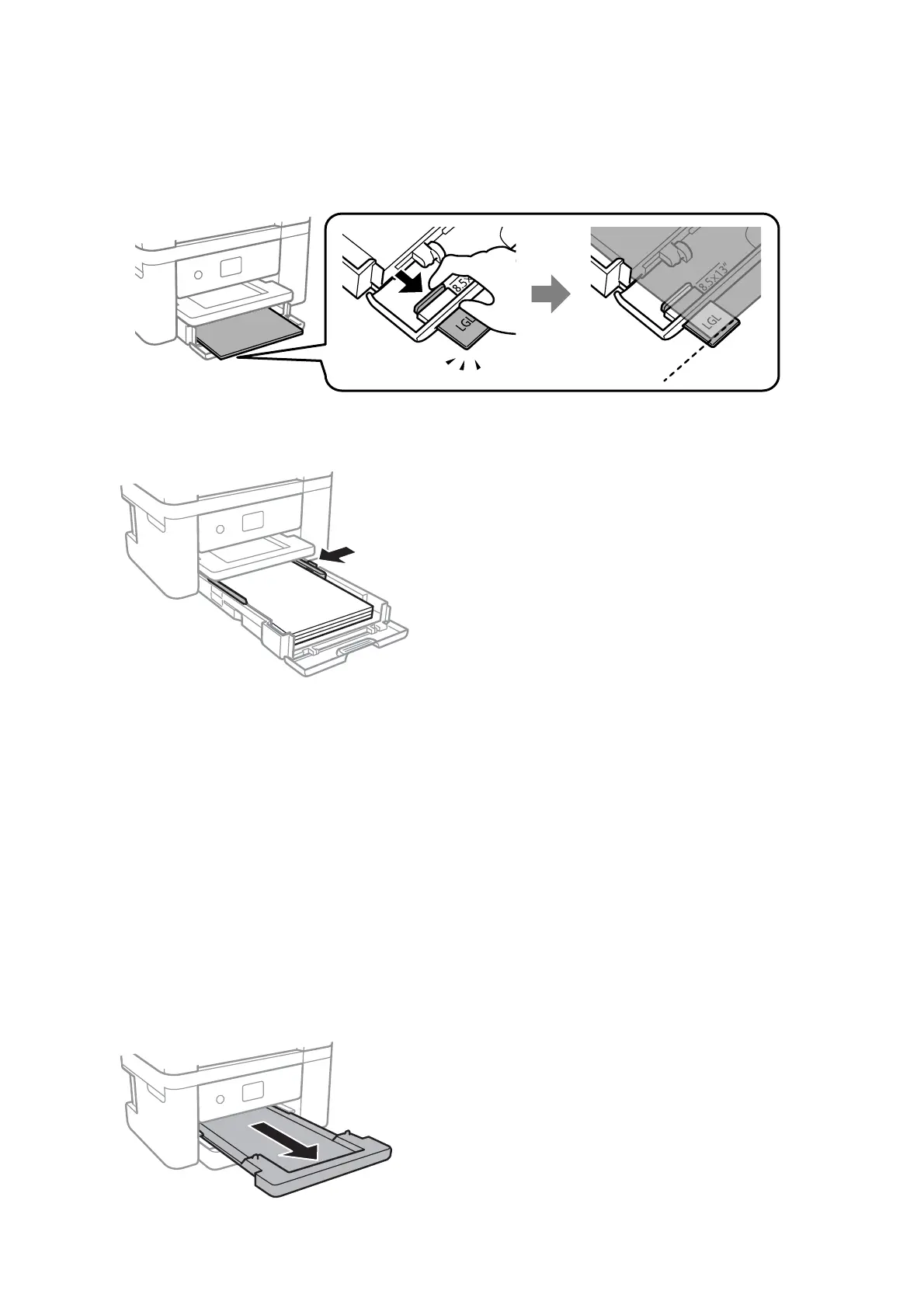
❏ Legal
Pull out the legal paper guide and load paper using the line.
5. Slide the edge guides to the edges of the paper.
6. Insert the paper cassette gently.
7.
On the control panel, set the size and type of the paper you loaded in the paper cassette. If your paper size is
not displayed, select User-Dened.
Note:
❏ You can also display the paper size and paper type settings screen by selecting Settings > General Settings > Printer
Settings > Paper Source Settings > Paper Setting.
❏ For letterhead paper, select Letterhead as the paper type.
❏ For letterhead paper, if you print on paper that is smaller than the setting in the printer driver, the printer may print
beyond the edges of the paper which can lead to ink smears on your printouts and excess ink building up inside the
printer. Make sure you select the correct paper size setting.
❏ 2-sided printing and borderless printing are not available for letterhead paper. Also, the print speed may be slower.
8. Slide out the output tray.
User's Guide
Preparing the Printer
47






 To Next Page