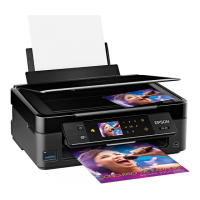
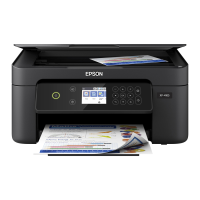
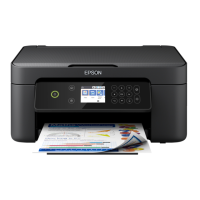
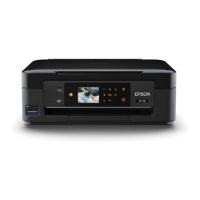
5 The arrow buttons and the OK button
6 The + and – buttons (increase or decrease the number of copies)
7
The start button
8
The stop button
Parent topic: Setting Up the Control Panel
Adjusting Control Panel Position
You can adjust the position of the control panel to make it easier to use.
• To raise the control panel, lift it up from the bottom.
• To lower the control panel, squeeze the release bar and gently push the panel down.
Caution: Do not lower the control panel without first squeezing the release bar or you may damage
your product.
Parent topic: Setting Up the Control Panel
Changing LCD Screen Language
You can change the language used on the LCD screen.
1. Press the home button, if necessary.
2. Press the left or right arrow buttons to select Setup and press the OK button.
13




 To Next Page