20
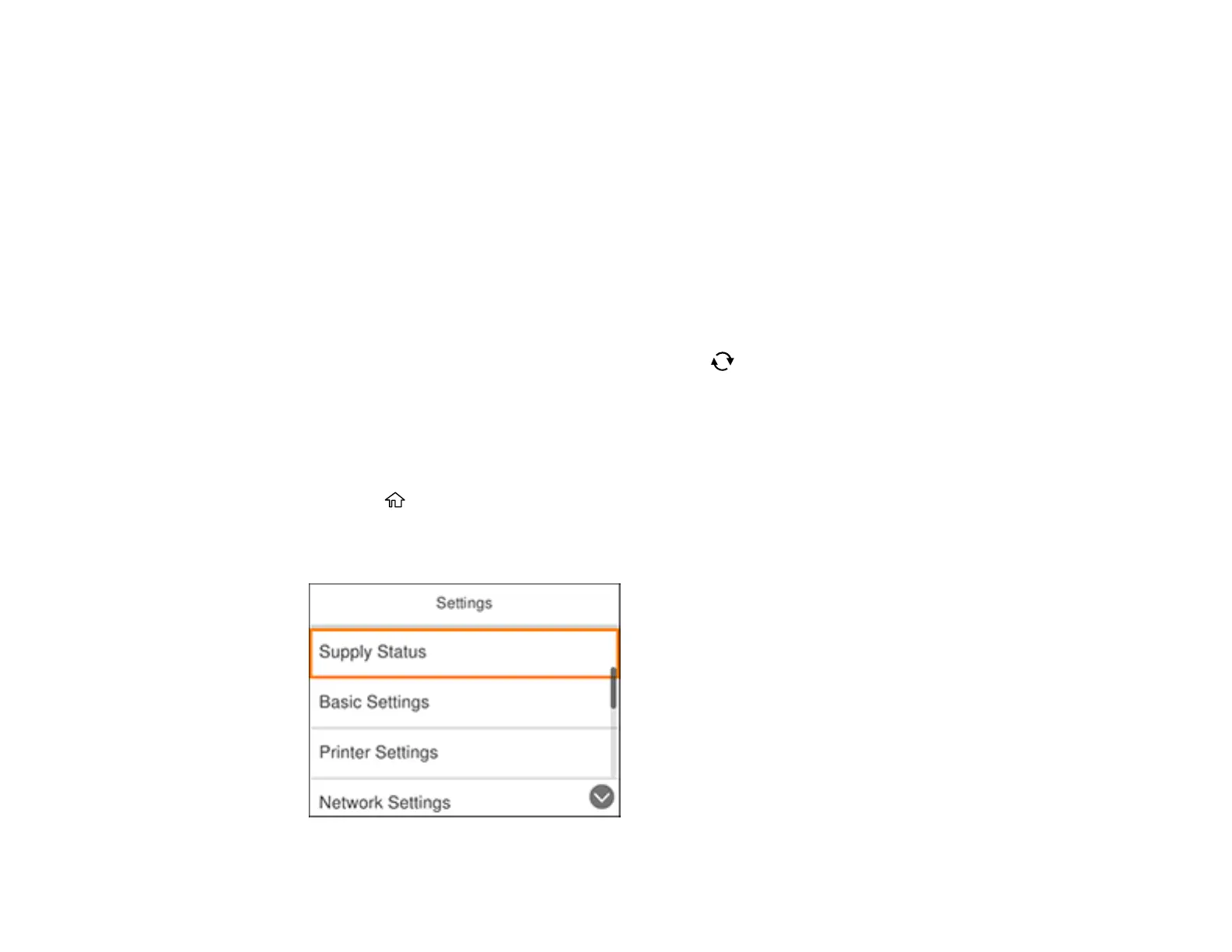
1 Indicates the character count and maximum number of characters allowed
2 Moves the cursor left or right
3 Switches display between uppercase and lowercase letters or number and symbol sets
4 Switches display between letters or numbers and symbols
5 Changes the keyboard layout
6 Displays a list of common domain names to choose from
7 Enters a space
8 Select when you are done entering your password
9 Deletes the previous character
Note: You can also switch character type by pressing the reset button.
Parent topic: Using the Control Panel
Changing LCD Screen Language
You can change the language used on the LCD screen.
1. Press the home button, if necessary.
2. Select Settings.
You see a screen like this:









 To Next Page