Need help?
Do you have a question about the ESC G33T-M2 and is the answer not in the manual?
Introduces the G33T-M2 motherboard, its high performance, and target markets.
Details the processor, chipset, memory, and audio codec features of the motherboard.
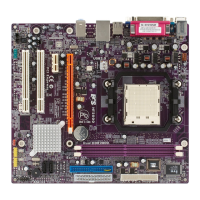
Illustrates and labels the physical components on the motherboard.
Provides a detailed list and description of each labeled motherboard component.
Lists essential safety measures, including grounding and handling of components.
Provides instructions and considerations for physically mounting the motherboard in a case.
Explains how to set jumpers for correct motherboard configuration.
Details the usage of 2-pin and 3-pin jumpers and their states (SHORT/OPEN).
Illustrates jumper locations and specific settings, like CLR_CMOS.
General section for installing hardware components onto the motherboard.
Provides cautions and guidelines for safely installing the CPU.
Offers advice on processor selection and warnings about overclocking.
Step-by-step instructions for installing the CPU into the socket.
Details how to install DDR2 SDRAM memory modules.
Step-by-step guide for correctly inserting memory modules into DIMM slots.
Describes the PCI Express and PCI slots for adding expansion cards.
Instructions for installing expansion cards into the motherboard slots.
Illustrates connections for optional devices like SATA drives.
Instructions for connecting and installing Serial ATA hard drives.
Guide for connecting a floppy diskette drive to the motherboard.
Explains how to connect various external I/O devices to the backplane ports.
Instructions for connecting internal case components to motherboard headers.
Introduces the BIOS Setup Utility for configuring system parameters.
Provides instructions on how to access the BIOS Setup Utility.
Lists the keyboard keys used for navigating and interacting with the BIOS setup menus.
Displays basic system information and allows configuration of date, time, and drives.
Allows for more advanced system configurations, handle with caution.
Sets safe temperature limits for the CPU.
Determines the order of devices the system checks for an operating system.
Allows for advanced configuration of system chipset parameters.
Sets parameters for various peripheral devices connected to the system.
Configures various system power management parameters.
Configures parameters for PCI bus devices and Plug and Play functionality.
Monitors critical system voltages, temperatures, and fan speeds.
Allows adjustment of clock speeds and system bus frequencies.
Enables or disables the CPU overclocking function.
Restores the BIOS to its optimized default settings.
Helps in installing or changing a supervisor password for system access.
Helps in installing or changing a user password for system access.
Saves current BIOS configuration changes and exits the setup utility.
Discards any changes made and exits the BIOS setup utility.
Provides instructions for downloading and installing BIOS updates.
Provides step-by-step instructions for installing device drivers and software.
 General
| Brand | ESC |
|---|---|
| Model | G33T-M2 |
| Category | Motherboard |
| Language | English |


 To Next Page