Settings & Preferences
9
Press SEN to go from one Press VOLUME + or – to change
marker category to the next your setting within a category
Other On* /O Other location
Redlight On* / O Red light camera
Red & Speed On* / O Red light & speed camera
Speed Cam On* / O Speed camera
Speed Trp On* / O Speed trap
Air Patrol On / O* Known aircraft patroled areas
NOTE: User cannot mark an air patrol location.
Clear Locations Marked Clear all user Marked locations. Press SEN button to conrm
Lockouts Clear all lockouts. Press SEN button to conrm
Defender Clear all DEFENDER data. Press SEN button to conrm
Format Clear DEFENDER database, all markers, and all lockouts
Press SEN button to conrm
*Default Setting
Notes for Settings & Preferences
To view serial number and software revision press MRK and MUTE while powering on detector.
To restore ESCORT iXc to its original factory Settings, press and hold SEN and BRT while turning the power on.
A “Restored” message will display, acknowledging the reset.
Software Updates
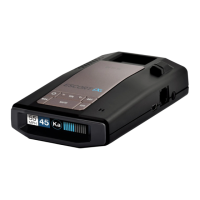
In its factory default settings ESCORT iXc automatically receives software updates from your connected vehicle’s
Wi-Fi network. See Using Wi-Fi Connect on page 5 for connection instructions.
The ESCORT iXc operating rmware and red light and speed camera database can also be updated using a
USB A/Mini B cable (not included) connected to a computer using our detector software tools found on our
web site. In order to have access to these updates, please register your ESCORT iXc at www.EscortRadar.com


 To Next Page