MHL Setting
Connecting an MHL-enabled device
You can connect an MHL-enabled device, such as a cell phone, and view your device’s screen on your TV.
To connect an MHL-enabled device:
3
4
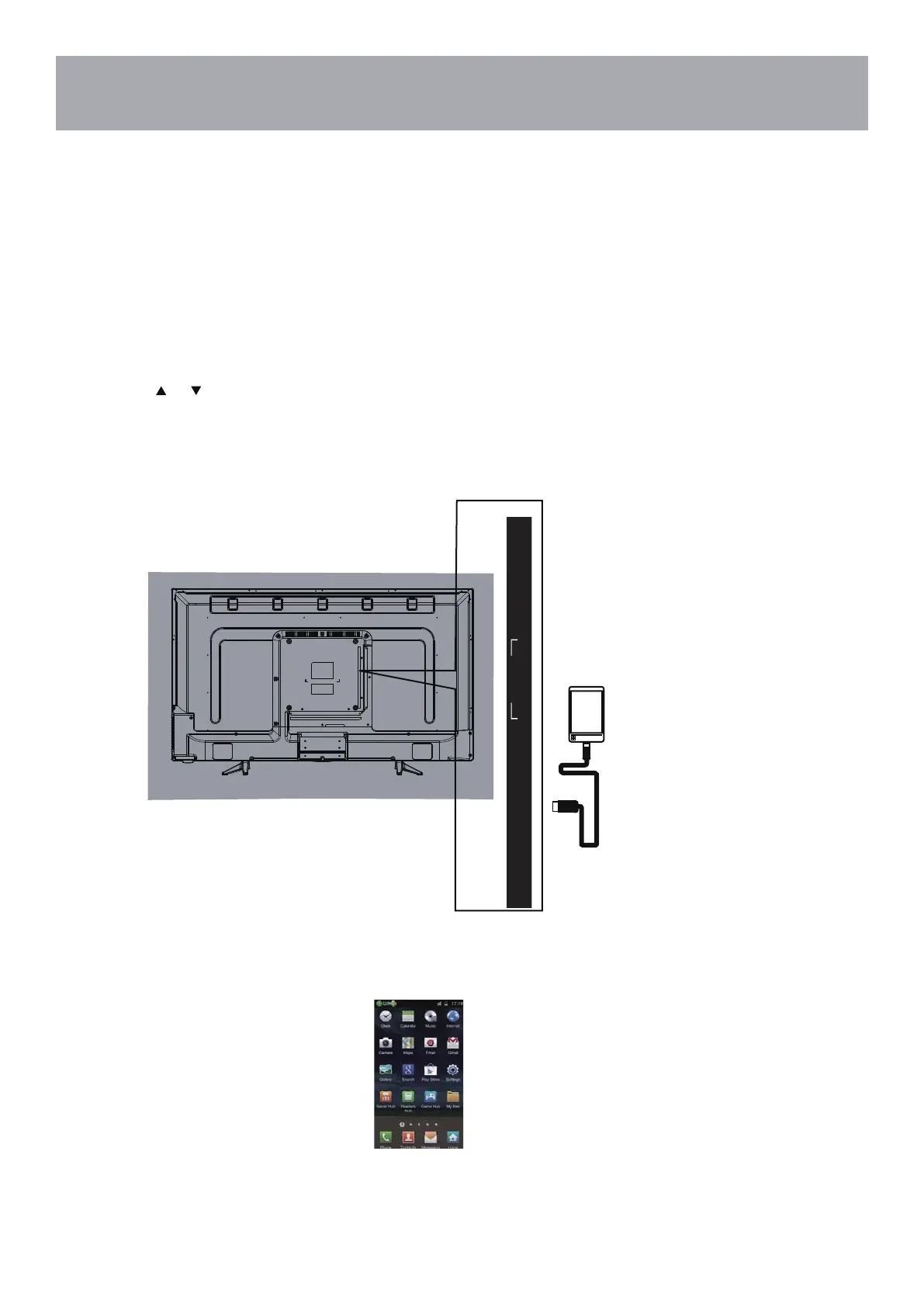
Connect an MHL cable (not provided) to the micro USB port on the device, then connect the other end
of the cable to the HDMI /MHL jack on the side of your TV.
1 Press INPUT to open the Input Source list.
2 Press or to select HDMI3,then press ENTER.
Your device’s menu will vary depending on the device and the apps you have loaded on the device.
HDMI-TO-MHL Cable
MHL-enab led devi ce
0 3
HDMI2
PC IN
RF IN USB
HDMI3
(MHL)


 To Next Page