ETC
®
Service Note
Congo™ jr v4.3 I/O Software Code Installation
Congo™ jr v4.3 I/O Software Code Installation Page 53 Electronic Theatre Controls, Inc.
Corporate Headquarters
3031 Pleasant View Road, P.O. Box 620979, Middleton, Wisconsin 53562-0979 USA
Tel +608 831 4116
Fax +608 836 1736
London, UK
Unit 26-28, Victoria Industrial Estate, Victoria Road, London W3 6UU, UK
Tel +44 (0)20 8896 1000
Fax +44 (0)20 8896 2000
Rome, IT
Via Ennio Quirino Visconti, 11, 00193 Rome, Italy
Tel +39 (06) 32 111 683
Fax +39 (06) 32 656 990
Holzkirchen, DE
Ohmstrasse 3, 83607 Holzkirchen, Germany
Tel +49 (80 24) 47 00-0
Fax +49 (80 24) 47 00-3 00
Hong Kong
Room 1801, 18/F, Tower 1 Phase 1, Enterprise Square, 9 Sheung Yuet Road, Kowloon Bay, Kowloon, Hong Kong
Tel +852 2799 1220
Fax +852 2799 9325
Service:
(Americas) service@etcconnect.com
(UK) service@etceurope.com
(DE) techserv-hoki@etcetcconnect.com.com
(Asia) service@etcasia.com
Web:
www.etcconnect.com
Copyright © 2006 ETC. All Rights Reserved.
Product information and specifications subject to change.
Pending
Rev A
Released 04/2007
Description:
This service note describes how to install new I/O firmware for your Congo jr console. This version
of firmware fixes a software bug that caused the DMX power supply to be under powered; resulting
in flickering levels or loss of control of some DMX devices.
This firmware update should be performed after the 4.3 software installation.
Tools Needed:
Computer
Congo jr Console
DVI Monitor, or VGA with DVI adapters
USB Keyboard
USB Mouse
USB Flash Drive
Procedure:
Step 1: Download the Congo jr firmware Software.zip from www.etcconnect.com
Step 2: Insert USB Flash Drive into computer
Step 3: Create a folder titled: Software
Step 4: Unzip the Software.zip contents into the newly created "software" folder on the USB
flash drive
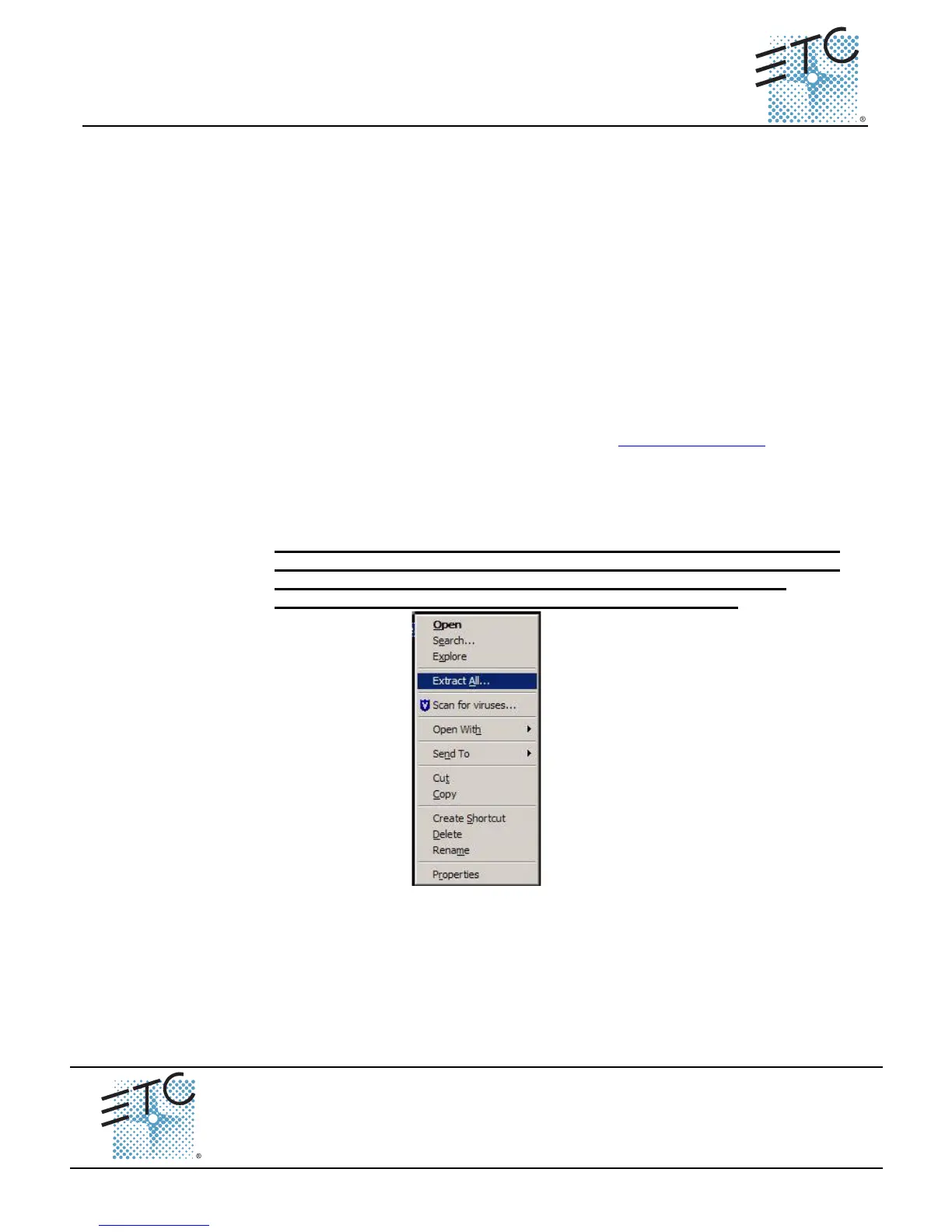
Note: There are various .zip file extraction programs. When using windows
XP, you do not need to create a folder. When you unzip the file, Windows will
automatically create a folder titled "software." To open the Windows
extraction wizard, right click on the file and select "Extract All"
Use the Windows extraction wizard to extract the files to your USB Stick.
Step 5: Remove this drive from the computer
Step 6: Connect keyboard and mouse to the Congo jr
Step 7: Turn the Congo jr Console on
Step 8: Insert the USB flash drive into the Congo jr
Congo™ jr v4.3 I/O Software Code Installation



 To Next Page