10 11
Start/Stop Cleaning
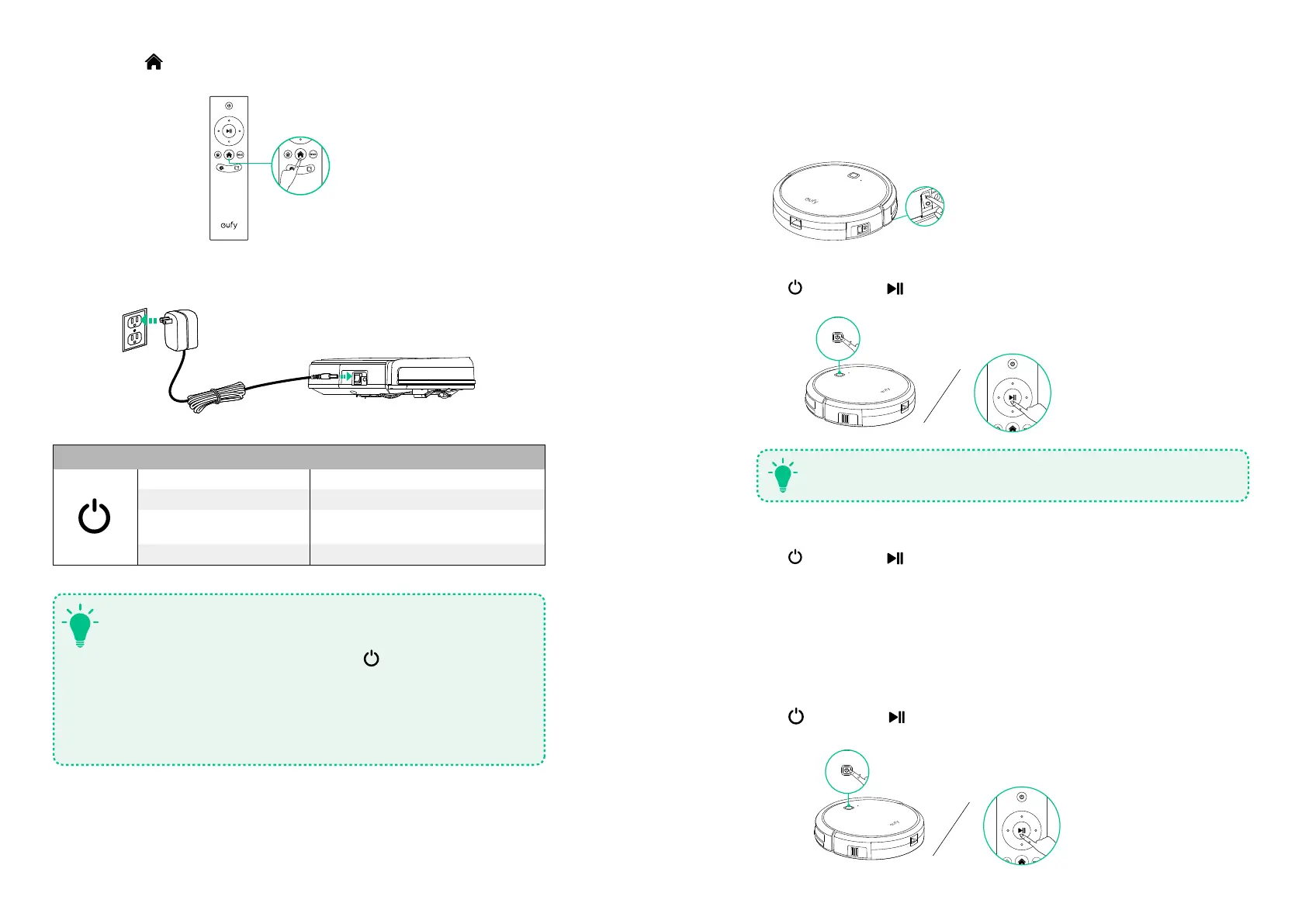
1. Turn on the main power supply
Press the power switch on the side of RoboVac to turn on the main power supply.
ON
2. Start cleaning
Press
on RoboVac or on the remote control to start cleaning in Auto mode.
When the system is idle for 10 minutes, RoboVac switches to Standby
Mode automatically to save power.
T
3. Stop cleaning
Press
on RoboVac or on the remote control to stop cleaning.
Select a Cleaning Mode
1. Auto cleaning
RoboVac calculates the room size and optimizes its path by selecting different cleaning
modes automatically until cleaning is complete.
Press
on RoboVac or on the remote control to start cleaning in Auto Mode.
Method 2: Press on the remote control to return RoboVac to the Charging Base.
Method 3: Charge RoboVac directly with the power adaptor.
RoboVac Status Light
Flashing red Low power
Flashing blue Charging
Solid blue
Fully charged / Cleaning / Returning to
Charging Base
Flashing / Solid red + Beeping RoboVac has an error
T
- Turn o the power switch if RoboVac will not be used for a long
period of time. To preserve the battery’s lifespan, recharge at least
once every 3 months.
- When charging RoboVac, press and hold on RoboVac for 20
seconds to enter Reduced Power Standby Mode for power-saving.
Wi-Fi is disabled in this mode. Press any key to return to Normal
Mode.
- All settings will be erased when RoboVac is turned o or when the
battery power is exhausted. You will need to reschedule the cleaning
time on the EufyHome app.


 To Next Page