34
3.12.4 Snapshot Search
Snapshot Search shows snapshots of the specified interval, it helps users to quickly find the interested
scene.
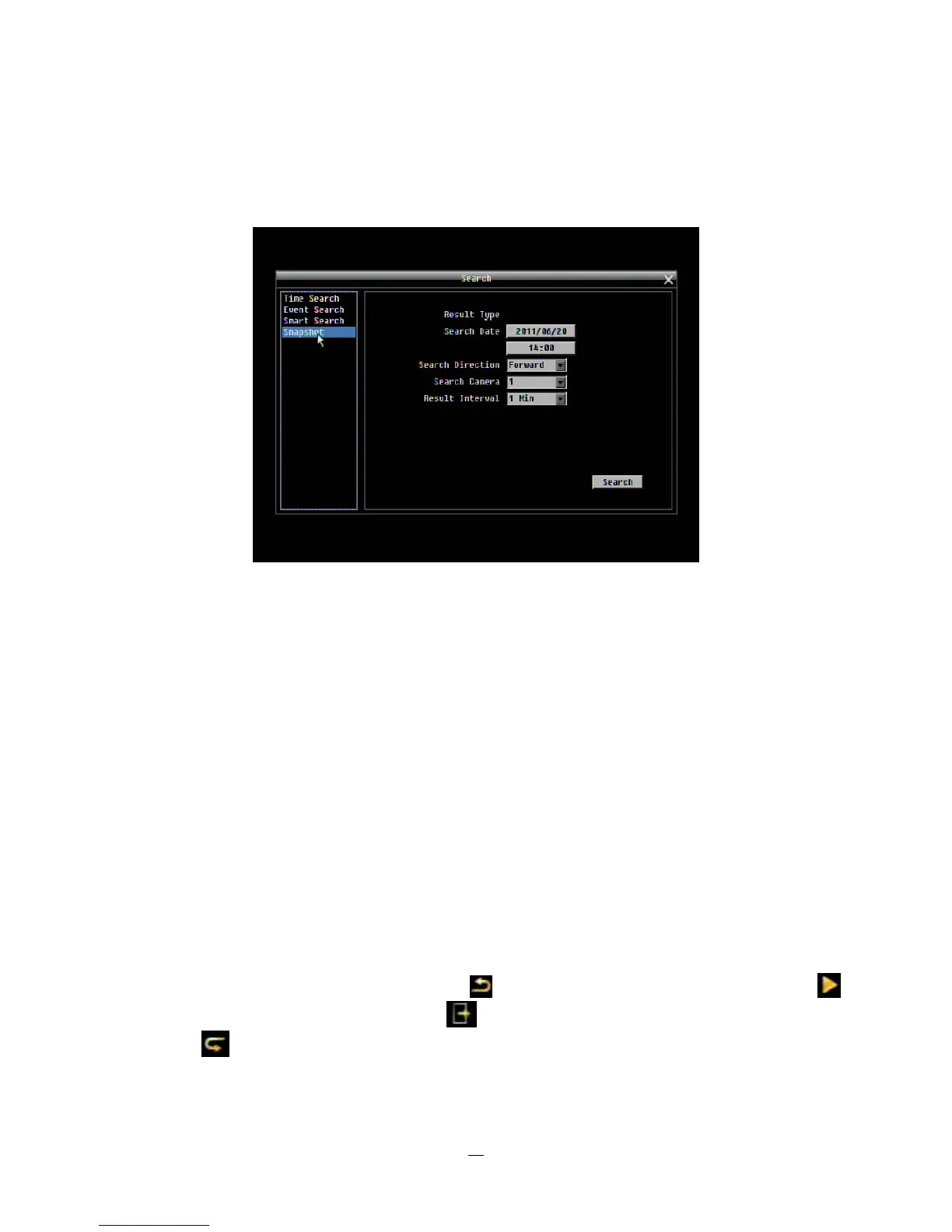
Figure 3-8 Search Menu – Snapshot Search
Result Type: Thumbnail is used as result type.
Search Date: Select search date and time
Search Direction: Select search direction, either forward or backward.
Search Camera: Select which camera to be searched.
Result Interval: Select interval of the snapshot to be searched. Available from 1 min, 5 min, 10 min, 30 min,
1 hour, 2 hour, 4 hour, 12 hour and 1 day.
Press Search button to start Search. Thumbnails of the Snapshot will be displayed on the screen. First
thumbnail is the search date/time, date/time of the second thumbnail will be the interval set in “Result
Interval” next to the first thumbnail, and so on. If “forward” is selected as search direction, a white frame
will surround the selected snapshot at the first thumbnail. If backward is selected, the search date/time will
be displayed at the last thumbnail and a white frame will surround the selected snapshot at the last
thumbnail.
Right click the mouse to obtain a hint window. Press button to view the 8 previous snapshots. Press
button to playback the selected snapshot. Press button to close the hint window and return to search
menu. Press
button to view the 8 next snapshots.





 To Next Page