3
Connecting the Evoluent VerticalMouse
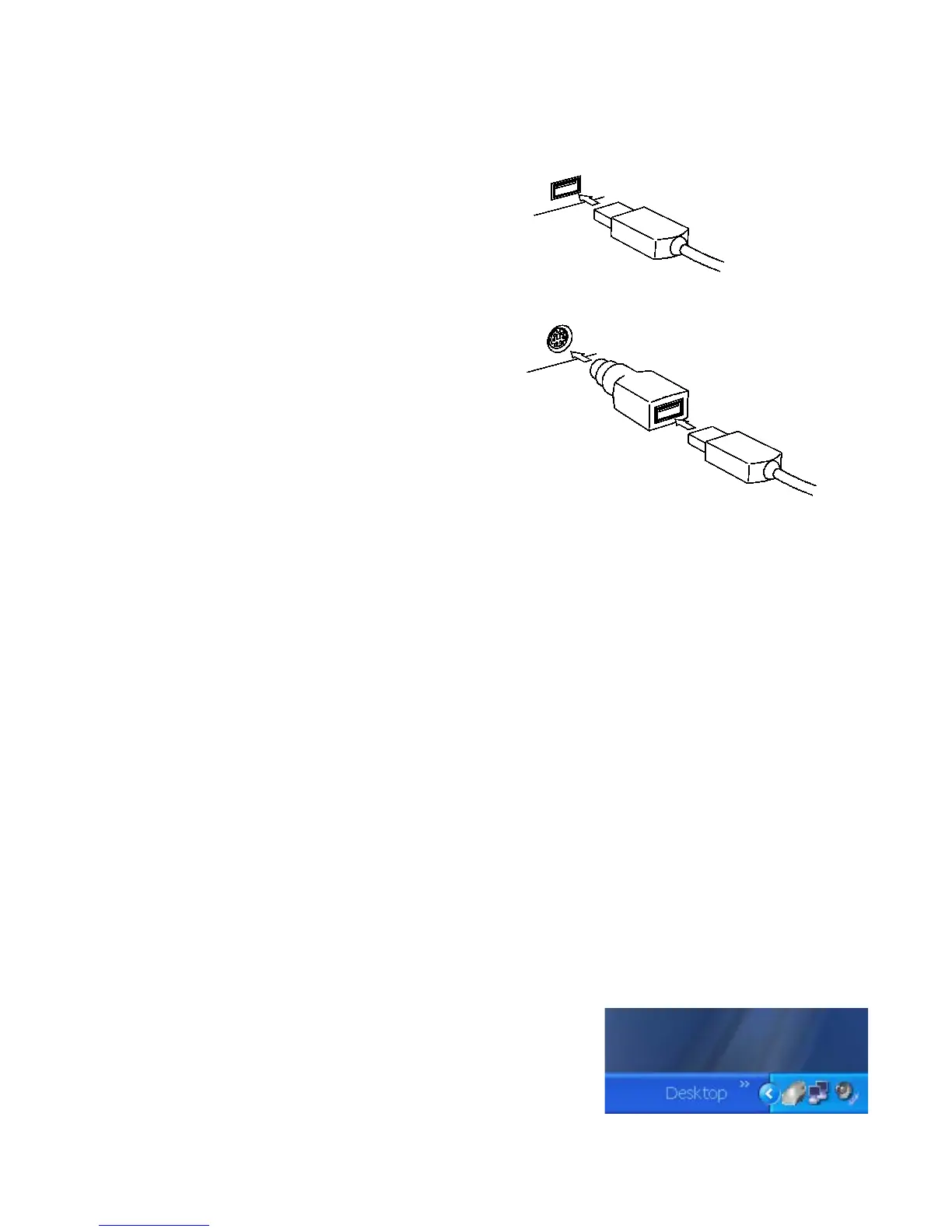
Computer with USB connector (preferable):
1. Computer may be on or off.
2. Insert USB connector on mouse cable into
USB socket in computer.
Computer with PS/2 connector only:
1. Turn off computer.
2. Insert USB connector on mouse cable into
USB-to-PS/2 adapter, and insert adapter
into PS/2 socket in computer.
VerticalMouse Manager Installation
1. Turn on computer.
2. If Add Hardware Wizard pops up to indicate that Windows has detected new
hardware, do not select Search for Best Driver, instead select Display List of All
Drivers.
3. Cursor will not operate yet. Use Tab and arrows keys on keyboard to navigate.
4. When Show Compatible Hardware dialog box appears, select Show Compatible
Hardware.
5. Select Human Interface Device (HID) compatible mouse.
6. Insert the Windows CD as necessary. Pointer functions after HID driver installation.
7. Insert the Evoluent VerticalMouse CD. The installation wizard will start automatically.
Follow the on-screen instructions. Be sure to select USB or PS2 during installation.
Using VerticalMouse Manager
Double click the mouse icon on the right of the task bar to
open Mouse Properties.


 To Next Page