55
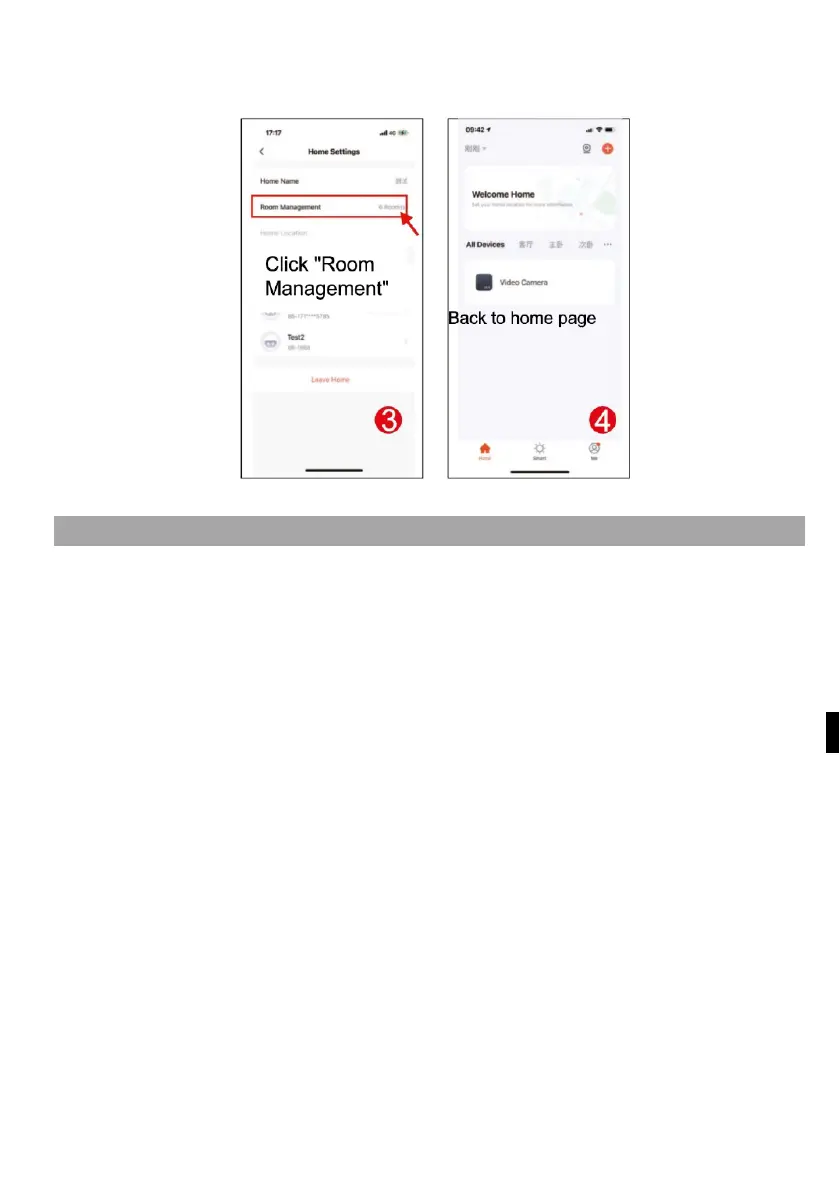
have finished setting up your home management, return to the home page. Home
page showing "Weather, temperature, home name etc".
2) ADD FAMILY MEMBERS
Go to the Manage Home page, select the home you created, click on "Add Member"
(Fig. 1), select "Tuya application account" (Fig. 2), enter the account of the member
you want to add. The invited member's Tuya application will receive an invitation
message, which you can check in the "Message Center" (Fig. 5), then open the app,
click on "Me" and go to "Manage Homes", and click on "Accept" to connect (Fig. 4),
the connected home will appear on the "Manage Homes" page. And th
e
a
dministrator settings home page showing the account of the added Tuya member
(Fig. 6).


 To Next Page