AirKey system manual version 2.7 |
06/03/2024 | Subject to technical changes and misprints
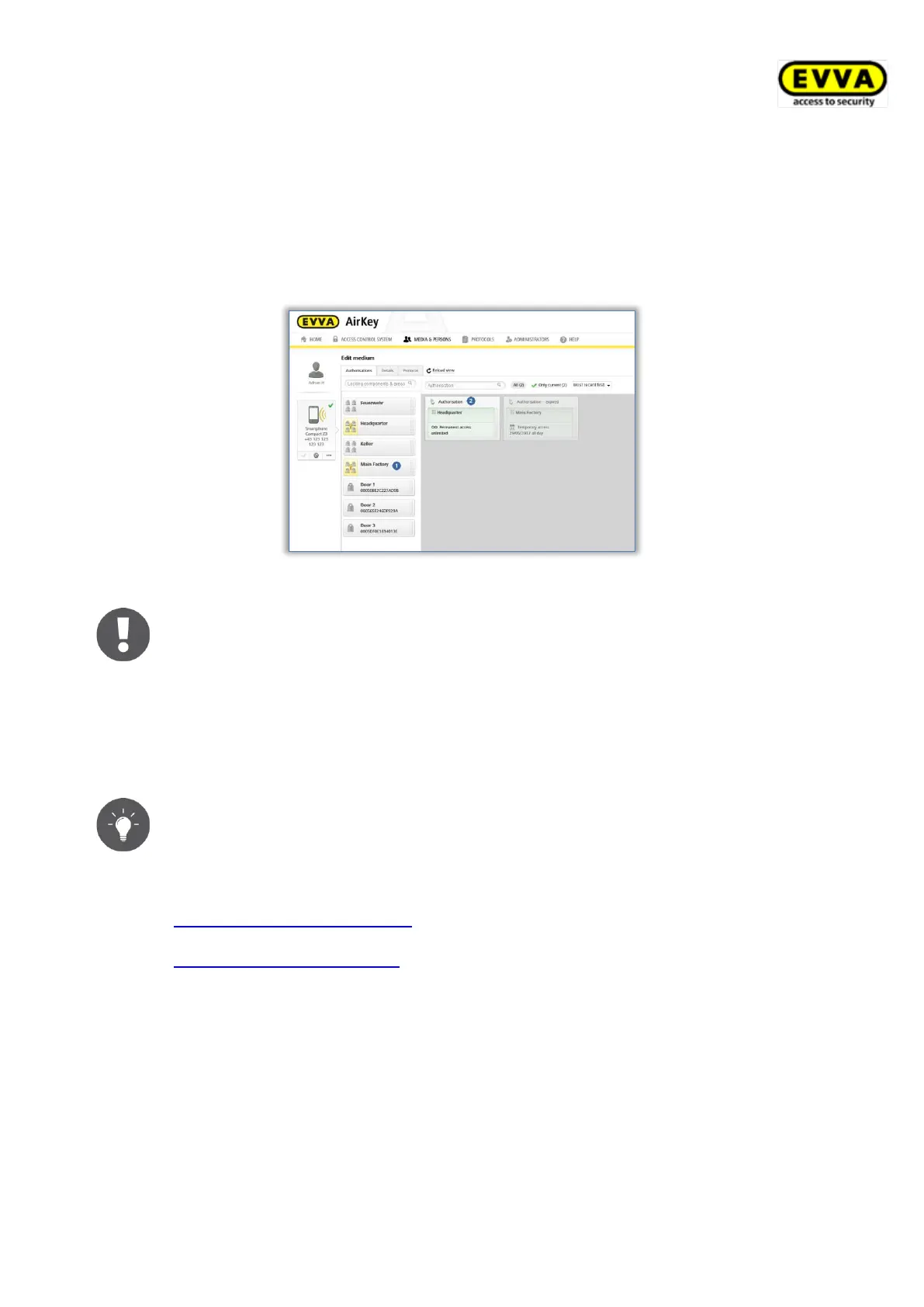
Proceed as follows to view the authorisation overview of a medium:
> Select Media & persons → Media in the main menu.
> Select the desired medium from the overview list.
> The medium has already been selected (several media may be assigned to one
person).
> You now see all authorisations that have already been assigned.
Figure 175: Authorisation overview
Background colour of authorisations:
• Green = Status up to date, authorisation created and medium
updated
• Blue = Authorisation created, medium not updated yet
• Yellow = Authorisation has been changed or deleted, but not saved
(created)
• Grey = Authorisation expired
Alternatively, you can also open the authorisation overview via Media &
persons → Persons and select a person from the person list that has been
assigned a medium. Now click on the media icon on the left-hand side
below the selected person.
5.6.13 Assigning authorisations: See chapter 4.14
5.6.14 Creating authorisations: See chapter 4.15
5.6.15 Changing authorisations
You can change authorisations in the AirKey Online Administration at any time.
> On the Home screen, select the Smartphones or Cards tile.
> Alternatively select Media & persons → Media in the main menu.
> Select the medium from the overview list for which you would like to change
authorisations.
> In the "Authorisation" tab, click the authorisation you would like to change.
> Alternatively, once again drag and drop the door/area into the centre.


 To Next Page
 Loading...