AirKey system manual version 2.7 |
06/03/2024 | Subject to technical changes and misprints
When updating media Keyring versions, ensure a stable Internet connection
has been established and the data connection does not change during the
Keyring update. For this purpose, a host of settings are available depending
on the corresponding smartphone or operating system (e.g. permit
automatic network changes between mobile data networks and Wi-Fi
networks, avoid unfavourable Internet connections, etc.).
EVVA recommends to always keep media Keyring versions up to date.
8.6 Updating smartphones’ app versions
A corresponding message appears on smartphones if a new AirKey app update is available.
Depending on the Google Play Store or Apple App Store settings, the AirKey app is
automatically updated or updated only after having manually confirmed the update.
You can continue to use the AirKey app as usual once you have completed the app version
update.
You require a Google account or Apple ID to download apps from the
Google Play Store or Apple App Store.
It may be the case that AirKey app updates are recommended or
mandatory. In such cases, a corresponding message appears in the AirKey
app. This will restrict certain functions. However, you will continue to be
able to unlock locking components.
EVVA recommends always keeping the AirKey app version for smartphones
up to date and activating automatic app updates in the Google Play Store or
Apple App Store.
8.7 Replacing batteries and using the emergency power
device
Regularly replace the batteries in battery-operated locking components. Check the battery
status of locking components in the AirKey Online Administration and when updating locking
components using smartphones with maintenance authorisation.
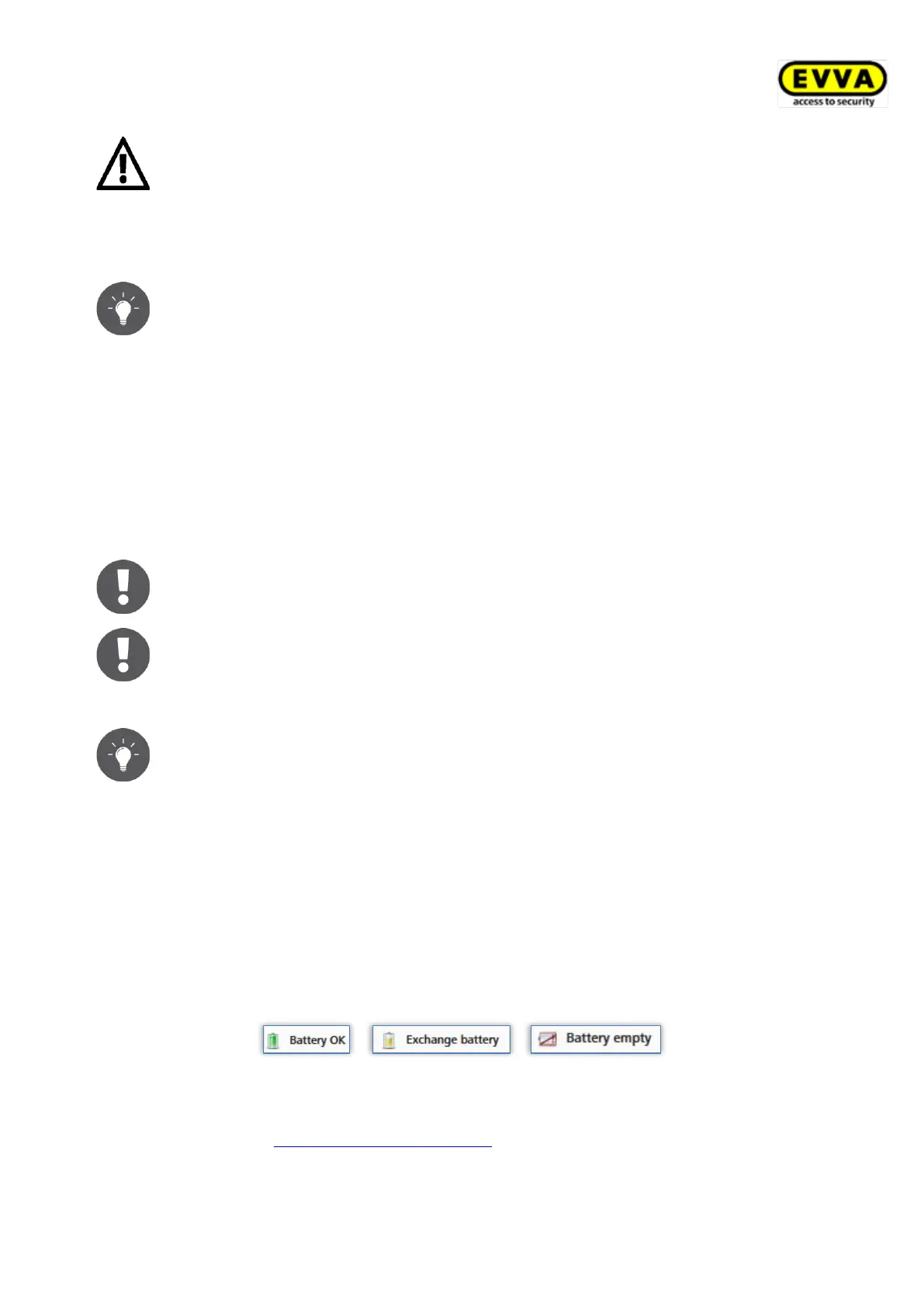
The system differentiates three, different battery states.
Figure 287: Battery status
The locking component itself outputs a special "battery empty" warning signal upon unlocking
media. Please refer to Locking components signals for more information about signals.


 To Next Page
 Loading...