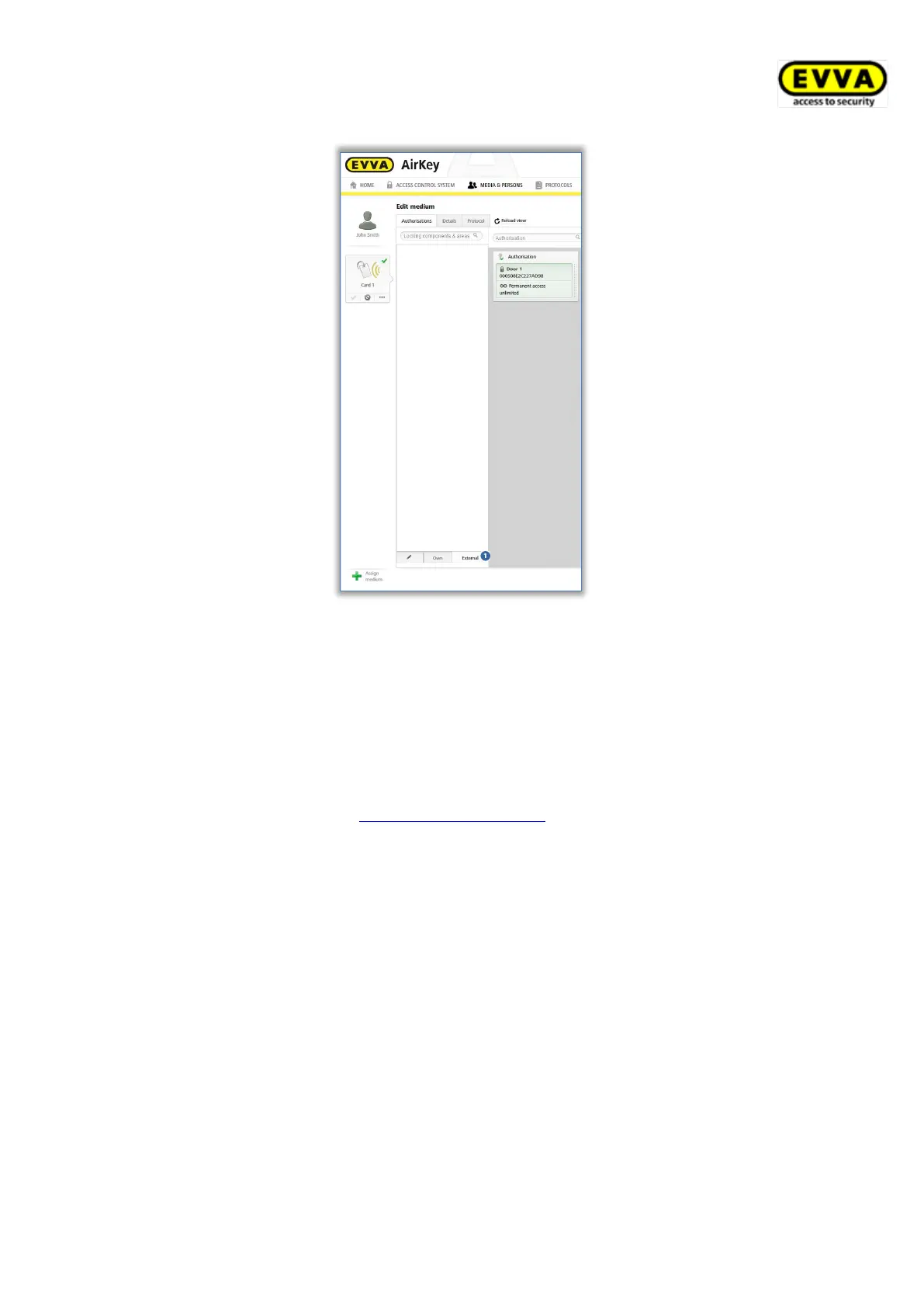
Figure 315: Authorisations for shared locking components
> Drag and drop the button with the selected, shared door to the grey area. The access
types are only displayed after having dragged and dropped the selected door / selec-
ted area into the centre.
> Drag and drop the selected door / selected area to the corresponding field to select
the desired access type.
> Create the authorisation to save it and have one KeyCredit deducted from your
account. Please refer to Creating authorisations for more information on creating
authorisations. In this process, the KeyCredit is deducted from your access control
system’s credit, not the credit of the other access control system.
11.4 Viewing authorisations for shared locking components
If you have shared a locking component with another client, you can also see the clients’
media authorised for the shared locking component.
> On the Home screen, select the Cylinders or Wall readers tile.
> Alternatively, select Access control system → Locking components in the main
menu.
> Click the locking component for which you would like to view the details in the
overview.
> Click Authorised media (external) to obtain an overview of all external media
with authorisation for this locking component.


 To Next Page
 Loading...