systems and the use of the AirKey Cloud Interface. There, the
lockingSystemId of the access medium can then be evaluated and further
processed. For example, to find out the person to whom the access medium
belongs. Details about the AirKey Cloud Interface can be found in the chapter
AirKey Cloud Interface (API).
• -version: Displays the version of the coding station application.
• -help: Opens the help and describes all possible parameters.
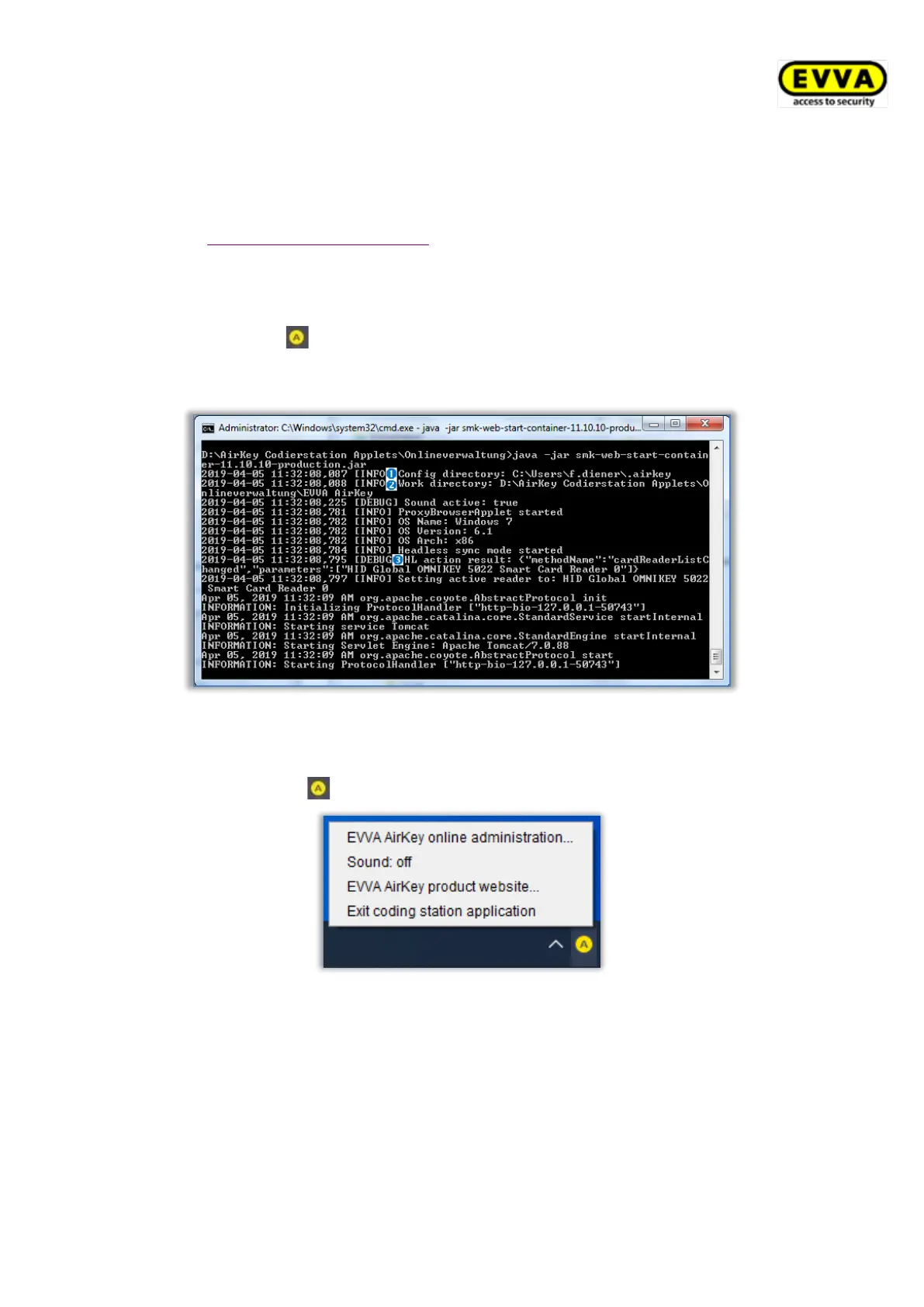
> The AirKey icon appears in the task bar at the bottom right. Information about
the configuration directory , the working directory and the available coding
stations are displayed in the command line.
Figure 18: Starting coding station application via command line
4.5.3 Configuring the coding station application
Right-click the AirKey icon to open the corresponding context menu.
Figure 19: Configuring the coding station application
List of corresponding menu items:
> EVVA AirKey Online Administration – AirKey Online Administration login page link
> Sound: on – a sound is indicated when updating components using a coding station.
Audible feedback signals are recommended if the coding station is used without
AirKey Online Administration. With click on Sound: on it will change to Sound: off.
> Sound: off – no sound will be emitted. With click on Sound: off it will change to
Sound: on.


 To Next Page
 Loading...