This document describes the V519 Data Transfer Unit, a versatile device functioning as a 4G/3G Industrial Router and a 4G/3G Serial Server.
Function Description
The V519 is designed to provide robust and flexible network connectivity, particularly in industrial environments. It supports multiple operation modes including LTE Gateway, standard Gateway, 2.4G WISP, AP (Access Point), and a "Mix" mode that offers 4G, wired, and wireless backup for continuous connectivity. As an LTE Gateway, it automatically recognizes and registers to 3G/4G networks upon SIM card insertion. In Gateway mode, it acts as a standard wireless router, connecting to a modem via its WAN port. The 2.4G WISP mode allows it to connect to existing wireless networks, while AP mode transforms a wired network into a wireless one. The "Mix" mode is particularly useful for ensuring high availability, as it can switch between main and alternate connections (e.g., LTE and WAN) if one fails.
Beyond its routing capabilities, the V519 also functions as a 4G/3G Serial Server. It supports a 1-channel RS232 serial port, with RS485 customization available. This serial port can be utilized for various applications including GPS positioning, terminal command line operations, ModBus communication, and transparent data transmission.
The device also integrates GPS functionality, leveraging the GPS built into its 4G modules. This allows for GPS positioning and the upload of GPS data to an assigned server, or broadcasting GPS data via a specified port for connected terminals.
Important Technical Specifications
Power Supply:
- DC Jack: DC7V~35V wide voltage input, with DC12V being recommended. The DC jack is a 2.1mm standard round interface, with internal positive (+) and external negative (-).
- Serial Port DC+: The DC+ pin on the serial port can also be used to power the router.
Network Interfaces:
- RJ45 Jacks: Two RJ45 ports (LAN0 and LAN1). LAN0 can be configured as a WAN port in regular router mode.
- Antenna Ports: Three SMA antenna ports: one for 3G/4G and two for WiFi.
- 3G/4G Antenna: Recommended 3-5dB gain.
- WiFi Antenna: Supports up to 15dB gain, depending on requirements and coverage.
- SIM Card Slot: Self-locking slot for 3G/4G SIM cards.
Serial Port:
- Type: 4PIN PH2.0mm connector.
- Pinout (left to right): GND, TX, RX, DC+.
- Functionality: Primarily RS232 for data transmission (GND, TX, RX). DC+ acts as both input and output for power supply (e.g., 12V input results in 12V output). RS485 is customizable.
- Applications: GPS positioning, terminal command line, ModBus, data transparent transmission.
Wireless Connectivity:
- WiFi Hotspot: Starts with SSID "V519-XXXXXX".
- Default WiFi Password: 87654321.
Default IP Address:
- LAN0: 192.168.8.1
- Subnet Mask: 255.255.255.0
Default Login Credentials:
- Username: admin
- Password: admin
VPN Support:
- OpenVPN, L2TP, PPTP, GRE tunnel, and other VPN protocols are supported.
Usage Features
Initial Setup and Connection:
- SIM Card Insertion: Correctly insert the SIM card into the self-locking slot.
- Power On: Connect the DC12V adapter or use the DC+ pin on the serial port.
- PC IP Configuration: For accessing the router's web interface, it's recommended to set the PC to "Obtain an IP address automatically" and "Obtain DNS server address automatically." Alternatively, a static IP address within the router's LAN0 segment (e.g., 192.168.8.x) can be configured.
- WiFi Connection: Connect to the router's WiFi hotspot (SSID: V519-XXXXXX) using the default password (87654321).
- Confirm Connectivity: Use the PING command (e.g.,
ping 192.168.8.1) to verify the PC's connection to the router.
- Access Web Interface: Open a web browser (Chrome, Firefox, Edge, etc.) and navigate to
http://192.168.8.1. Log in with the default username and password (admin/admin).
Operation Modes:
- LTE Gateway (Default): Insert a 3G/4G SIM card, and the router will automatically connect to the network. ISP selection can be customized.
- Gateway: Connect the router's WAN port to a modem via Ethernet. IP address can be obtained automatically (DHCP) or set manually (Static IP, PPPoE).
- 2.4G WISP: Scan for available wireless networks, select one, and enter credentials to connect.
- AP (Access Point): Connect the V519's WAN port to the LAN port of a primary router via Ethernet to create a wireless network.
- Mix Mode: Supports 4G, wired, and wireless backup. Users can set a main connection (e.g., LTE) and an alternate connection (e.g., WAN) for failover.
LTE Configuration:
- Users can configure LTE settings and select their ISP.
- Custom APN settings can be entered based on ISP information (examples for China Mobile, China Unicom, and China Telecom are provided).
GPS Functionality:
- Enabling GPS: Navigate to Network -> LTE -> GPS in the web interface to enable GPS.
- GPS Data Upload: Configure the router to upload GPS data to an assigned server.
- GPS Server: Broadcasts GPS data via a specified port for connected terminals.
Serial Port Usage:
- Configure serial port parameters such as baud rate, data bits, parity, and stop bits through the web interface.
- The serial port can be used for GPS positioning, terminal command line, ModBus, or transparent data transmission.
System Management:
- Device Settings: Change operation mode and system language.
- Manage Server: Configure parameters for remote management. This requires a customized integration protocol, and users are advised to contact their seller for details.
Maintenance Features
Indicator Lights:
- SYS Indicator:
- Indicator On: Powered and connected properly.
- Flash Quickly: Abnormal connection, 3G/4G dialing, or system reset indicator.
- 3G/4G Indicator:
- Green: Connected successfully, good signal.
- Red: Connected successfully, bad signal.
- Off: Failed to connect to 3G/4G module or abnormal.
- LAN0/LAN1 Indicators:
- On: RJ45 is connected.
- Off: RJ45 is out of connection.
Reset Functionality:
- RESET Button: Press and hold for more than 5 seconds while powered on. The SYS indicator will flash quickly, and the router will reboot, resetting all settings to default factory settings.
Remote Management:
- The "Manage Server" feature allows for remote configuration of the router once connected to a remote management server. This requires a customized integration protocol, which should be obtained from the seller.
Firmware Updates:
- While not explicitly detailed in the provided excerpt, typically, industrial routers like the V519 would support firmware updates through the web interface to enhance features, fix bugs, and improve security.
Troubleshooting:
- The indicator lights provide immediate visual feedback on the device's status, aiding in quick troubleshooting of connection or power issues.
- The web interface offers detailed status information for 4G, LTE, LAN, and Switch interfaces, allowing users to monitor network performance and diagnose problems.

 Need help?
 General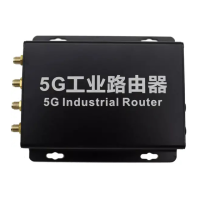

 To Next Page