1
Devices
Wi-
Password
Next
2
4
5
3
Camera Configuration
6
Connect
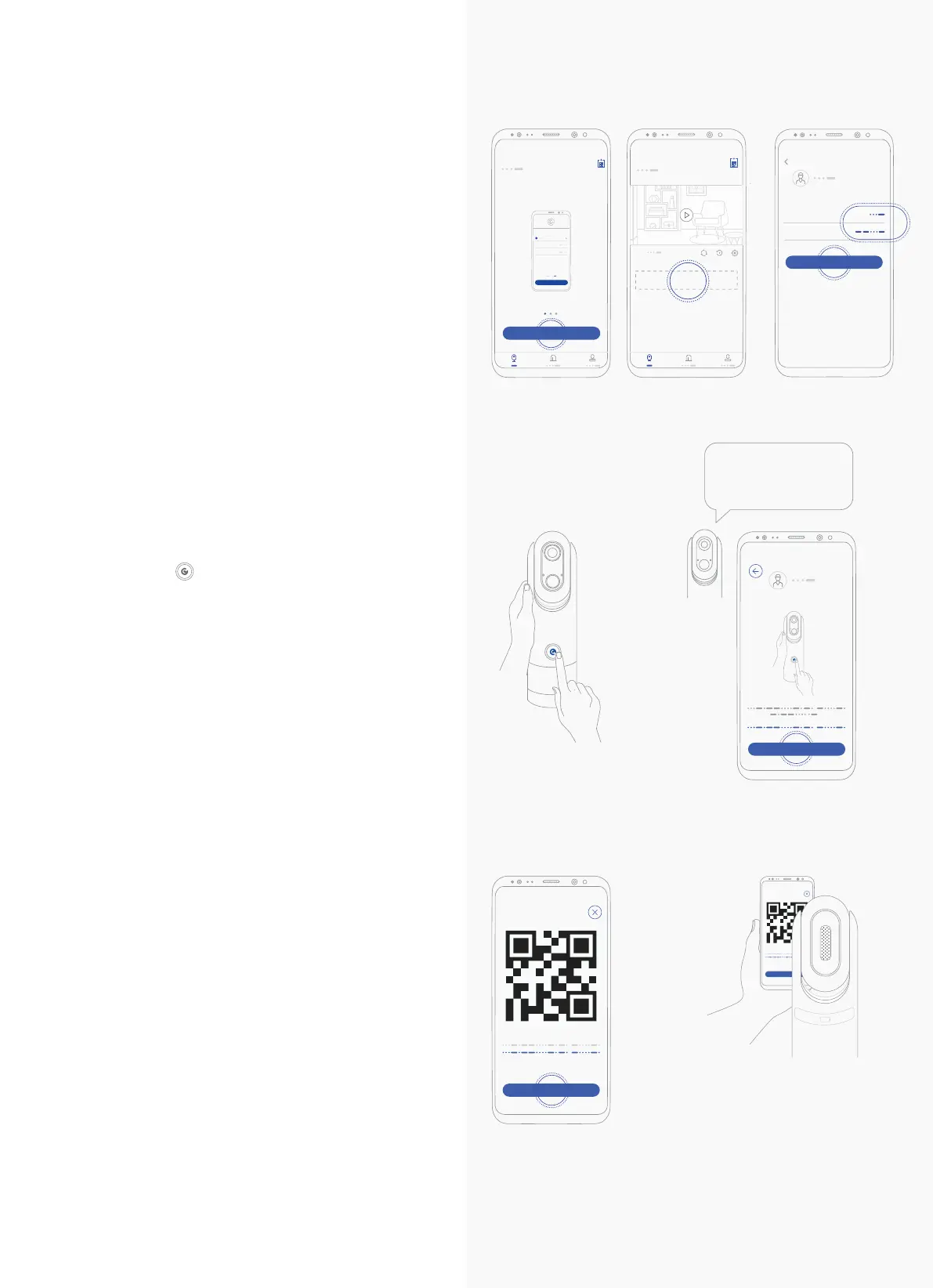
1.
A. When adding your first device:
Click “Start”.
B. When adding new devices:
Click the ‘’+Add new camera” field.
2. Enter your wi-fi network name and
password.
3. Click “Next”.
4. Hold the function button on the front of
the camera ( ) for 5-8 seconds and then
release it to wake on the device from
stand-by mode.
5. After hearing “Please scan the QR code on
your App using your eyecloudCam”, press
“Next” on the App.
6. Here's your QR code
7. Scan QR code in a recommended 1-1.3 feet
distance.
* Suggested distance
between camera and QR code:
1 ~ 1.3 feet
*5-8 seconds
7
Connect
Next
3. Sync the Device with
the App
Hi John,
Let’s get started!
Wi-
Password
Next
Start
Type in Wi-fi and Password
Connect
Next
7
Please scan the QR
Code on your App using
your eyecloudCam.
Next
Devices
A B
+ Add new camera



 To Next Page