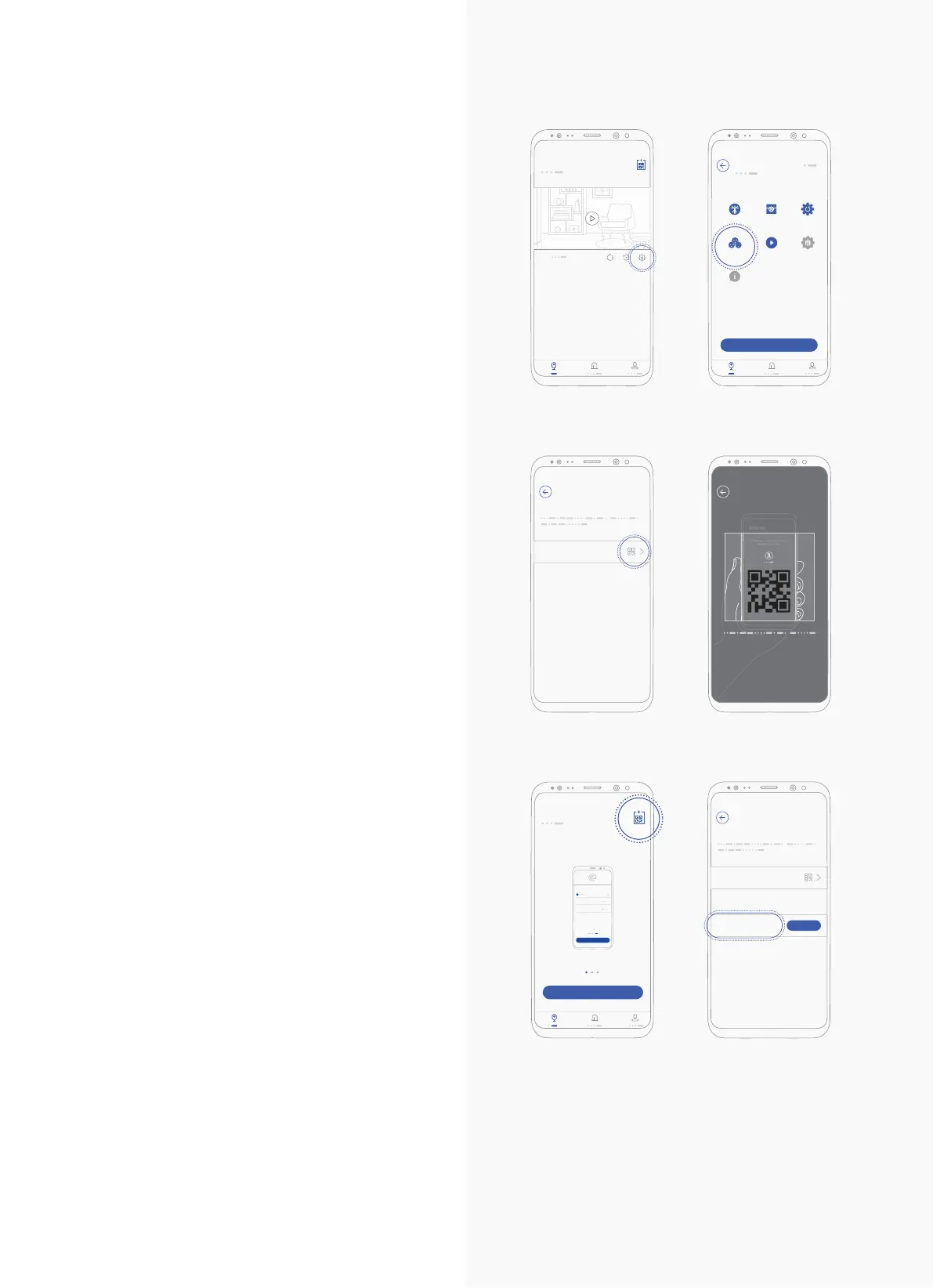
1. On your app, click the “Settings” button
underneath the camera placeholder.
2. Click the “Watch Together” button.
3. Click the QR Code icon in the “Scan Guest
Sharing QR Code” field.
4. Scan the Family Member’s QR Code.
* Family Member can access his or her QR
Code by pressing the QR button on the upper
right of the Home Screen.
5. Family Member was added in your Share
Camera screen.
5. Share with Family
Devices
1
Camera Settings
Watch Together Capture Region
Device Reset
Sys Upgrade
Info
Photo-AudioAlerts Settings
Unbind Camera
2
4
My QR Code
Scan Sharing QR Code
3
Share Camera
Scan Guest Sharing QR Code
0 guest(s) successfully added.
5
Share Camera
Scan Guest Sharing QR Code
1 guest(s) successfully added.
Family Member
Unbind
4*
Devices
Hi John,
Let’s get started!
Wi-
Password
Next
Start
Type in Wi-fi and Password
9



 To Next Page