Page 16
Android Device Preliminary Setup
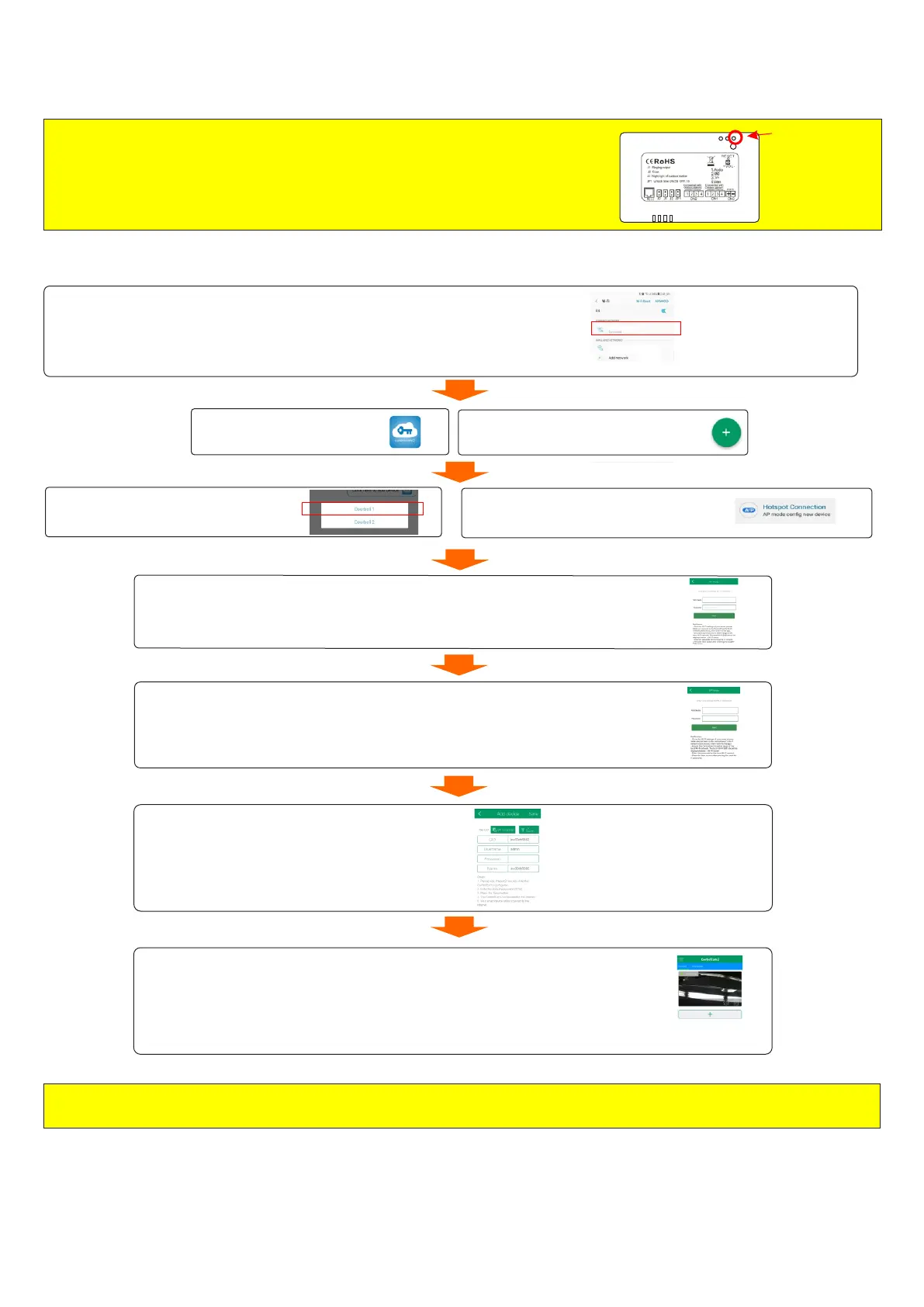
NOTE: This is the absolute FIRST step which is critical and must be
performed to allow the unit to be configured to your settings
Press and hold the “RESET” button on the backside of the Net Link
for 5 seconds WHILST the unit is powered ON and release
the button after hearing the beep.
Reset Button
7. Enter the WiFi password correctly and accurately.
Note: If the password is entered incorrectly it will present a connection issue and
the process must be performed again including the initial hard reset.
eyevision
********
6.
Th
e
n th
e na
me o
f y
ou
r l
o
c
a
l Wi-
F
i n
et
w
o
rk sh
o
u
l
d the
n ap
p
e
a
r a
s sho
wn, I
f n
o
t s
el
e
ct fro
m
t
h
e drop d
o
wn l
ist.
Note: T
h
e n
e
t
wo
r
k m
u
s
t be a 2
.4
ghz co
n
nec
ti
o
n.
eyevision
eyevision
LIDAWxxxxx
1. After performing the preliminary hard reset (see above)
GOTO the WiFi settings on your phone/tablet and connect to the network named
“LIDAW.....” ,you will be prompted there is no internet connection available on
this network which is correct.
2. Enter the ControlCam2 APP
3. Press the “+” button to add a device
5. Press the button.Hotspot Connection
On the following screen press .Next
4. Choose the Doorbell 1/Type 1 option.
Do not change the GID number
Do not change the GID number
Username is admin
Password is 1234
Name is the display name within the
APP such as “Home”
8. Then you will see the below details screen,
enter the default password (1234)
and the name of the device.
Then press . Save
.
9. Wait for approx 1 minute for the device to complete its automatic restart and
connect to the WiFi network.
10. Press the thumbnail image to view live video.
NOTE:
once the outdoor station is added to the app you will be able to connect to it over the internet either via Wi-Fi or mobile(3G/4G) data.



 To Next Page