6
Add Chime to EZVIZ
1. Log in to your EZVIZ account.
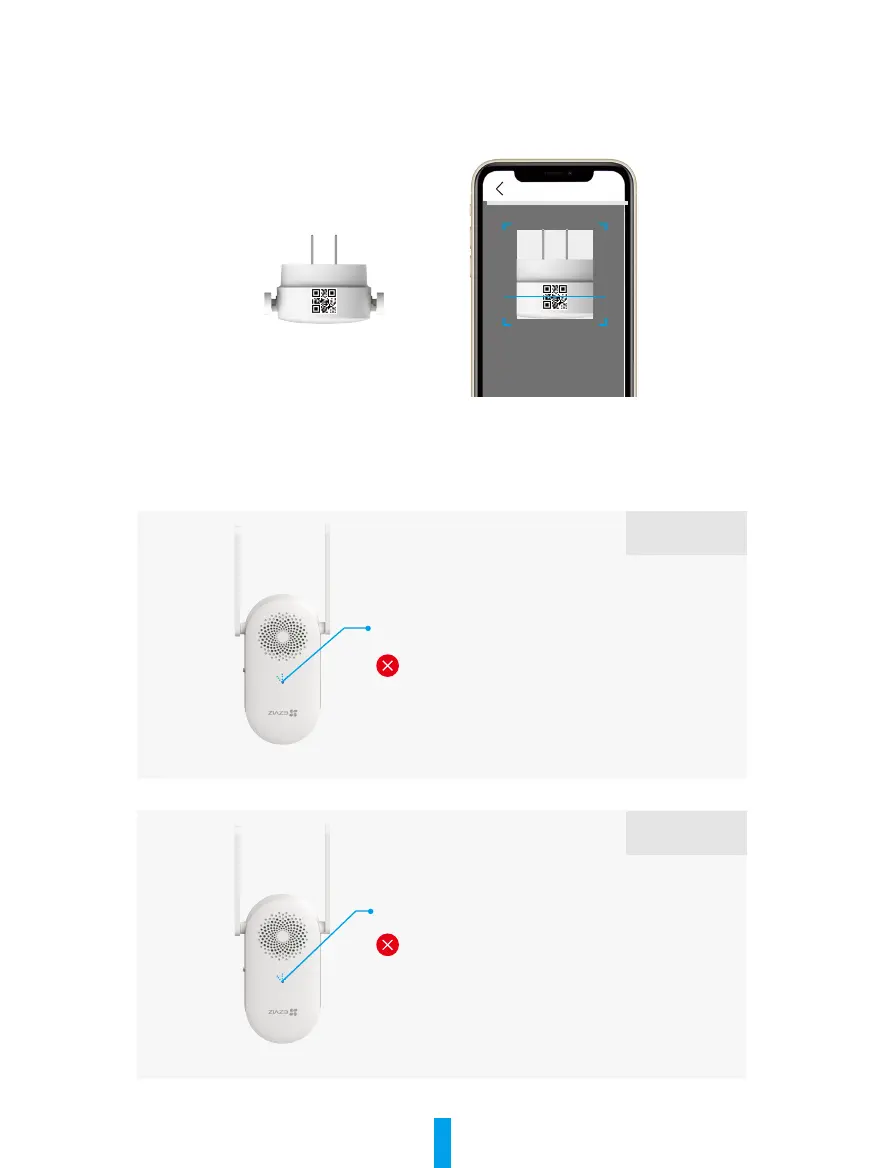
2. On the Home screen, tap “+” on the upper-right corner to go to the Scan QR Code interface.
3. Scan the QR code on the Quick Start Guide cover or on the top of the chime.
4. Follow the EZVIZ app wizard to nish Wi-Fi conguration.
What if you failed to add the chime to EZVIZ?
LED Indicator fast-ashing blue and the chime
emits a long beep sound three times.
Wrong Wi-Fi password
Please conrm the Wi-Fi password is correct, then
repeat the above steps to add the chime again.
Situation 1
Wi-Fi conguration failed
The network signal chime received is weak due to
poor placement, signal blockage caused by a wall,
or distance from the router, etc. Please conrm
that the Wi-Fi signal is good, and then repeat the
above steps to add the chime again.
Situation 2
LED Indicator fast-ashing blue and the chime
emits an urgent beep sound twice.



 To Next Page