7. Ensure that the PSU is fully seated in the chassis by making sure it does not come out when gently
pulled.
8. Connect an auto locking AC power cord to the power input panel on the new PSU.
Note: Be sur
e to route the power cords away from the fan tray so that the cords do not impede access
to it.
9. Connect the power cord to the power source.
Note: If the system is fully power
ed down and does not boot after you apply power to the PSU, use the
touchscreen LCD to power on the system.
10. Use the LCD touchscreen to clear any alert messages that might have resulted from performing the
PSU replacement.
About DC po
wer supplies
This platform can support up to two DC power supplies. You can hot swap power supplies without
powering down the system if there are two installed and one remains installed and operational during the
replacement process.
The platform supports power redundancy, which ensures that the system is unaffected if a single power
supply fails in a system containing more than one power supply.
Important: Your platform must be running BIG-IP
®
software versions 12.1.1HF2, 12.1.2, or later to
support DC power.
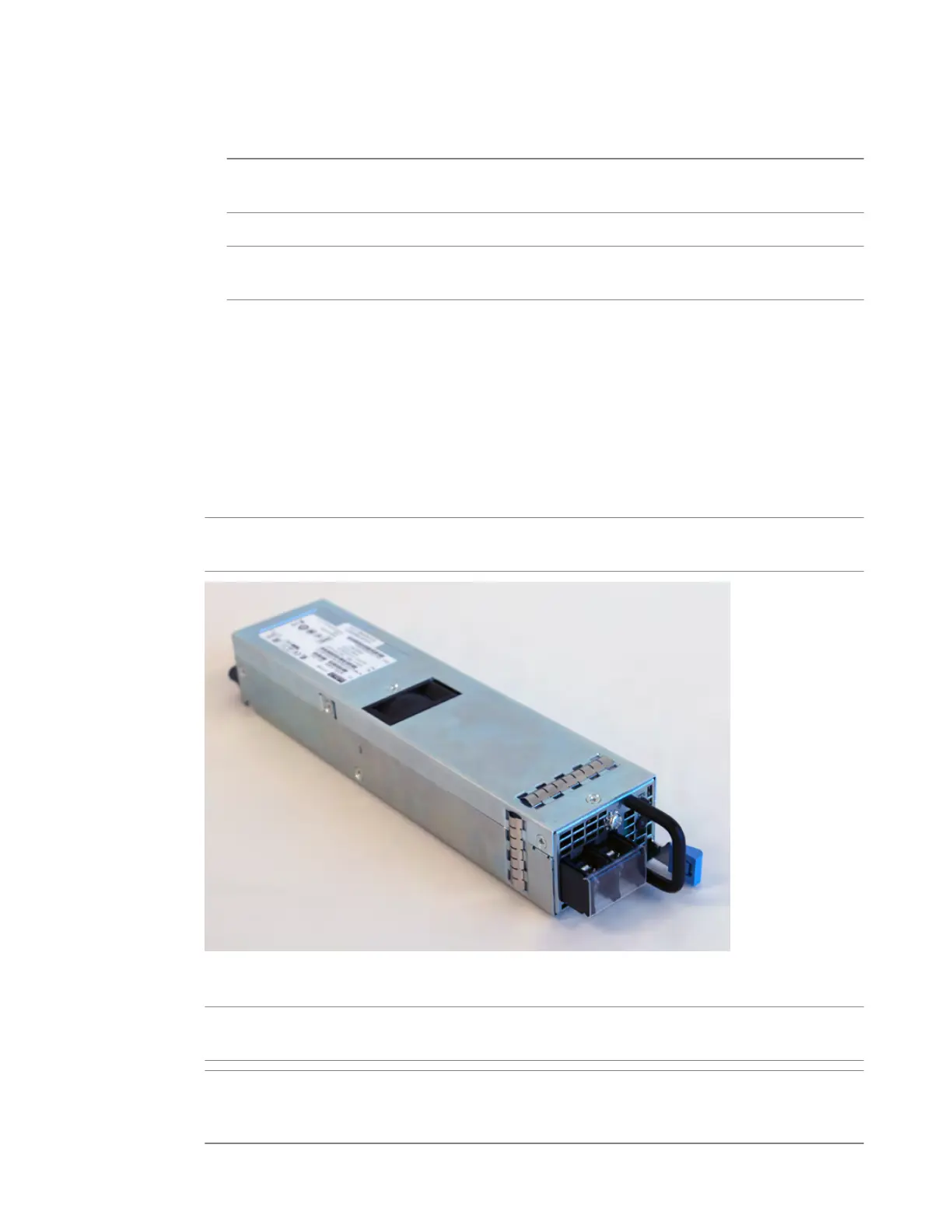
Figure 10: The 650W DC power supply (Platform: i800/i2000/i4000; Part number: PWR-0307-xx)
Caution: Befor
e installing a DC power supply unit (PSU), be sure that the circuit breaker for the DC
mains power to the PSU is switched off.
Caution: Befor
e you begin to work with one of these platforms, refer to the DC-powered equipment
environmental warnings for this platform and review any safety requirements for the facilities where the
DC-powered platforms will be installed.
Platform Guide: i2000/i4000 Series
37



 To Next Page