11
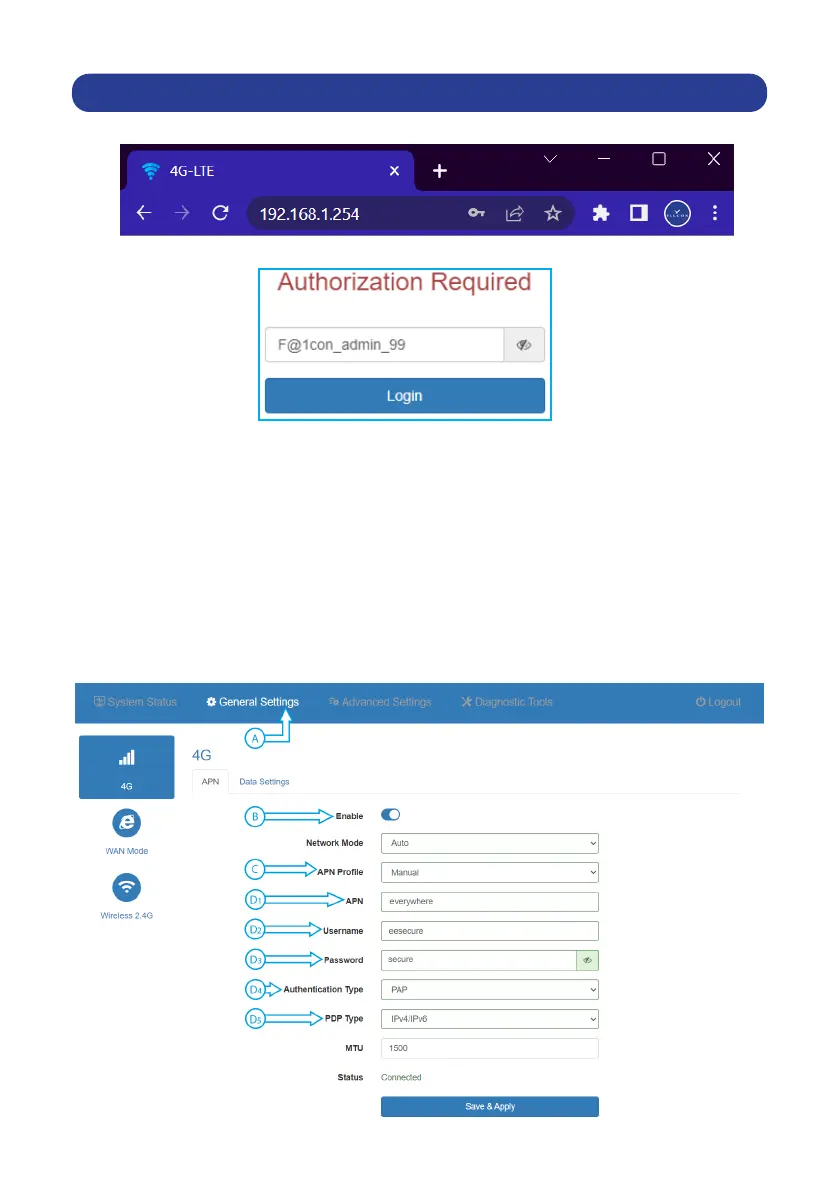
Step 1: Type the following into your web browser: 192.168.1.254
Step 2: Type the password: F@1con_admin_99
Step 3: Manually setup your “APN” details:
A - Click on “General Settings” located on the blue menu bar
B - Ensure that “4G” is enabled and highlighted “blue”
C - Change the “APN Prole” from “auto” to “manual”
D - Type the Access Point Network (APN) details. Example used is “EE”
D1 - APN: everywhere
D2 - Username: eesecure
D3 - Password: secure
D4 - Authentication type: “PAP”
D5 - PDP Type: “IPv4/IPv6”
Click save to apply changes. Example used is “EE” with reference steps below:
MANUAL ACCESS POINT NAME APN CHANGES


 To Next Page