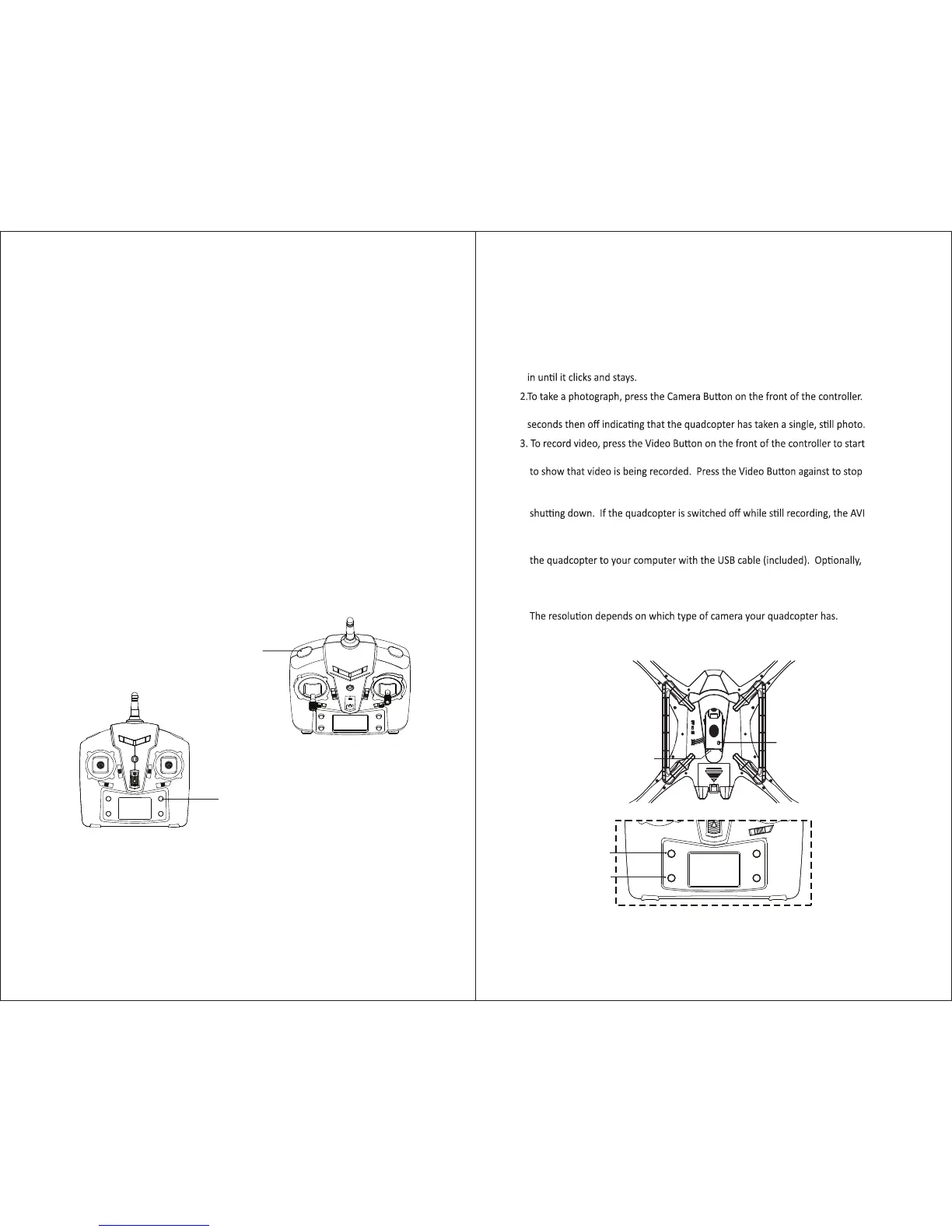
Press the Mode buon on lower right of the controller to switch between Flight
Mode 1 (maximum Gyro-stability) and Mode 2 (3D expert control). The LCD
screen will indicate the current mode.
Mode 1 automacally uses the 6-Axis Gyro (3 gyroscopes and 3 accelerometers)
to its full capabilies for stable, level flight. Use this mode for beginners, or to
hover for movies and snapshots.
Mode 2 lts the quadcopter more sharply (stronger pitch and roll), for faster
acceleraon. Use this mode for racing and 3D maneuvers.
The quadcopter can easily flip in an enre 360° circle. The copter will quickly
stabilize and level out, but will lose some altude, so first make sure the copter
is flying high above the ground.
To flip in the direcon you choose, first press the LEFT TRIGGER. The controller
will start beeping and enter 360° Flip Mode. Push the RIGHT STICK to flip in the
desired direcon (forward, backward, le, or right) and return to normal flight.
When the baery runs low, the transmier will acvated a “di, di” sound alarm,
the LED lights on the quadcopter will flash and the flip acon will be auto turn off.
To do an instant flip simply press the 360° Eversion buon on the front of the
controller, the quadcopter will flip forward 360°.
Warning: Do not perform a 360° flip unless the quadcopter has enough space
for safety.
Le Trigger
360° Eversion buon
Camera State LED
TF Storage Card
Camera Buon
Video Buon
FLIGHT MODES
1.If a storage card is not already installed, install a micro-SD (also called “TF”)
storage card in the camera underneath the quadcopter. See the small sketch
on the camera itself, which shows how to orient the chip correctly. Press the chip
The red Camera State LED underneath the quadcopter will blink on for about 2
recording. The red Camera State LED underneath the quadcopter will come on
recording.
Note: Always remember to stop the video recording with the controller before
file being stored on the TF card might not be “closed” or stored properly.
4. To quickly retrieve your videos and photos, connect the data port underneath
you have remove the micro-SD (TF) storage card and access the card directly
with your computer. The data on the TF card will appear in folders as JPEG
files and AVI files, which you can move to your computer.
HD829: video 1280 x 720p / 30 FPS; Photographs: 1280 x 720p
HD818: video 1280 x 720p / 60 FPS; Photographs: 1280 x 720p
VIDEO AND CAMERA OPERATION
360° FLIPS
9 10


 To Next Page