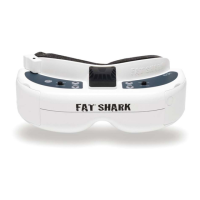
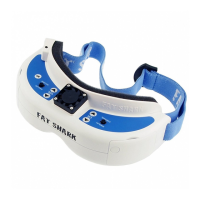
Fatshark 5 RC Vision Systems
Headset Operation
Controls
Brightness/contrast control: pressing left and right increases/decreases
display contrast. Press forward/back increases/decreases brightness.
Channel select: Pressing channel up/down buttons will cause the channel to
incrementally increase/decrease. Audio beep on channel change. A long
beep sounds on channel top and bottom limits.
Because 2.4G and 5.8G receiver modules share same channel control but
have different channel settings, refer to following channel mapping chart:
Headset channel 5G8 channel 2G4 channel
11 1
22 2
33 N/A
44 3
55 N/A
66 N/A
77 N/A
87 4
Low battery warning: Audio warning if input voltage drops below 6.8V
Volume control: each press of button increments volume up or down.
Standard earphones can be used with the Dominator.
Head tracker: See section under accessories
RX power switch: The RX module power is independently controlled via this
switch. If a module is inserted, but desired video source is via the AV cable;
the RX module needs to be turned off to avoid image conflict.
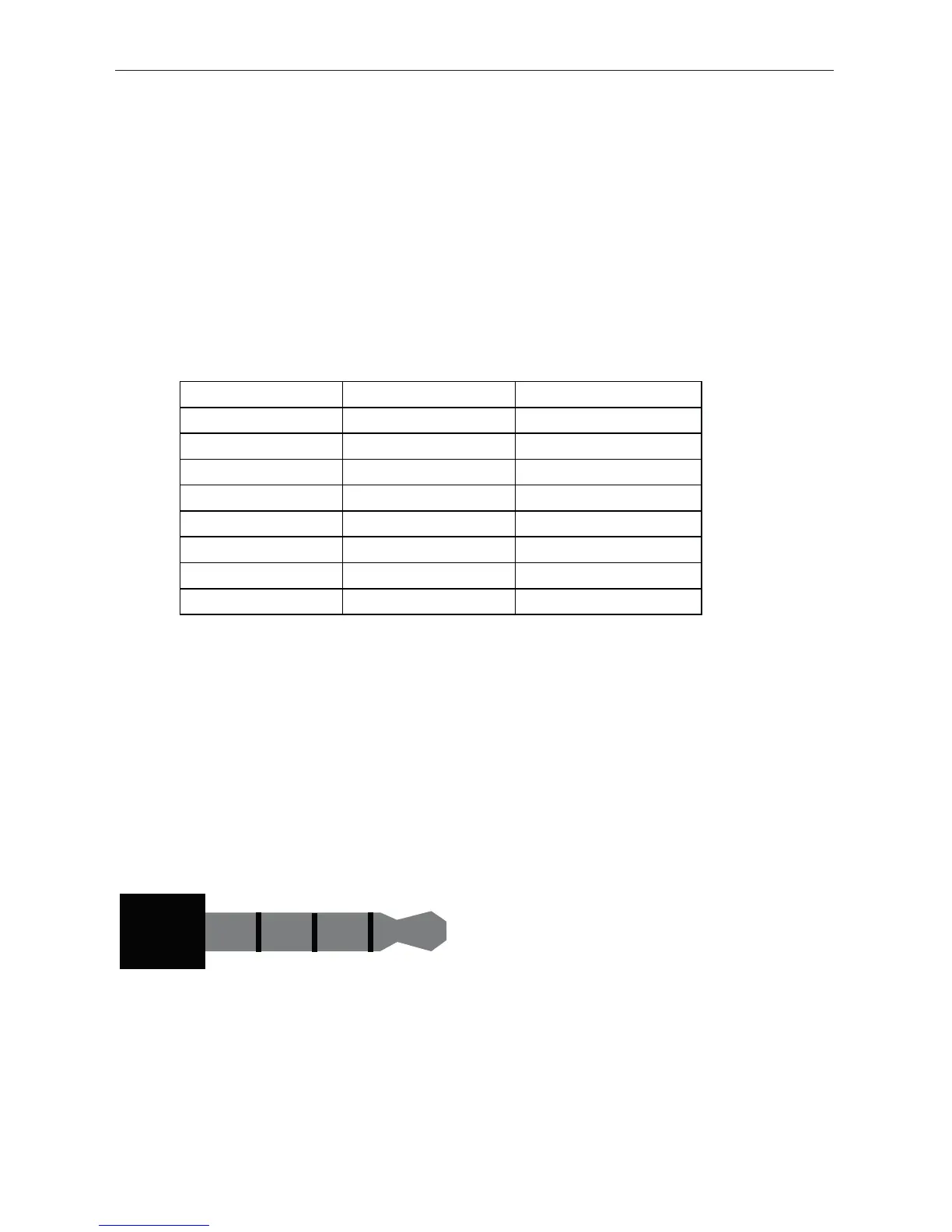
AV Cable Pinout
Ground Video AudR AuL
RCA Connector: Yellow: Video, White: Audio Left, Red: Audio Right
Recording Video
Connect AV cable to AV out port on right side of headset. Connect recordin
device to cables and set up as per manufacturer directions.
Note: Cables pins are not all the same (see above chart), be sure to connec


 To Next Page