Quick Installation Guide 3
Step 2: Install Printer Labels
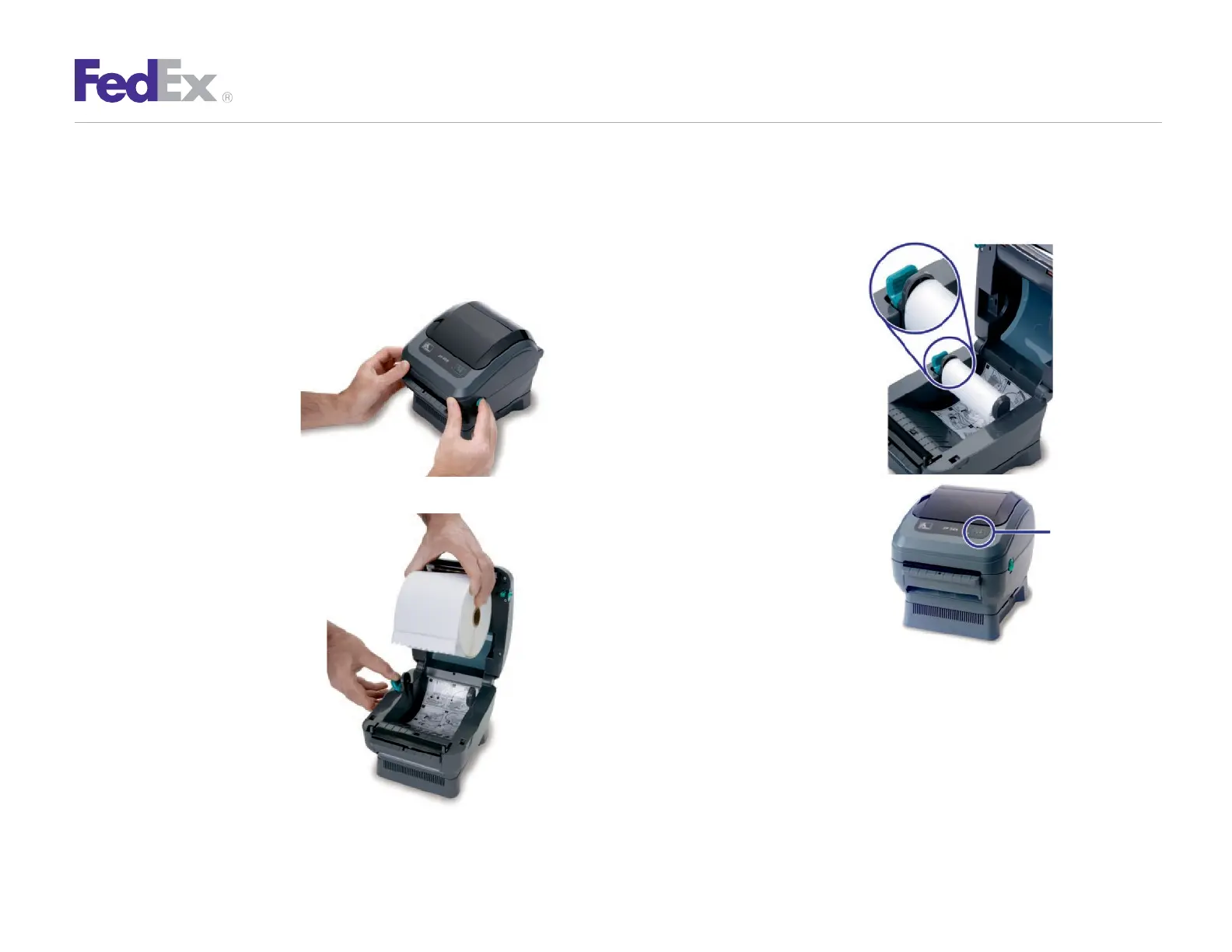
Install the printer labels as indicated in
the steps below. The instructions can
also be found in the inside of the top of
the printer cover.
1.
Open the printer by
applying pressure to the
release levers located on
the sides of the printer,
toward the front. Remove
any test bar code labels if
present.
4.
Make sure that the core
is resting on the
hangers and that the
roll turns freely.
The roll must not sit
in the bottom of the
media
compartment.
2.
Move the left media
hanger to the side.
3.
Position the media roll so
that the printing surface
faces up as it exits the
printer. Place the roll
between the hangers and
release the left media
hanger to hold the core.
Remove the first 2 to 3
labels from the roll.
5.
Close
the printer cover.
Connect the power cord
to
the printer first and
then to
the power source
(e.g., wall outlet). Ensure that
the
labels are installed correctly.
Note: You can obtain additional labels for the thermal printer by utilizing the Order
Supplies Online application on
fedex.com
or by calling
1.800.GoFedEx
1.800.463.3339
. Label part numbers are preprinted on labels in purple
or orange ink. FedEx Ship Manager Software supports several part numbers.
FedEx Ship Manager at fedex.com supports only non-doc-tab labels (item #
156297-435).
Feed
Button


 To Next Page