Quick Installation Guide 7
Step 5: Install the Printer Driver (cont.)
4.
Insert the Zebra ZP 505 and Z4Mplus DT FedEx
Shipping System Printers Mini-CD into your CD drive. If
the Autoplay screen displays, double-click
Run
RunCD.exe
. The Zebra Printers for FedEx Shipping
Applications screen displays.
5.
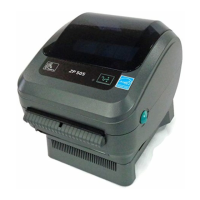
Click the ZP 505 icon. The ZP 505 installation screen displays.
6.
In the Software and Maintenance section, click
Install
Windows
Driver Suite
. The Chilkat Zip Self-Extractor popup
displays.
7.
Rename the current directory (c:\temp) to
C:\Zebra
.
8.
Click
Unzip
.
The Zebra Printer Driver Installation popup
displays.
9.
Click
Install Zebra Printer
. The Selecting the printer screen
displays.
10.
Select the printer model in the Printers section. A sample
printer model is Zebra ZP 500 (ZPL).
11.
Click Next. The Options screen displays.
12.
Select the appropriate communication port that you
are connected to (e.g.,
COM1
).
13.
Click Finish. The Install Printer screen displays.
14.
After the printer driver is installed, the Printer Installation
Complete popup displays. Click OK.
15.
Close the Chilkat Zip Self-Extractor popup.
16.
Close the Zebra Printers for FedEx Shipping Applications screen.
17.
Turn on the printer.
18.
To test the printer, click Start > Devices and Printers.
19.
Right-click the designated printer and select
Printer properties
.
The appropriate Properties screen displays. A sample Properties
screen is Zebra ZP 500 (ZPL) Properties.
20.
Click
Print Test Page
. The test label prints and the appropriate
printer popup displays. A sample printer popup is Zebra ZP 500
(ZPL).
21.
Click Close to close the appropriate printer popup.
22.
Click Close to close the Printer properties screen.
23.
Close the Devices and Printers screen.
24.
When you have completed this process, reboot your
computer again. The ZP 505 thermal printer driver is now
installed on your system.
If you have any questions about downloading, installing
or removing a Zebra printer driver, please call the
FedEx Ship Manager Technical Support Center at
1.877.FDX Assist 1.877.339.2774. Since this system is
voice-activated, say “FedEx Ship Manager Software”
when prompted.


 To Next Page
 Loading...