3
3. Charging
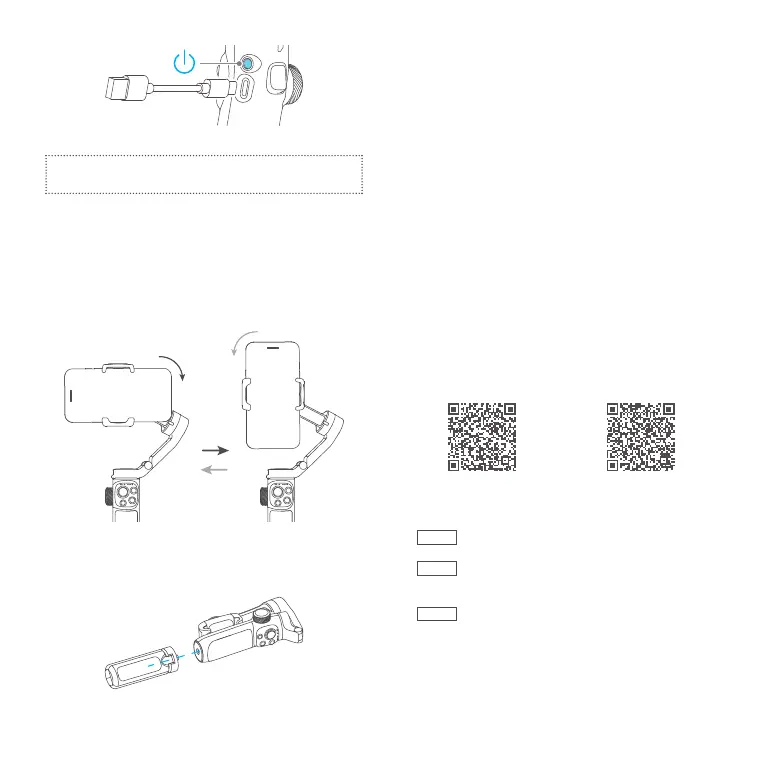
Please fully charge the battery before power on the
gimbal for the rst time.
Connect the USB-C cable to charge.
4. Landscape & Portrait Mode Switching
Double click the M button or manually rotate the
smartphone holder to switch between landscape and
portrait mode.
Do not make anti-clockwise rotation in landscape mode,
Do not make clockwise rotation in portrait mode.
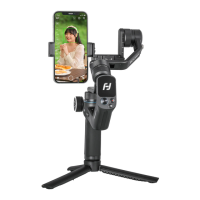
5. Tripod
The tripod is attached to the bottom of the gimbal in a
rotating manner. According to the needs of shooting,
choose whether to install it.
6. Connection
6.1 Bluetooth Connection
Turn on the gimbal.
Method one: Download and install Feiyu ON App, run the
App, follow the prompts to turn on and connect with the
Bluetooth.
Method two: Turn on the smartphone Bluetooth, connect
the gimbal Bluetooth in the setting of phone, e.g. FY_VB4_
XX.
If fail to nd the Bluetooth:
Method one: Shut down the App in the background.
Method two: Move downward the joystick and triple tap
the power button at the same time to reset the Bluetooth
connection of gimbal. (And the Bluetooth can only be
reconnected after reboot the gimbal)
6.2 App Connection
Download the Feiyu ON App
Scan the QR code to download the app, or search for
"Feiyu ON" in the App Store or Google Play.
* Requires iOS 12.0 or above, Android 8.0 or above.
iOS Android
7. Common Operation
①
Basic
: VB 4SE can achieve those functions after
balanced gimbal.
②
Bluetooth
: New available function which achieved after
connected smartphone via Bluetooth with the functions in
condition ① still available.
③
App
: New available function which achieved via
Feiyu ON App with the functions in condition ① , ② still
available.



 To Next Page