
 Need help?
Do you have a question about the FeiYu Tech SCORP PRO and is the answer not in the manual?
Please fully charge the battery before power on the gimbal for the first time. Charging with USB2.0 to Type-C cable, supports quick charge.
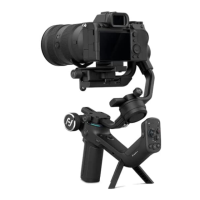
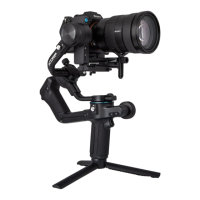
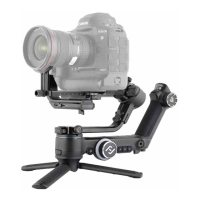
Install the 3/8 - 1/4 inch thread insert with the slot side down on the 1/4 inch screw which is on the top of the tripod.
Attach the quick release plate to camera by tightening the screw. User can choose to attach the camera backing base if needed...
Install the lens holder on the quick release plate if needed, the rubber of the lens holder must be directly under the lens.
Detailed steps for balancing the tilt axis, ensuring the camera remains steady when pointing upwards or forwards.
Before power on the gimbal, make sure you have balanced gimbal, and unlocked all the three axes. Long press the power button and release it when you hear the beep sound...
PF (Default mode): Pan follow, only the pan axis follows the movement of user's hand. PTF: Pan and tilt follow, where both the pan and tilt axes follow the movement of user's hand...
Turn on the gimbal. Turn on the smartphone Bluetooth, run Feiyu SCORP APP, tap the top of the home page to connect gimbal.
Display the product name and device battery of current connecting gimbal, tap to enter gimbal operation interface, which allows user to use virtual joystick to control gimbal...
Explains the functions of various buttons including power, mode, trigger, joystick, shutter, focusing wheel, A/B/C, and home buttons.
Guides on setting motor power manually or using auto-tune, with tips on adjusting power for gimbal stability.
Instructions for adjusting follow speed profiles and selecting different follow modes (PF, PTF, FPV, Lock, FFW).
 General
| Brand | FeiYu Tech |
|---|---|
| Model | SCORP PRO |
| Category | Camera Accessories |
| Language | English |


 To Next Page