6
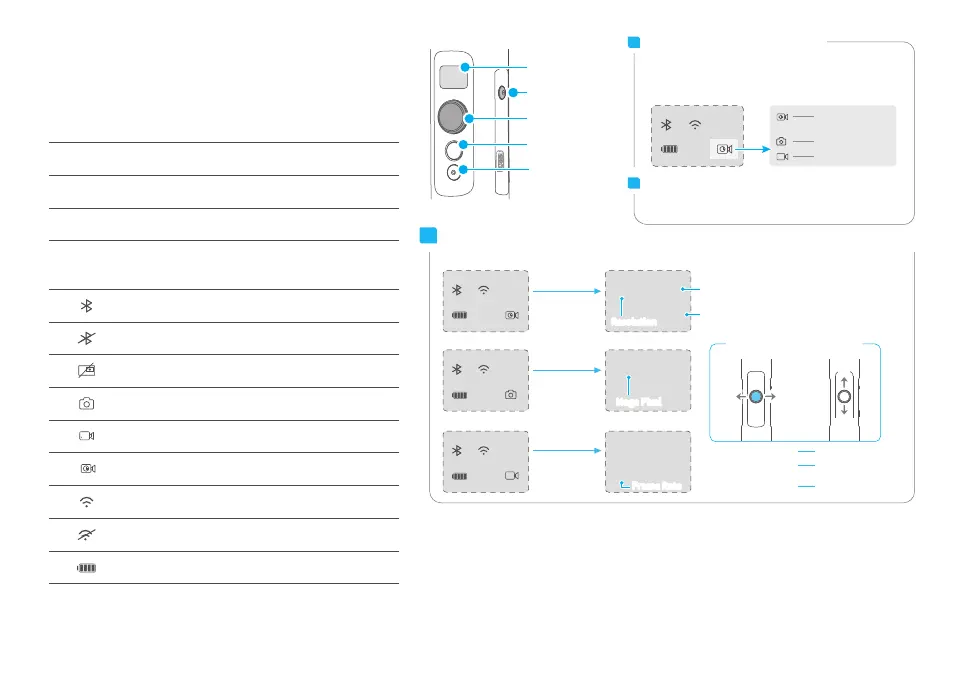
Single tap on the setting button can switch the camera
modes.
After connecting the gimbal to camera via Feiyu On App,
single tap the button can control the camera for shooting.
Setting Button Operation
Shutter Button Operation
Modes
Display Icons Mode / Status
HF
AF
Panning mode
Follow mode
Lock mode
LK
SET WIFI VIA APP
Prompt for users to open the App
settings in order to connect via WiFi
Display Description
The current mode or status of the gimbal can be
identified by the display
Bluetooth is connected
Bluetooth is not connected
Camera photo shooting
Camera video shooting
Camera time-lapse video shooting
WiFi is connected
WiFi is not connected
Battery level
Camera is not connected
Function Button
Shutter Button
Move to left / right Switch content
Joystick
Setting Button
Display
Left Right
Using the joystick
to set up parameters
Up
Down
W4K
OK
W12MP
OK
W4K
OK30
Setting
button
Long press
Setting
button
Long press
Setting
button
Long press
Field of View
Confirm Button
ResolutionResolution
Frame Rate
Frame Rate
Mega PixelMega Pixel
HF
HF
HF
Setting Parameters
Note: The parameters interface shall be different when connecting to RX0 camera
Move to right again
for confirmation
Move to right until
“OK” displays
Move to up / down Setting parameters
Time-lapse
video shooting
Photo shooting
Video shooting
Camera mode
HF
Main interface of
the display screen
① Please refer to the chapter "Connecting to camera" in page 10
①
①
Main interface of
the display screen
Interface for camera
parameters
The roll and tilt direction are fixed, and the
camera moves according to the left-right
movements of the user's hand.
Panning Mode (Default mode )
The orientation of the camera is fixed.
Lock Mode
Return to panning mode, three axises return to
default position.
Reset
Follow Mode
The roll direction is fixed, and the camera moves
according to the left-right movements, up-down
movements of the user's hand.



 To Next Page