18
Remote Control
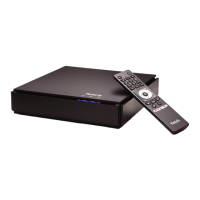
• Use the voice remote control (Page 14) within 10 metres of the Fetch Mighty when paired in Bluetooth mode.
• For non-Bluetooth remote controls (Page 13), use the remote within 6 metres of the Fetch Mighty.
• If the LED at the top of the remote control does not light up when a button is pressed, change the batteries.
• For issues with voice search through the voice remote, check the remote is paired. Press any button and
make sure the LED is green. If the LED is red, press and hold while pointing at your Fetch Mighty to pair or
go to Menu > Manage > Settings > Remote Control. If that doesn’t help, press and hold and at the
same time while pointing at your Fetch Mighty, to re-pair the remote.
Internet connection
• Double-check that the broadband connection is active.
The LED on the your Fetch Mighty should be lit blue. If using an Ethernet connection, also check that
the indicator lights on your modem are on. If using Power Line Adapters, check the status lights on the
adapters.
• If there’s no broadband connection, check you can browse the internet on a computer or smartphone
connected to the same router as your Fetch Mighty. If not, contact your broadband provider. If you can,
power cycle your Fetch Mighty.
• If connecting through Wi-Fi and you don’t see your home network in the list of available networks, try
refreshing the list of networks or restart your modem and wait a few minutes to see if your home network
appears. Alternatively try to add your home network manually (you’ll need the network name and
password).


 To Next Page