9
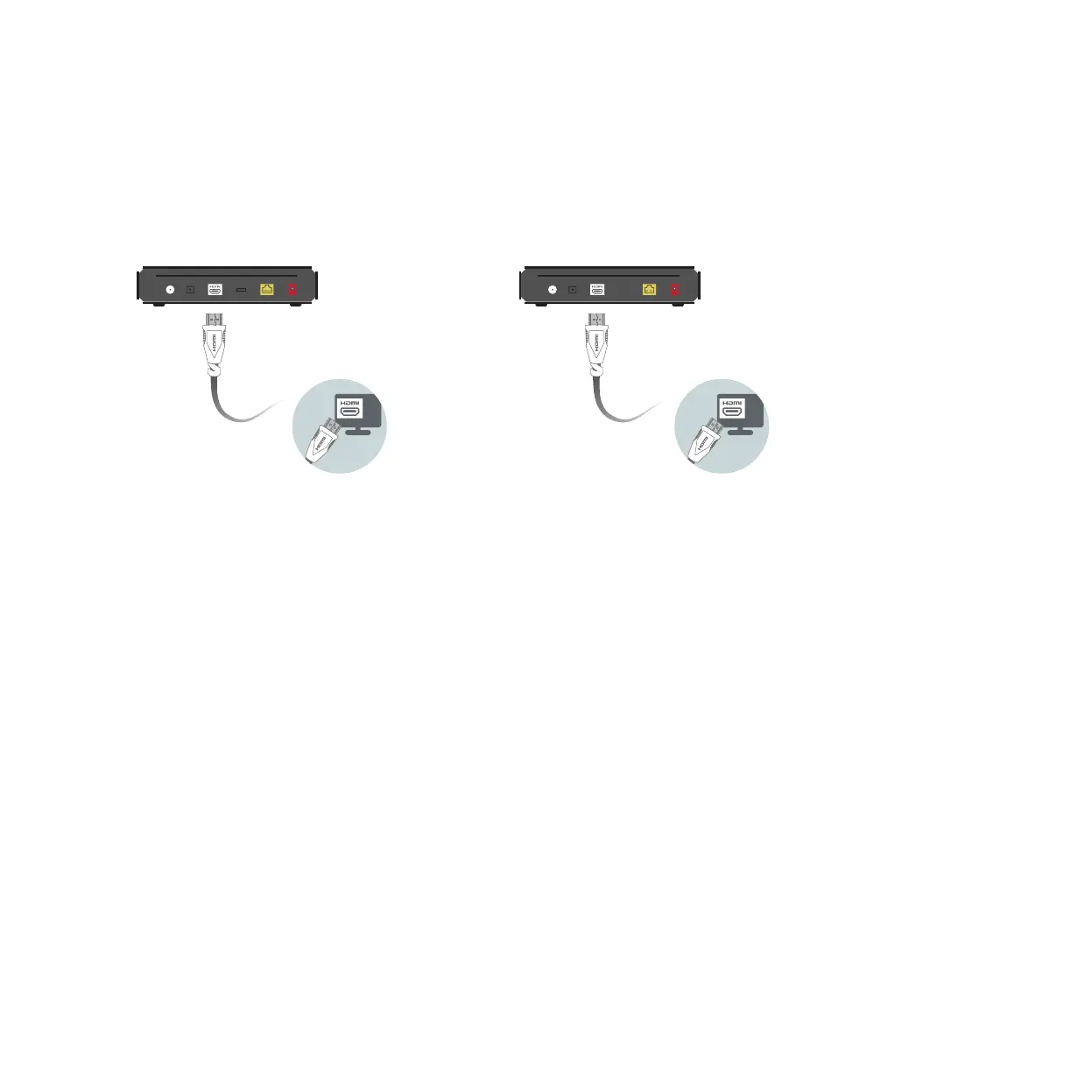
Plug the HDMI cable into the port labelled HDMI on the back of the Fetch Mighty.
Plug the other end into a free HDMI port on your TV.
1
2
Step 4. Connect to your TV
The Fetch Mighty connects to your TV using HDMI (High Definition Multimedia Interface). Only the HDMI cable
is needed.
To watch content in 4K on your Fetch Mighty, you’ll need:
• A connected 4K HDR TV
• A steady home broadband speed of 15-25 Mbps
• Video setting set to Auto (4K – 2160P) on your Fetch Mighty (you can do this later on Fetch at
Menu > Manage > Settings > Audio & Visual > Video)
Your TV and home theatre equipment such as audio video receiver or sound bar if using, also need HDMI
inputs that support 4K and HDMI 2.0/HDCP 2.2 signals. Check your TV manual for more info.
To watch High Dynamic Range (HDR), you’ll need to enable the option on your TV if supported and then
later on your Fetch Mighty at Menu > Audio & Visual > Advanced > HDR Mode. Different TVs may use other
names like “Ultra” or “Deep Colour”.
3rd Generation Mighty (M616T) 4th Generation Mighty (M681T)


 To Next Page