8
Network Connection
Your TV will require an internet connection to operate all functions. Data usage charges may apply.
Please refer to your Internet Service Provider (ISP) for additional information.
To access the internet, you must subscribe high speed broadband internet service from your internet service provider.
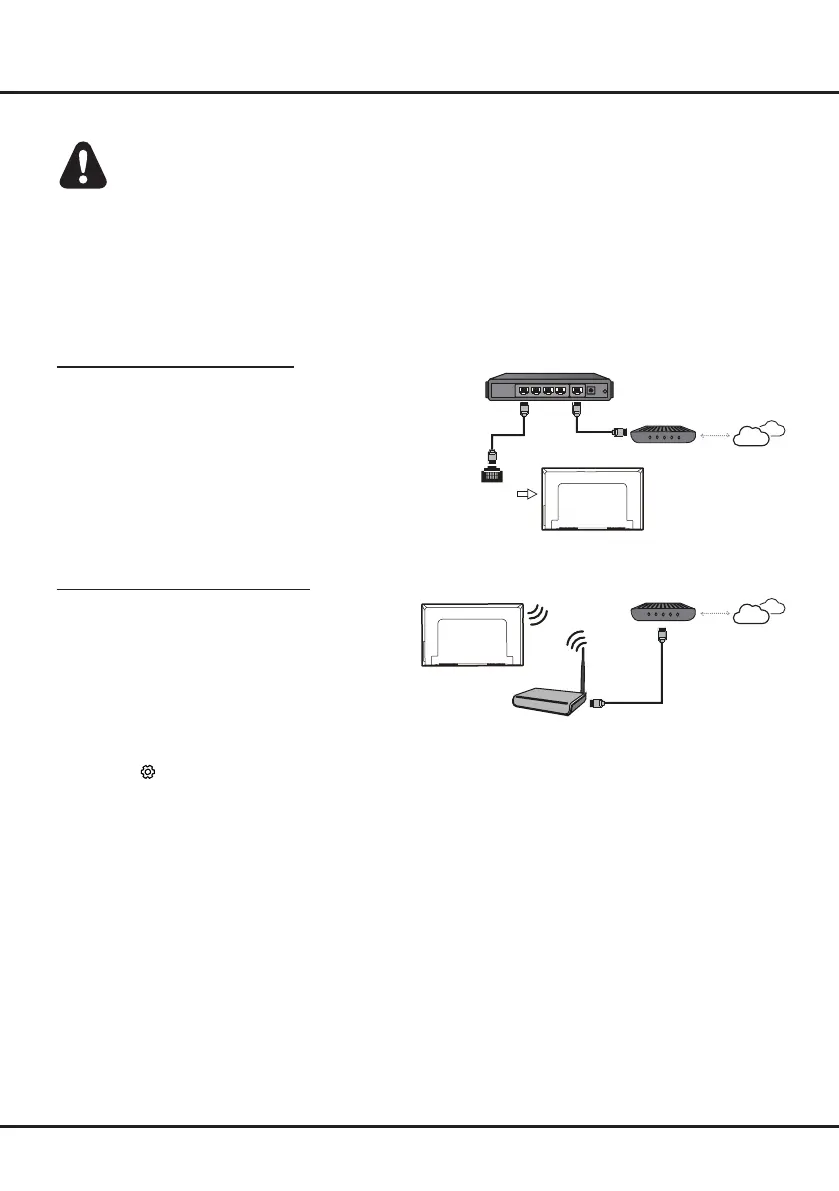
Your TV can be connected to your home network in two ways:
• Wired, using the RJ45 (LAN) connector on the back panel.
• Wireless, using the internal wireless or external wireless USB adapter and your home wireless network.
Note: The following instructions are just the usual ways to connect your TV to the wired or wireless network. The
connection method may be different depending on your actual network conguration. If you have any questions about
your home network, please refer to your ISP(Internet Service Provider).
Chapter 2 Getting Started
Connecting to a Wired Network
To connect to a wired network:
1. Ensure you have:
• An Ethernet cable long enough to reach your TV
• A router or modem with an available Ethernet port
• A high-speed internet connection
• An Ethernet (LAN) port on the back of the TV
2. Connect your Ethernet cable to the router and to the
Ethernet port on the back of the TV.
3. Use the Network Settings to congure the TV.
Connecting to a Wireless Network
To connect to a wireless network
1. Ensure you have:
•
A router broadcasting a high-speed wireless signal
•
A high-speed internet connection
2. Use the Network Settings to congure the TV.
Router
Modem Internet
LAN port
Modem Internet
Wireless router
Note: Press on the remote control, select
Network
and press OK/► to enter the Network menu.


 To Next Page