COMMAND WORKSTATION 18
TO DEFINE MIXED MEDIA SPECIFICATIONS
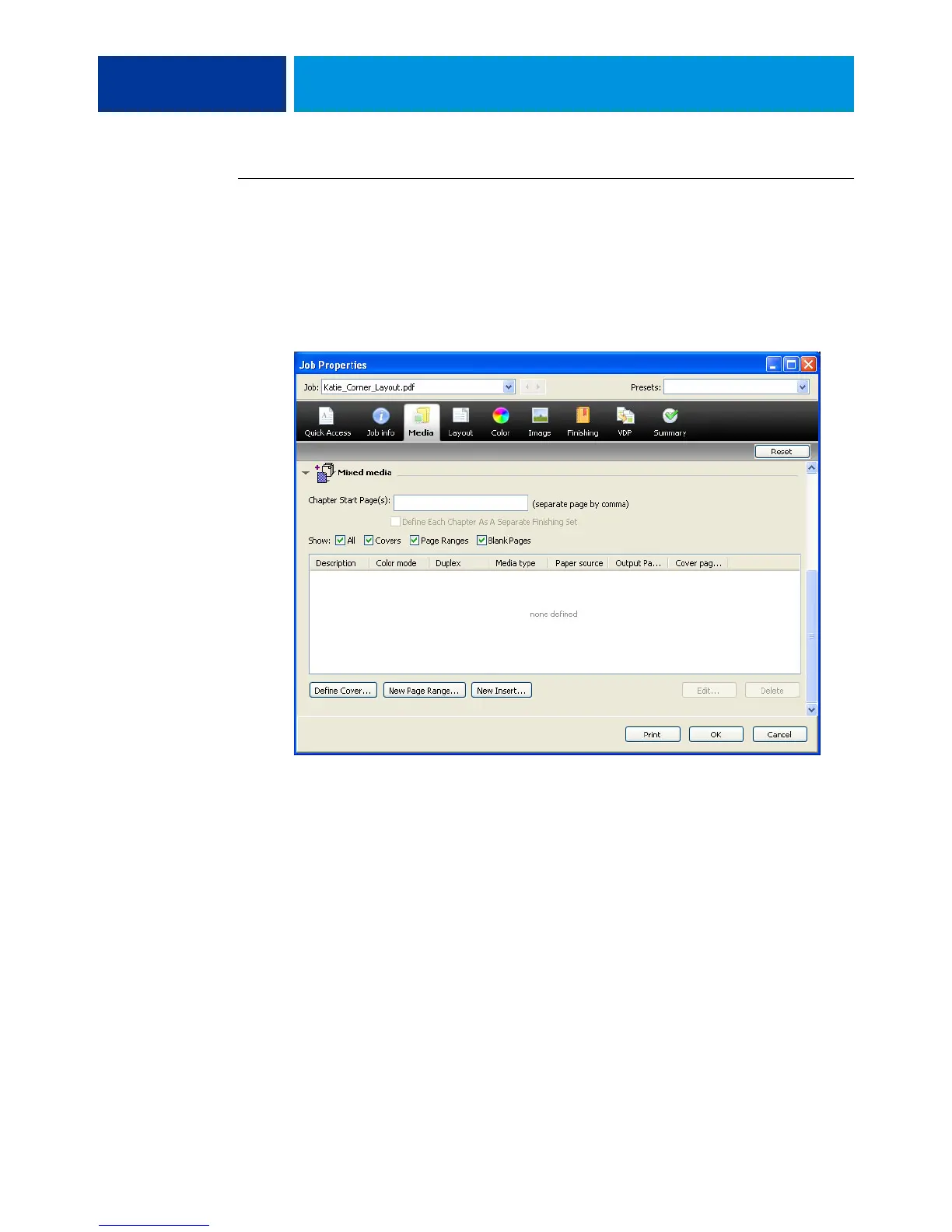
1 Select or right-click a spooled/held job in the Job Center view and choose Properties from the
Actions menu, or double-click a job.
2 Click the Media icon and scroll down to Mixed Media.
The Mixed Media window lists any previously defined media settings and includes buttons
for defining, modifying, and removing settings.
3 For Chapter Start Page(s), type the page numbers on which you want to start new chapter
sections.
Type page numbers as comma-separated values (for example: 4,9,17) to designate the start
of each new chapter. This feature forces each starting page to use a right-side page, adding
a preceding left-sided blank, if required.
NOTE: It is not necessary to type the first page, and page numbers refer to the numbering of
the original document. If you use the Chapter Start Page(s) feature, all media specified in the
Paper menu per chapter must share the same dimensions (for example, all Letter, all Tabloid,
or all A4).


 To Next Page