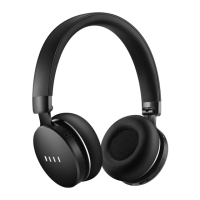
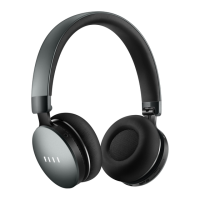
3 4
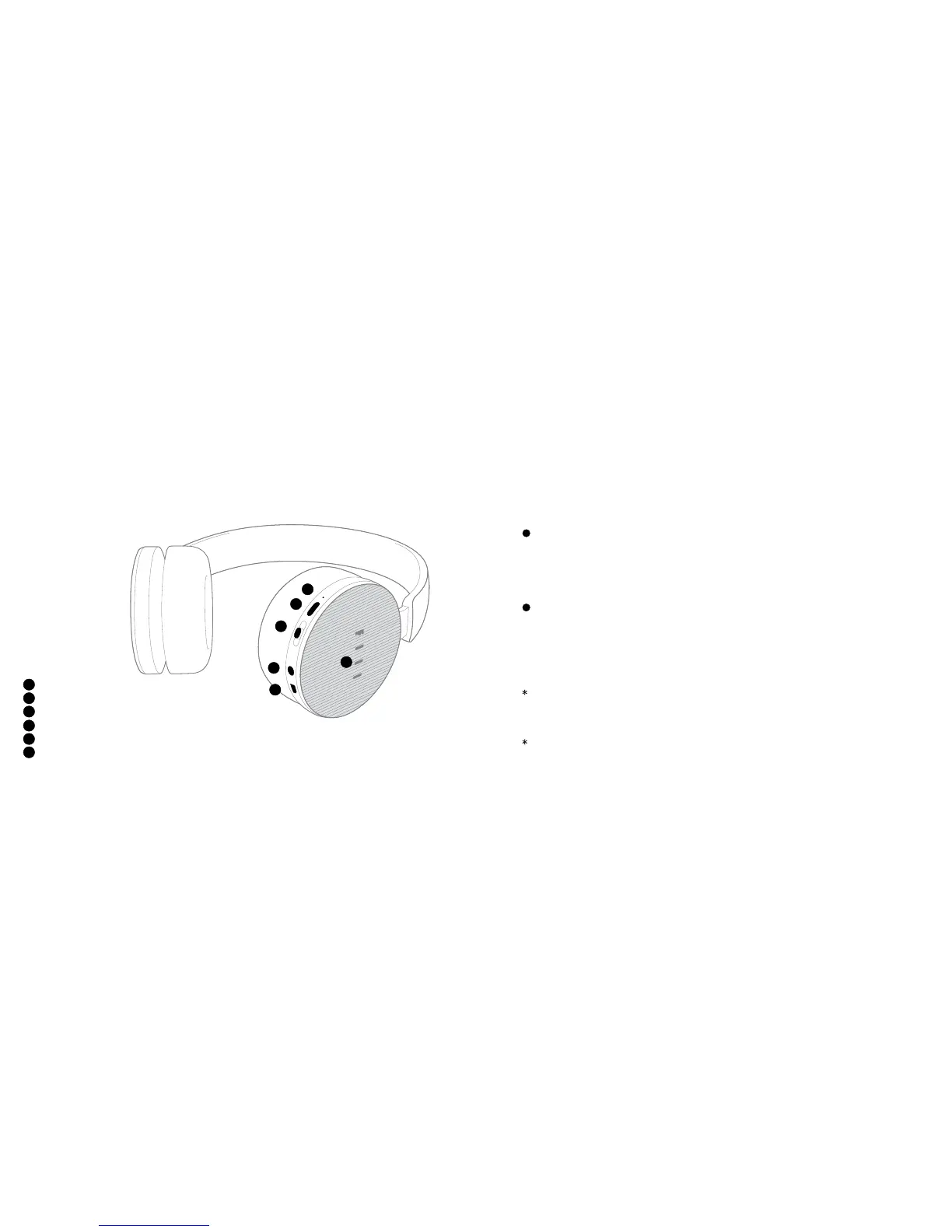
Status/Battery indicator
MFB (Multi function Button)
My AudioFiilter button (MAF)
Audio jack
Micro USB connector
Touch control panel
Main User Interfaces
1
2
3
4
5
1
2
4
3
5
6
6
Brand new Fiil Canviis Pro headphone automatically goes into Bluetooth pairing mode once switched
on (press and hold the MFB until the battery indicator lights up), the Fiil light will continue to blink. To
pair with second device for paired headphone, press and hold the MFB until the Fiil light blinks (voice
prompts “Pairing”) when the headphone is o to enter pairing mode again.
Fiil+ APP wizard connection: Please scan the QR code on page 5 to download il+ APP and connect
as instructed;
Manual connection: Make sure headphone is in pairing mode, then enter setup menu of audio source
devices, select “search device” in “Bluetooth” then select “FIIL Canviis Pro” in the device list to
connect.
Use the audio cable that comes with the headphone to connect Canviis Pro to audio source devices.
Press up/down and hold MAF to enter Local Mode, use built-in HD audio player to play music stored
in internal memory.
Bluetooth Mode
(Please ensure the headphone is put on correctly otherwise phone call functionalities
may be aected!)
(Capable to connect with two Bluetooth devices simultaneously)
STEP1 Pairing
STEP2 Connection
Wired Mode
Local Mode (Refer to Page 9)


 To Next Page