USING THE FiLIP SMARTPHONE APP
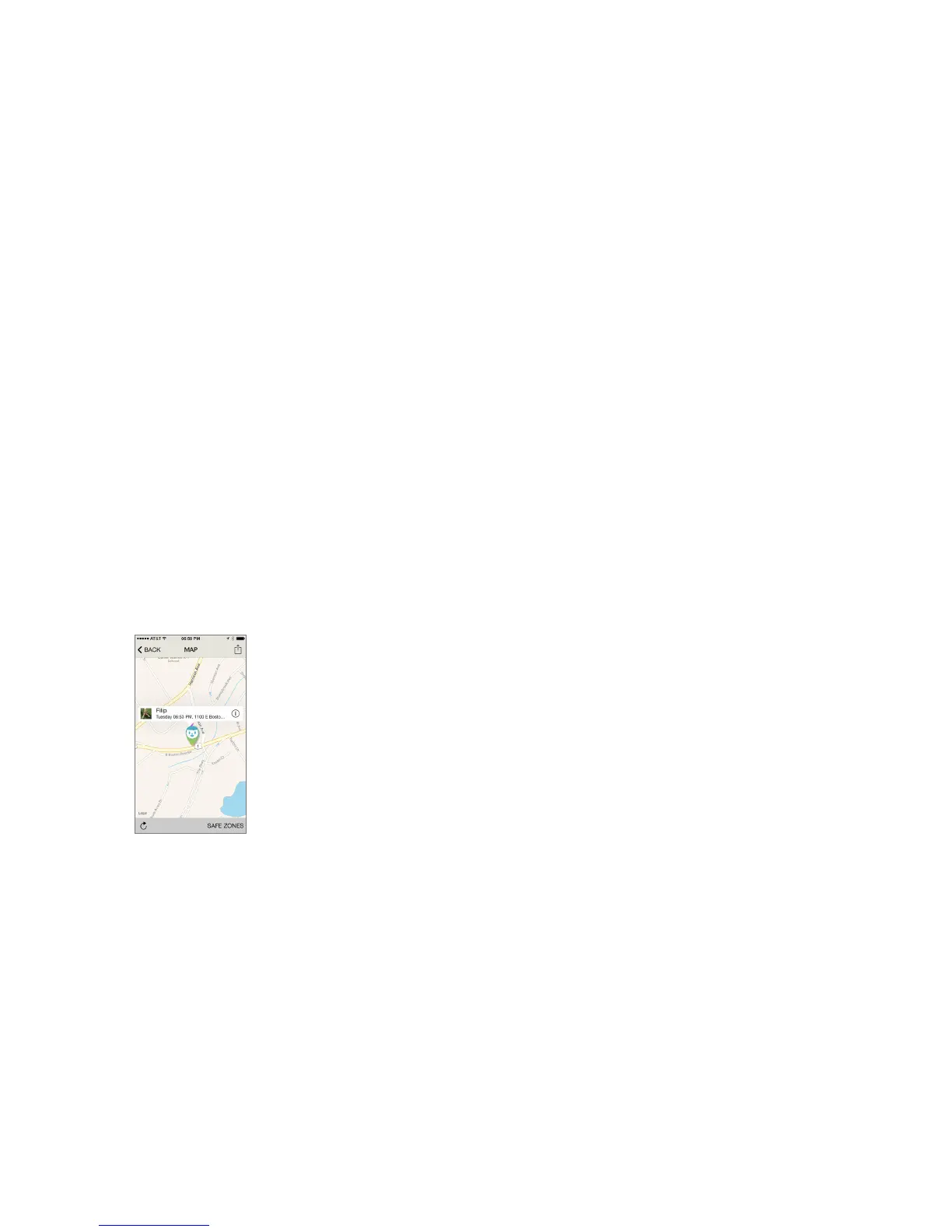
Locate (map view) screen
There are five basic options from the Locate screen:
• View the map to locate your child. The time detailed indicates the last time a map
refresh update was completed.
• Request an immediate map refresh update by pressing the arrow at the bottom
left hand side of the screen.
• View your SafeZones by pressing the SafeZones button at the bottom right.
• Send location data to another mobile phone by using the button in the top-right
corner
• Tap Back to return to the main screen
If you have more than one FiLIP watch registered, select the watch you wish to track
when you tap Locate. You won’t be able to view your SafeZones if you are viewing
two or more watches together.
Real-time location update
For a ‘live’ location update, tap Locate on the main screen. If you have more than
one FiLIP, select the watch you’d like to locate. An on-screen icon will show the last
reported location of the watch, together with the most recent time of this update.
Now tap the Refresh arrow at the bottom-left corner of the screen. You’ll see a mes-
sage that tells you a new location is being obtained. Tap OK to confirm this.
Within approximately 60 seconds, you´ll receive a confirmation message that the
FiLIP location has been refreshed
Automatic location updates
You can decide how often your FiLIP watch refreshes its location. The standard
setting is every 30 minutes. Updating the map more frequently will use the battery
power more quickly.
Remember that you can always request a real-time location update regardless of
the automatic settings. In addition, as soon as Emergency mode is initiated, an
immediate location update will be requested.
To change the automatic update settings, start from the main screen and swipe
your finger across to the right. Choose your FiLIP watch, then select Watch Settings.
This option lets you change the frequency of automatic updates. Tap SAVE in order
to save the settings.



 To Next Page