USING THE FiLIP SMARTPHONE APP
Main screen
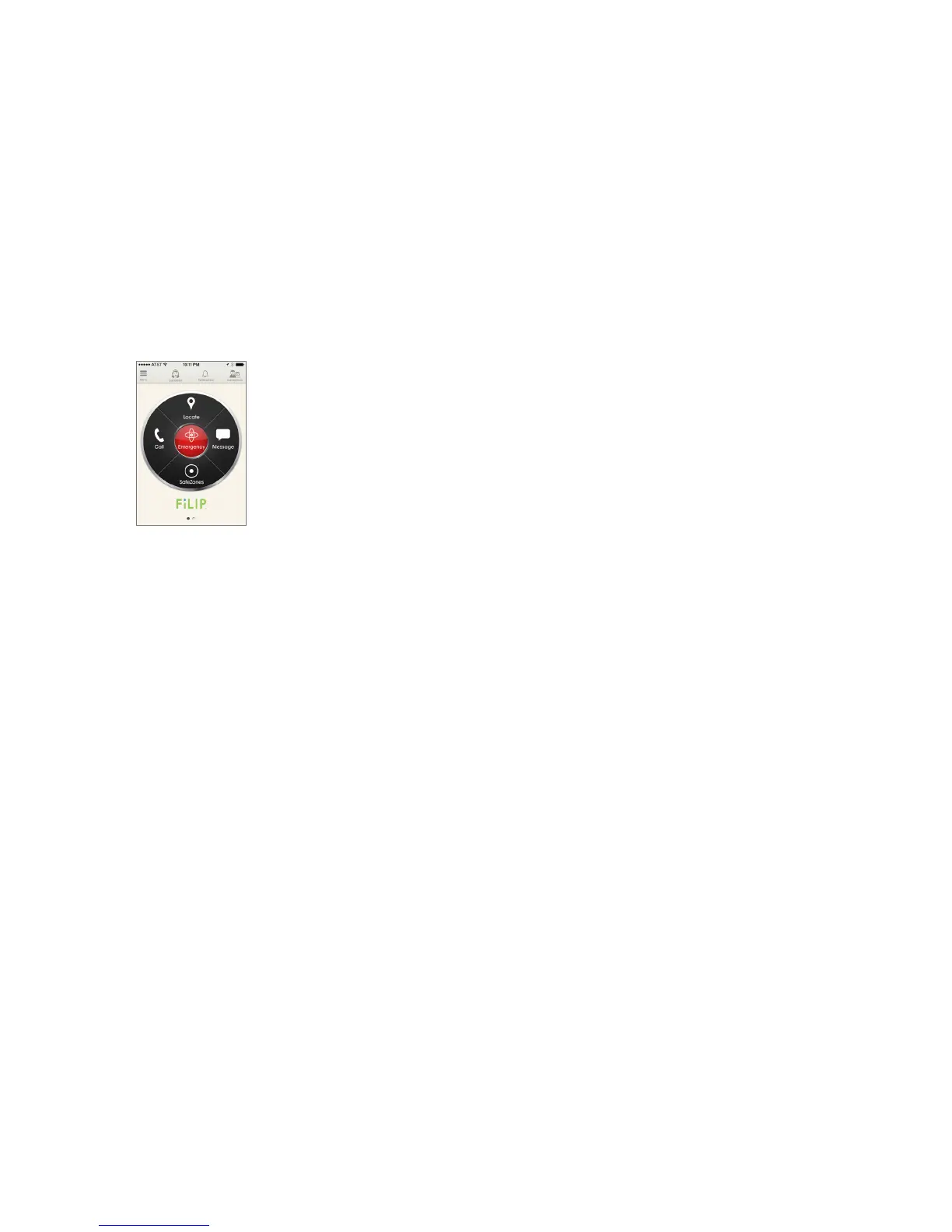
Tap the FiLIP icon to open the smartphone app. Log in you’ll see a central ‘wheel’
with five options:
• Locate: view the location of your FiLIP on a map
• Call: make a voice call to your FiLIP
• SafeZones: Set or delete SafeZones for your FiLIP
• Message: send an SMS text message to your FiLIP
• Emergency: activate Emergency mode on your FiLIP
There are two other screens that can be accessed from this ‘Home’ screen:
Right-hand dashboard
Swiping a finger across the screen from the right-hand side to the left reveals a
‘dashboard’ that includes a summary of all your activated FiLIP’s.
Options include:
• Call: make a voice call to your child
• SMS: send a text message to your child
• Locate: view the location of FiLIP on a map
Left-hand settings screen
Swiping a finger across the screen from the left-hand side to the right reveals opti-
ons to change the settings for your FiLIP. You can also connect a new FiLIP from this
screen and get an overview of details and settings.
Selecting ‘account’ at the top of the screen takes you to the user profile screen,
which lets you edit your own account information. Remember to tap Save when
you’ve finished.
Send ID & location lets you send personal details about your child and their current
location to anyone via email or SMS text message.
Push Notifications for SafeZones, Low Battery and Lost Connection default to on.
You can amend these settings in this screen. You can amend these settings in this
screen, in the app settings menu.



 To Next Page