USING THE FiLIP SMARTPHONE APP
SafeZones
FiLIP lets parents define up to five ‘SafeZones’. If push notifications are set to ‘ON’ a
message will be received if your child enters or leaves the designated SafeZone.
Choosing the SafeZones button on the main screen allows you to view and edit all
the SafeZones that have been set up for your FiLIP.
Creating a SafeZone
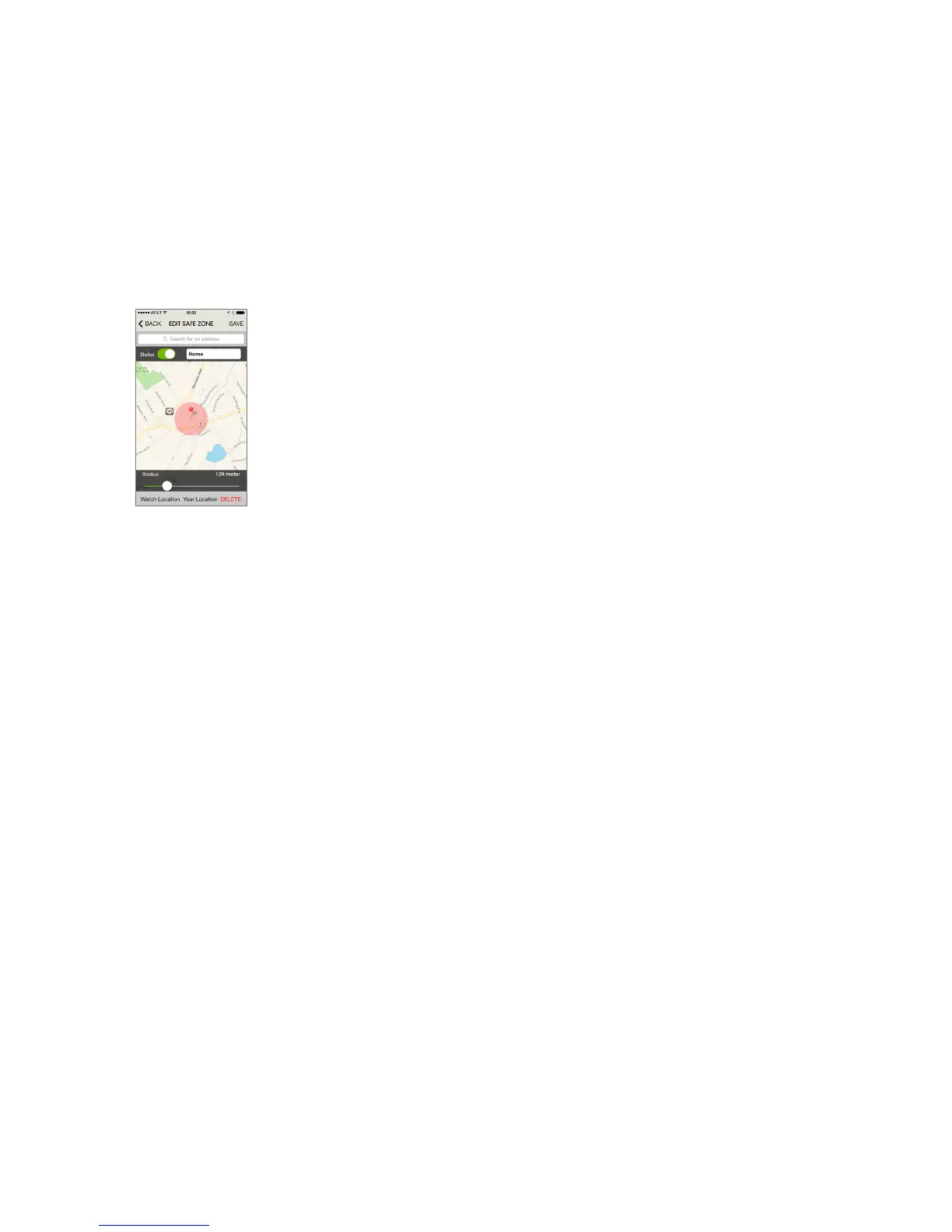
Add a SafeZone: There are three ways to add a SafeZone. Once you have chosen
the SafeZone, remember to name it.
1. Enter the chosen address in the address field at the top of the screen.
2. Use the current location of the FiLIP watch by choosing ‘Watch Location’ at the
bottom right hand side of the screen.
3. Use your current location by choosing ‘Your Location’ at the bottom middle of the
screen.
Once the SafeZone has been set, you can alter the size of the zone by using an
on-screen slider. Tap SAVE at the top right hand corner of the screen.
Editing or deleting a SafeZone
Tapping the arrow next to an active zone will display the zone on a map.
To edit the location, enter a new address, move the FiLIP icon or tap a new area on
the map. When you’ve chosen a new area, tap Save.
To delete a Safe Zone, select the zone you want to remove and then tap Delete.



 To Next Page