Main Menu Interface
001-XXX
IP add setting
main menu
Feature setting
Speed setting
Channel setting
5.2 Control panel Operation introduction
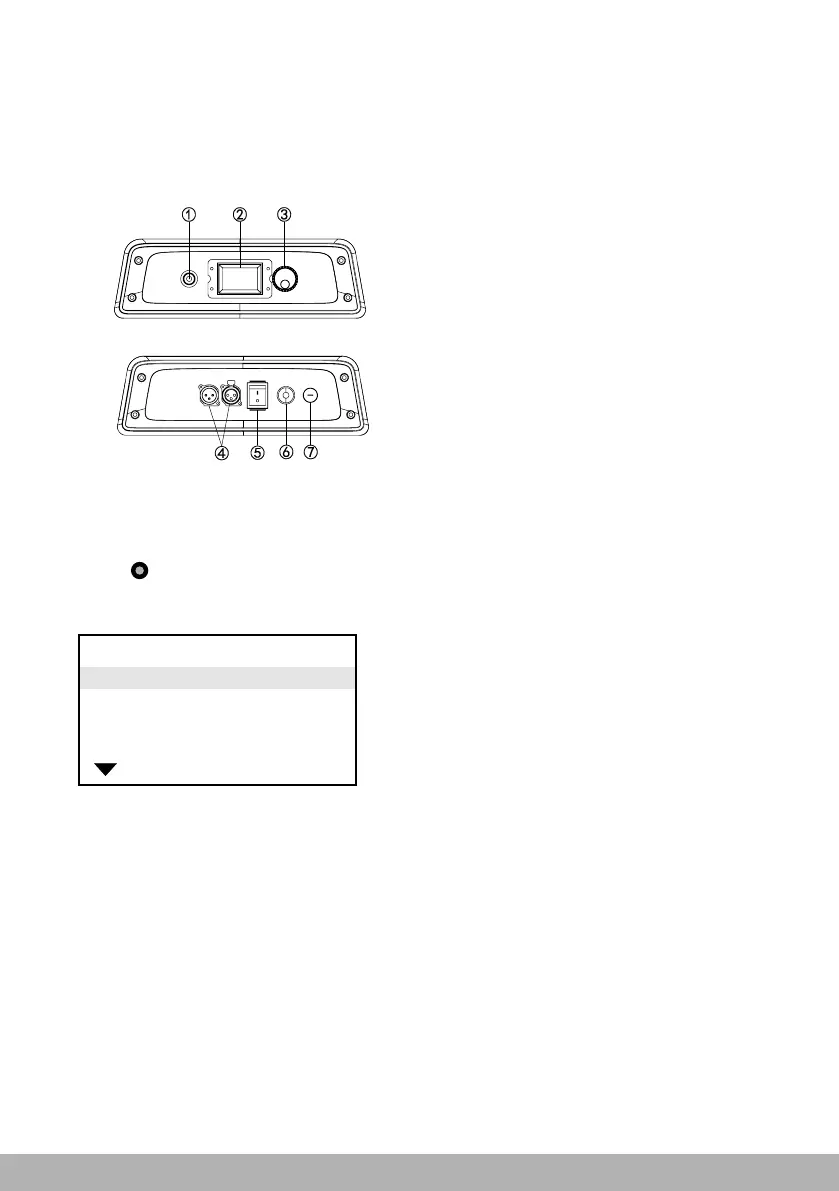
5/The control panel
5.1 Control panel introduction
1.Exit button
2.LCD display
3.Function button(Enter)
4.DMX interface
5.Mains switch
6.Power in
7.Fuse
Figure(5.1-1)
-1 0 -
3. Jog wheel:
Press down the jog wheel: enter an item/save the present value. Holds for a few
more second, it will return to upper menu.
Clockwise rotate: scroll down the page/increase the parameter value.
Counter clockwise rotate: scroll up the page/decrease the parameter value.
Display inverse function: with connection to the supply, press down the “Exit
button” and “Jog Wheel” almost at the same time, the screen display will invert by
180°.
Press the jog wheel for 2s: return to previous menu.
Long Press the jog wheel: return to the main menu.
If there no operation in 2minutes in the menu, which means to return to the original
menu.
4. LED signal indication
DMX512 signal input: The LED light is on and the dot appears on the right side of
the address code.
Fig.5.2-1
Note: Indicate the selected menu items in the menu
interface. If you are sure to enter this menu, please
press the runner to confirm. That is to say, enter the
next menu and continue editing. If this menu option
is not set in the entry address, the menu can be
paged by rotating the runner.
1. Mains switch: It’s power off when turning the mains switch to “O”. And it's power
on when turning the mains switch to “I”.
2. Press button to trigger the built-in battery(note:optional) for startup fixture and
enter the main menu interface for menu operation.



 To Next Page